Models & AI · 5 min read · Updated 2026-09-08
How do I choose a model for the first time?
Start with a platform model. If you already have another provider’s subscription or API key, you can connect it to use your own quota.
When you first use TabTin, you can start with its platform models: you do not need to buy another provider’s subscription or enter an API key. Choose a model and start working with XiaoTin.
If you already have another provider’s model subscription or API key, you can connect it to use your own quota.
1. Start with a platform model
Open the model list
- On the left side of TabTin, click “New task”.
- Find the following below the task input box: model name, and click it. This shows the current model’s name, so it may not say “Select model.”
- In the list that opens, find the group labeled “Platform models” and choose an available model. If there are many models, scroll through the list or use “Search models” at the top.
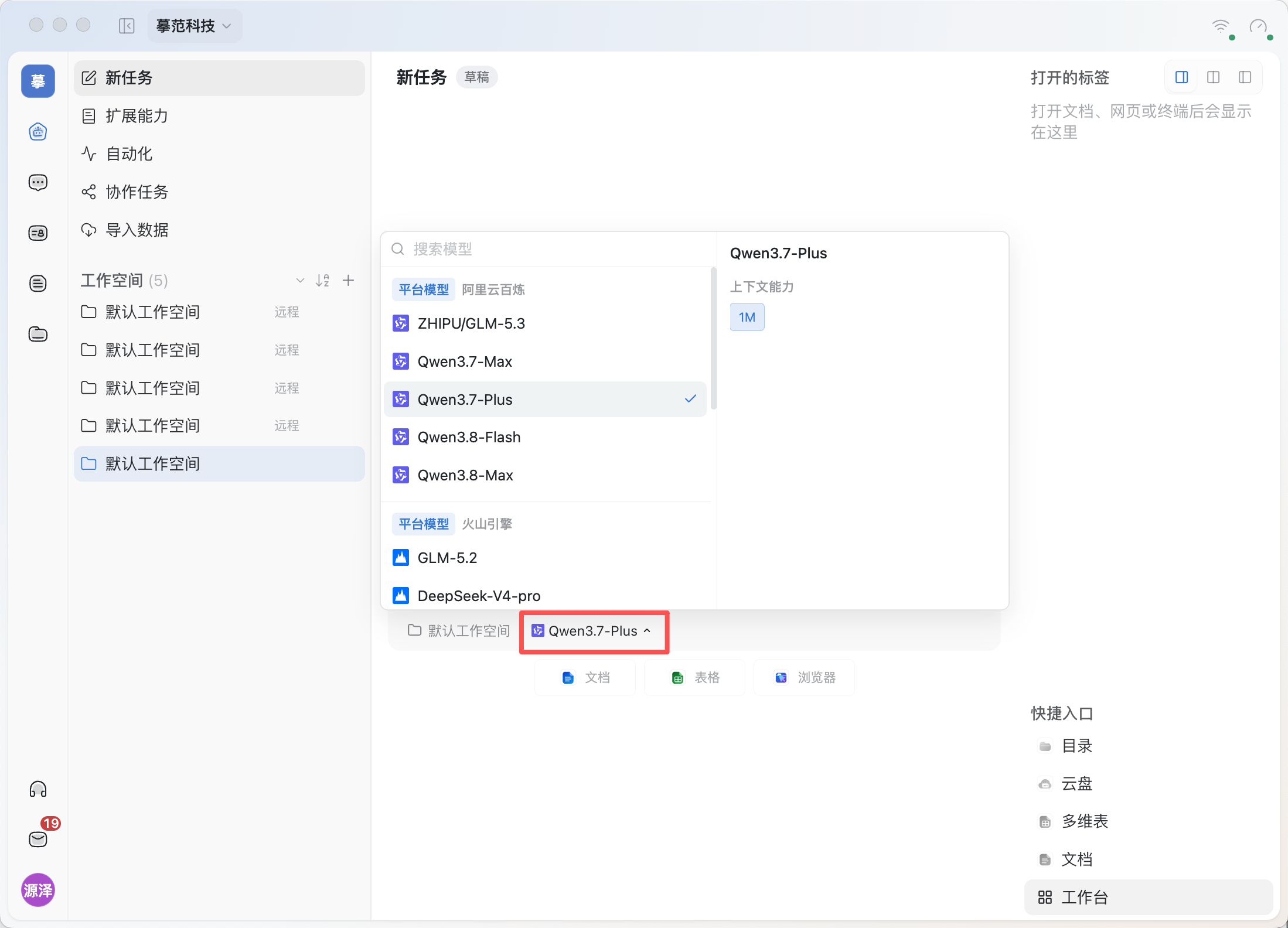
TabTin provides access to platform models, so you do not need to enter a key. Names such as Alibaba Cloud Bailian and Volcano Engine under “Platform models” identify service providers; you do not need to register or configure an account with them.
Direct access does not mean it is free forever. Platform models use the available platform quota or organization credits. Refer to your current organization’s subscription and billing details and the client’s notices for quota, charges, and plan limits.
Confirm your selection, then start a task
After you select a model, its name appears below the input box. Check that the name has changed, then enter your task requirements.
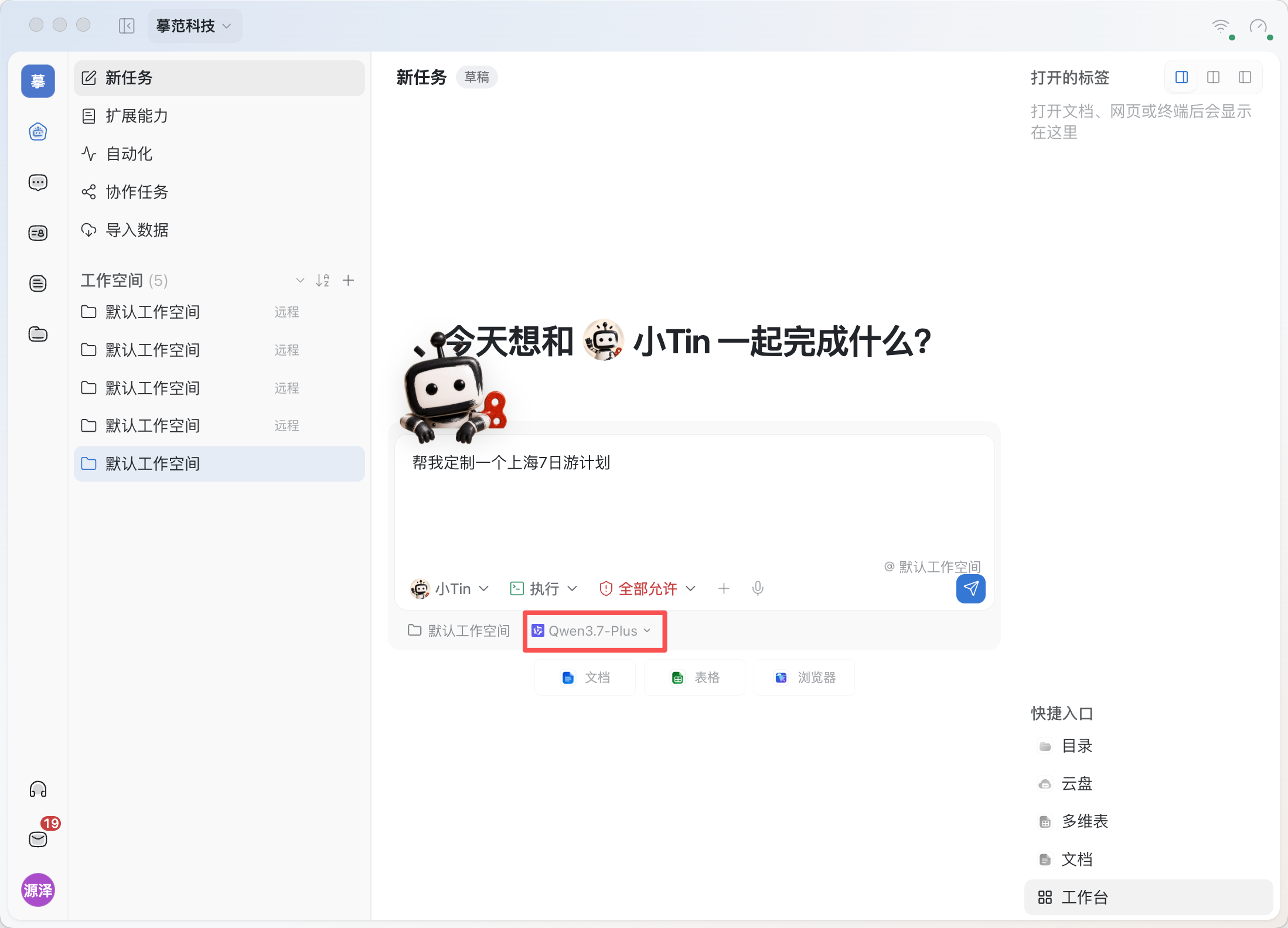
The pictured model only illustrates where to click; you do not have to choose the same one. The workspace, permissions, and work mode in the screenshots are also the demo environment’s current settings, not prerequisites for choosing a model.
Try a simple request first, for example:
Please turn this text into three key points: Today’s meeting confirmed that the first draft is due Friday. Wang is responsible for the design, and Li still needs to provide the missing data.
To have XiaoTin read files, work with spreadsheets, or save results, you must also select the appropriate work mode and allow the relevant operations. Continue with Ask, Run, Plan, or PMO: which mode should I use?.
2. With so many models, what should I look at first?
Start with an available platform model, complete a small task, and adjust based on the result. You do not need to understand every model parameter first.
Check two things first:
- Is this the source you want to use? To use models provided by TabTin, choose from “Platform models.” Groups such as “Organization BYOK” use connected external model services. Model names such as Kimi or MiniMax alone do not tell you which quota will be used.
- Does it have the capabilities your task needs? The current client labels some models “Chat only” and indicates that they do not support tool calls. If you want XiaoTin to search or use spreadsheet tools, choose a model that supports those tools.
For a closer comparison, see How do models differ, and which tasks suit each one?.
3. Connect an existing subscription or API key
This is optional. If you do not have your own subscription or key, you can still follow the steps above to use platform models.
If you have a supported Coding subscription or a pay-as-you-go API account, you can connect it to TabTin. After connecting and selecting that channel, conversations use that provider’s subscription quota or API balance.
Coding subscription keys and pay-as-you-go API keys are usually not interchangeable. A regular chat subscription may not include API or Coding access. ChatGPT Codex uses account sign-in authorization. See its detailed guide for connection requirements and steps.
👉 Connection guides for Kimi, Volcengine Ark, MiniMax, ChatGPT Codex, and more
After connecting, return to the task’s model list and choose your connected model. Connecting alone does not switch the current task to it. The connection guide also explains how these conversations relate to organization credits and how other capabilities are charged.
4. What if something goes wrong?
Does the model name differ from the screenshot?
That is normal: the model list changes and depends on your organization’s configuration. Choose by the “Platform models” group and capability notes; you do not need the exact model shown.
Do you see insufficient quota or model unavailable?
First check whether you selected a platform model or your own channel. For platform models, check your organization’s available quota and billing, and contact its administrator if needed. For your own channel, check the provider’s subscription, balance, or authorization status. See Why does the Agent say “No quota” or “Rate limited” when I already have a subscription?.
Can it chat but not work with files or spreadsheets?
First check for the “Chat only” label, then check the current work mode, permissions, and workspace. Choosing a model is only a preparation step; completing a task also depends on these settings.
These screenshots are from the TabTin Mac client. We verified opening the model list, identifying platform models, and seeing the selected model’s name. The sample task is for readers to try; this guide does not test every model’s task performance.