Workbench · 6 min read · Updated 2026-09-08
How to use the terminal: run commands and inspect results
A terminal is where you enter commands on a computer and view their output.
Feature overview
A terminal is where you enter commands on a computer and view their output. TabTin includes one in the workbench for checking files, running scripts, reading logs, and inspecting AI command output.
This guide demonstrates checking whether reimbursement materials are complete. Filenames and results are fictional. Commands target common Mac terminals; replace paths and filenames with your own.
How to use it
First open the workbench
Open TabTin and go to the left-side Task page and click New task. In “Shortcuts” at the bottom right of New task, click Workbench to open the application entry list.
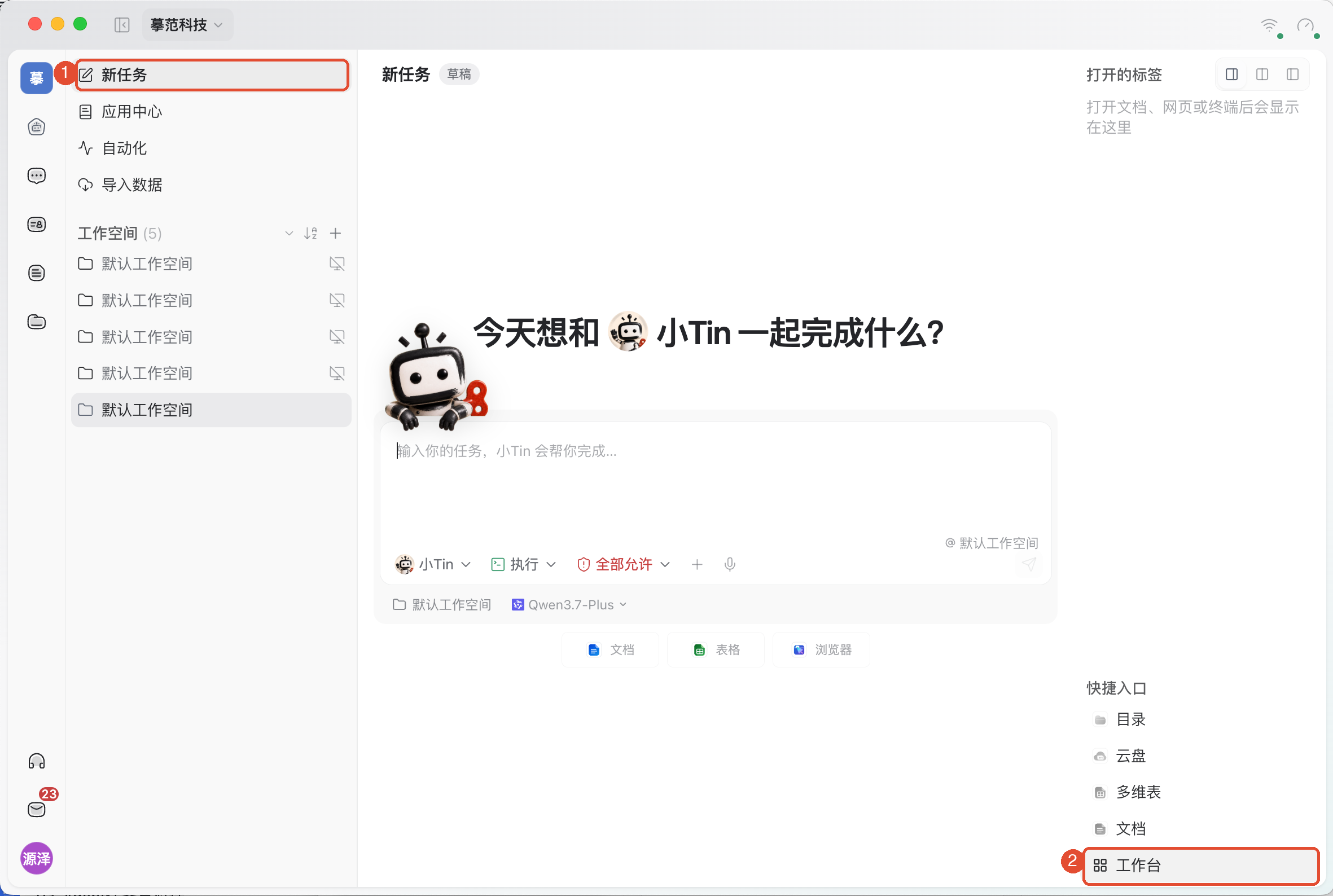
Once there, open the application using the steps below. If the top Workbench tab is already visible, click it to return to the application list.
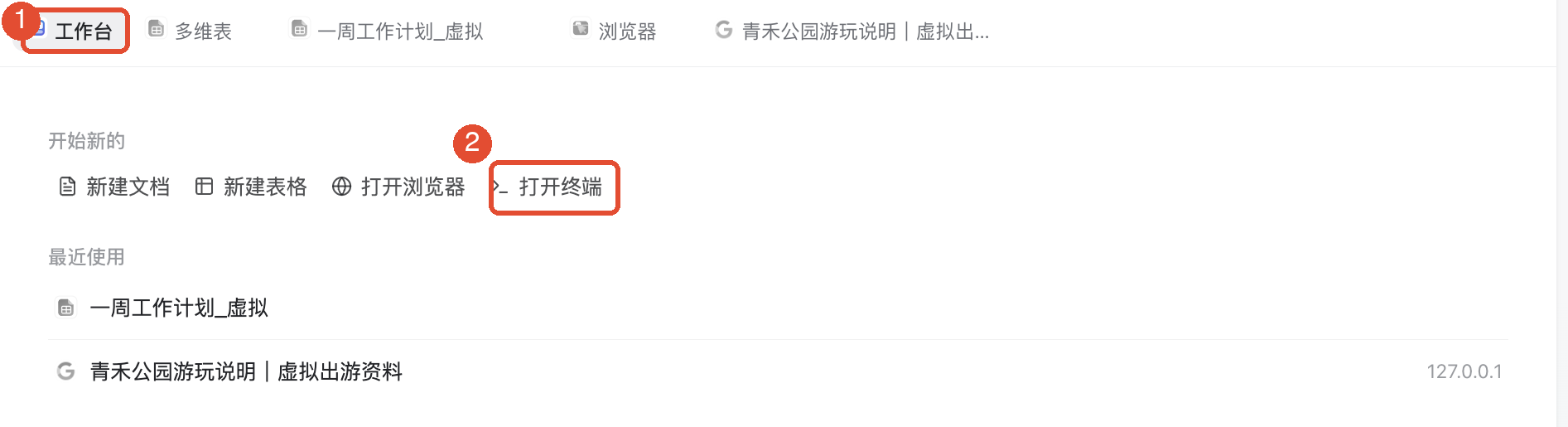
1. Open the terminal
- Open the task’s Workbench and click Open terminal; or choose Terminal under All apps.
- Wait for a line of text and a cursor where you can type. This line is usually called the prompt.
- Click the terminal area, type a command, and press Enter to execute it.
If the execution device is offline, wake it or switch to an available workspace. For a blank window, missing directory, or denied access, resolve the prompt before typing more.
2. Confirm the folder you are working in
Enter this command and press Enter:
pwd
The output is the current folder’s full path. The terminal usually starts in the workspace directory, which may not be the folder you want to inspect.
To change locations, enter cd, a space, and the target folder path. Get the path from Copy path in Local directory. Enclose paths containing spaces in straight double quotes. This is a format example; replace the quoted path before running:
cd "/your/actual/path/reimbursement-materials"
Run the following again: pwd to confirm the target directory. If it is wrong, correct it before running later commands.

3. List files and check completeness
Enter this command to list files and subfolders in the current directory:
ls
For example, reimbursement requires “报销说明.txt”, “费用明细.txt”, and “行程安排.txt”. Check the list against them, or specify all three names at once:
ls "报销说明.txt" "费用明细.txt" "行程安排.txt"
Existing files are listed; missing files appear in errors. For example, “费用明细.txt: No such file or directory” means the file was not found here. Check filenames and paths before adding materials or adjusting the command.
These commands only inspect files; they do not modify content. To run an existing script, first verify its purpose, required environment, and current directory. Check its output afterward, and open any generated files to verify contents.

4. Search, copy, and read output
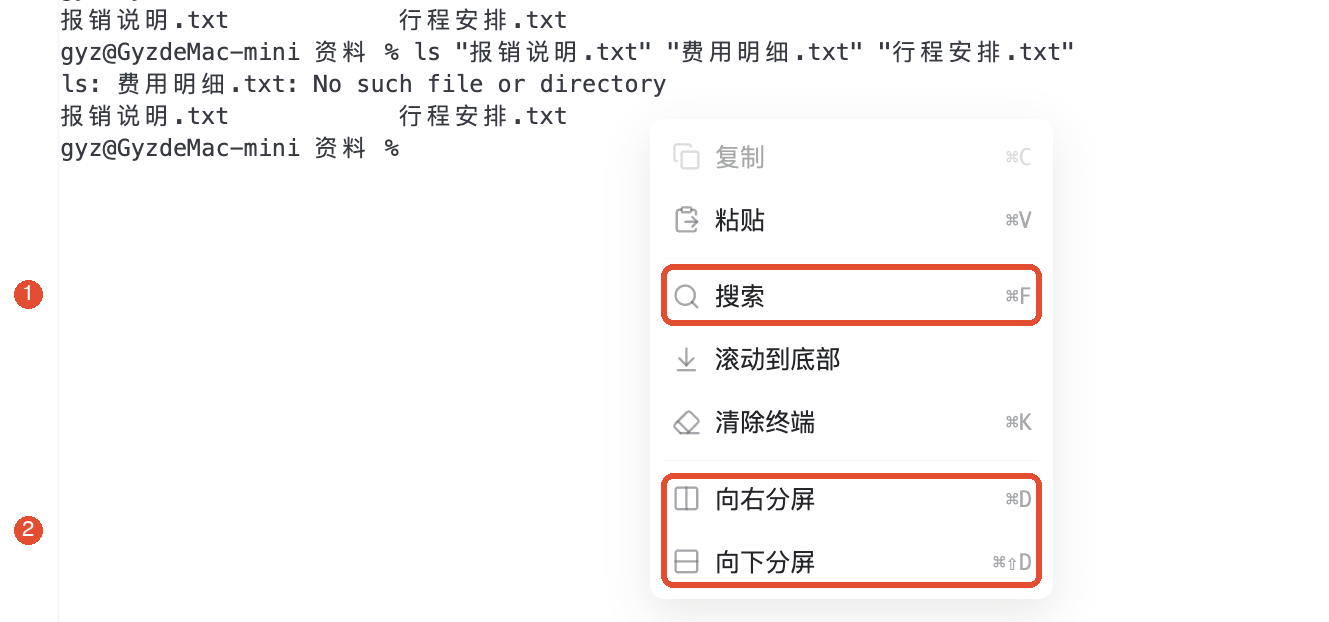
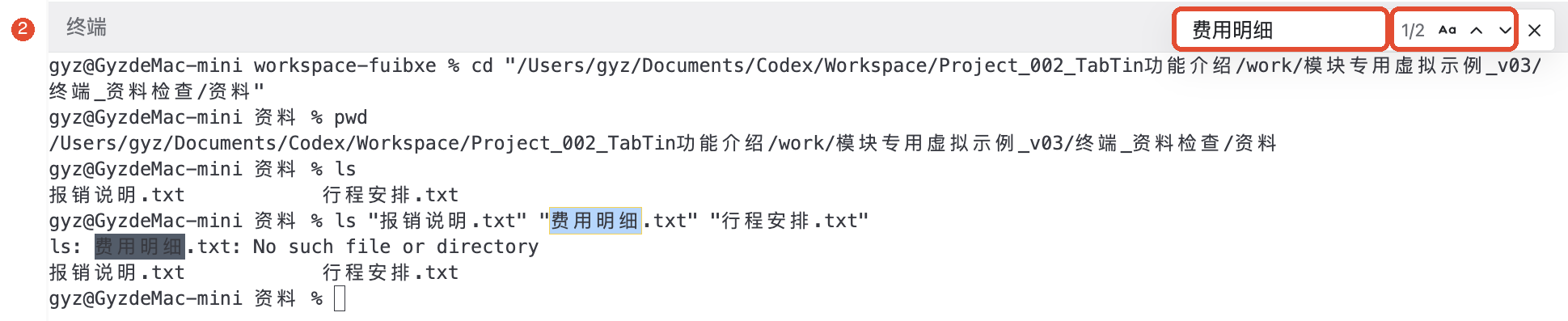
- Right-click the terminal area and choose Search.
- Enter a term, such as “费用明细,” and use Previous and Next to locate output.
- Select text you want to retain, then right-click and choose copy them again.
Search checks only existing output in the current pane, not every file on your computer. After scrolling through old content, right-click and choose Scroll to bottom to return to the latest output. To clear the display, choose Clear terminal.
5. Split the view to compare two sets of results
To keep inspection results visible while running other commands, right-click and choose Split right or Split down. The new pane is an independent terminal; click it before typing.
After opening the new pane, first run pwd. It may not follow directory changes in the other pane, so rerun the following if needed: cd. Drag the divider to resize. The title area also provides Maximize, Close, and other actions.

6. Stop a command or restart
To stop the current foreground command, click its pane and press Ctrl+C. Check whether the program stops and the prompt returns. This uses Ctrl on Mac too, not ⌘.
If a pane shows “Process exited,” use the title area’s Restart action to start a new terminal, then confirm its directory. Before closing a pane, check for tasks that should keep running.
Other common features
Paste commands and file paths
The terminal context menu provides Paste. Check every line before pasting multiline content, since line breaks may execute commands. You can also drag a file into the terminal to insert its path; inserting an address does not upload or run the file.
When pasting an image, the client can save it as a usable file and insert its path. Verify the actual path and file existence before continuing.
Inspect AI command results
When asking AI to use the terminal, specify the directory, goal, and allowed actions. For example: “Check the reimbursement folder for the reimbursement description, expense details, and itinerary. List missing files without modifying anything.”
Terminal cards in the conversation show output and run status. Distinguish Running, Continuing in background, Failed, and Finished. If a long task has no new output, check that same task’s status before starting another copy.
When provided, exit code 0 usually means normal completion; interpret nonzero codes with the error text. Even if the prompt returns, check that the actual work meets the requirements.
Things to keep in mind
- Commands affect the current execution device and directory. Verify the location first, especially for deletion, overwrite, or move commands.
- Clear terminal only clears the display; it does not stop a running program. Switching tabs does not exit it either.
- Each pane runs independently; confirm the selected pane before typing. Each tab has a pane count limit.
- Old output visible after reopening does not prove the old program is still running. Check current status and the prompt.
FAQ
What if a file cannot be found?
Use pwd to confirm the directory and ls to inspect actual filenames. Check spaces, extensions, and paths, correct them, then rerun.
What does command not found mean?
The computer could not find that command. Check spelling, then confirm the required program is installed and the command suits your operating system.
Is the terminal stuck if it produces no output?
Some programs do not produce continuous output; others may wait for input. Judge using run status and the task’s behavior. To stop, press Ctrl+C in the corresponding pane.
What if a keyboard shortcut does nothing?
Click the terminal to focus it first. Search, Copy, and other actions are also available from its context menu.