Apps and Skills · 5 min read · Updated 2026-09-08
Turn a familiar working method into a Skill
Save standard weekly meeting note requirements and reuse them in new tasks.
Feature overview
Do you keep repeating “Put conclusions first, then action items, and do not invent unclear details” for weekly meeting notes? Turn those fixed requirements into a Skill and reuse the method with new records each week.
This guide uses weekly meeting minutes to demonstrate defining rules, generating content through Skill Creator, reviewing and saving it, and validating with new notes. All people and meeting content are fictional.
How to use it
1. Organize the requirements you want to reuse
No code is needed first. Clarify four things:
- When to use it: Turn meeting records into weekly meeting minutes.
- What to provide: Pasted meeting text or a meeting notes file.
- What to produce: Meeting conclusions, an action item table, and open questions.
- How to handle incomplete materials: Mark missing owners and dates as pending confirmation; do not present suggestions as decisions.
Save general rules. Supply each week’s people, progress, and dates with new materials instead of hardcoding them into the skill.
2. Open Skill Creator from a new task
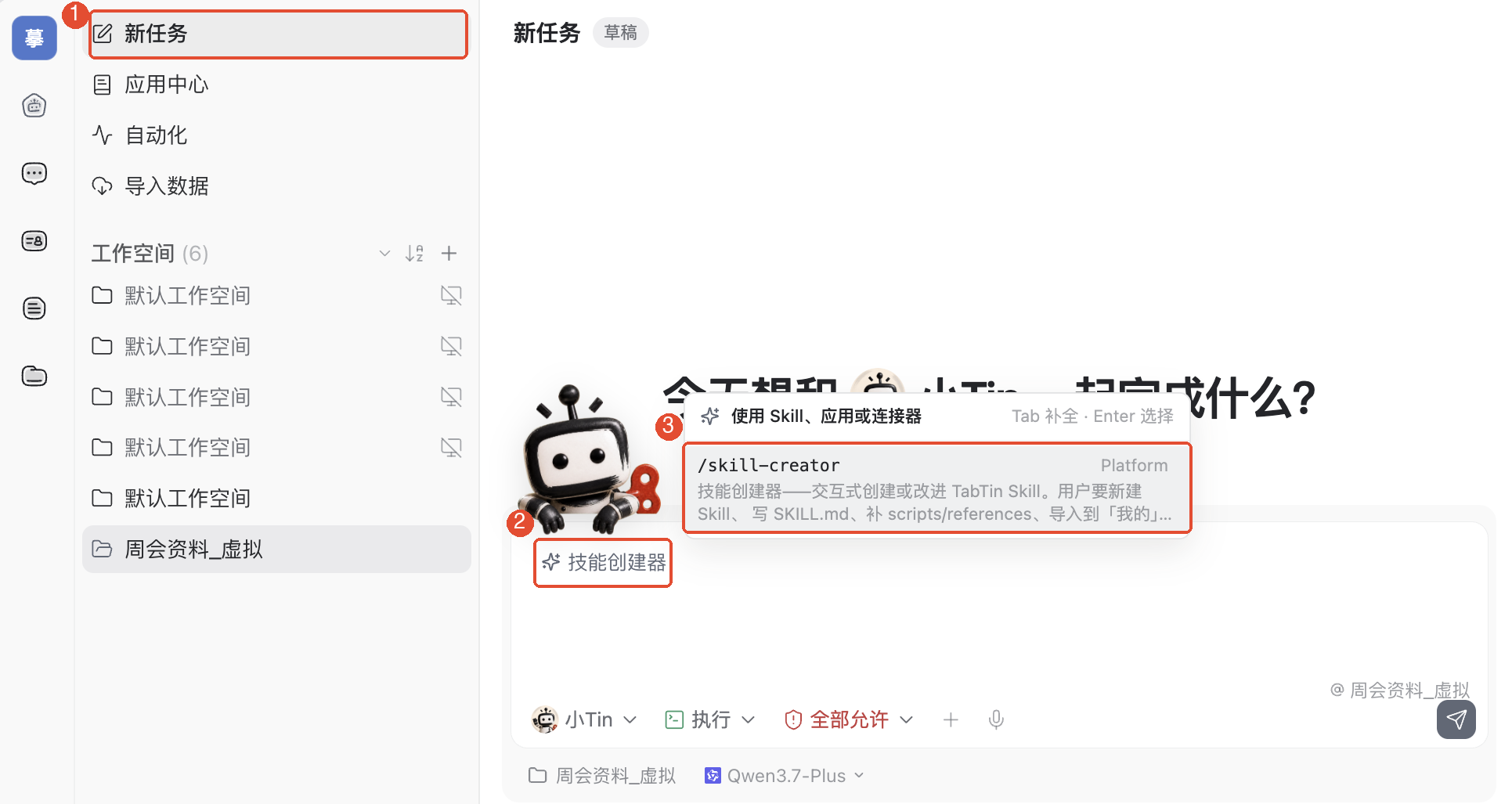
In the main navigation on the left, click Task, choose a locally available workspace, then click New task. In the input box, type /skill-creator and choose from the candidates: Skill Creator.
3. Describe the working method to save
After selecting Skill Creator, add your creation request. You can copy this:
“Create a ‘Weekly meeting minutes’ skill for turning pasted notes into concise minutes. Always output meeting conclusions, an action item table (item / owner / deadline), and open questions. Use ‘Pending confirmation’ for missing names and dates; do not turn discussion suggestions into decisions; merge duplicate action items. First show reviewable skill rules and a fictional test result, then explain how to save it as a reusable skill. Do not share it with the organization yet.”
If the creator asks follow-up questions, answer in the same conversation. For example: “Keep the tone concise. If there are no action items, write ‘No confirmed action items.’ Preserve unclear timing verbatim; do not calculate dates.”
4. Review the generated rules
Check the four requirements from step 1, then the sample result. Do not check only the skill name.
Focus on factual accuracy, distinguishing discussion from decisions, owners and deadlines in the action table, and explicit missing information. If needed, request rule changes, such as “Add this: suggested actions must not become confirmed to-dos; put them under open questions.”
5. Save as a reusable skill
After confirming the rules, tell the creator: “Save the confirmed rules as a reusable Skill. Tell me its location and how to find it in a future task.” Follow the returned save or import instructions.
The creator may return a rule draft first or proceed to skill files. Inspect the actual response and finish saving. Rules in a chat alone do not prove successful saving. Check for an actual skill file or directory and look under App Center → Manage → Skills. If configuring usage scope, select only the personas you intend to use and save.
6. Test with different meeting notes
In a new task, select a persona configured with the skill and type / to find the new skill. Then provide these notes:
“The registration page is complete this week. We decided to open registration Friday, with Lin publishing it. Chen will revise the poster, but the deadline is undecided. Someone suggested a prize draw, but no decision was made. Lin confirmed again that the registration page will launch Friday.”
Ask: “Organize this with the weekly meeting minutes skill.” Check these criteria:
- “Open registration Friday” is a confirmed decision.
- Lin publishing the registration page appears as only one action item, with Friday retained as the deadline.
- Chen’s poster revision deadline is Pending confirmation.
- The prize draw remains an undecided suggestion, not a mandatory action item.
If issues appear, return to the creation conversation, update the skill rules, and retest the same notes. Editing one set of minutes alone does not fix the reusable skill.
Other common features
Extract a method from a good result
If you already have minutes you like, give them to the creator as a format reference: “Extract the sections and processing rules; do not hardcode these names, dates, or project conclusions.”
Keep improving the skill
After using it for a while, provide specific issues and desired results to Skill Creator. For example: “The output is too long. Limit conclusions to three points and keep details in the action table.” Save changes and retest.
Things to keep in mind
- Separate weekly materials from lasting rules. Skills store the method; tasks provide current content.
- Test with fictional or demonstrable materials first; complete real meeting records are unnecessary.
- Without confirmed saving, importing, or configuration, a chat saying “Created” does not guarantee the skill can be invoked next time.
- Saving and sharing are separate. Check sharing scope separately when colleagues need access.
FAQ
Can I create one without coding?
Start by describing rules in natural language and let Skill Creator organize them. Clarify purpose, inputs, outputs, and boundaries first.
What if rules were generated but I cannot find the skill next time?
Recheck saving in the creation conversation, look in App Center’s management page, and confirm usage scope for the current persona.
Why does the test still invent dates?
Check that rules explicitly prohibit inferring dates and provide a missing-date test case. Modify the skill itself and retest.
Will correcting these minutes automatically change future behavior?
Not necessarily. Explicitly ask to update and save the skill rules, then verify in a new task.