Workbench · 6 min read · Updated 2026-09-08
From draft to sharing: write a document with AI
TabTin documents (TabDoc) are for meeting minutes, work plans, and project materials.
TabTin documents (TabDoc) are for meeting minutes, work plans, and project materials. Edit directly or let AI organize content, then continue revising, collaborating, and delivering within the same document.
This guide is for first-time document users. Sign in and switch to the intended organization first; editing requires permission. Open documents from “Cloud documents” on the left or use them in the task workbench.
First open the workbench
Open TabTin and go to the left-side Task page and click New task. In “Shortcuts” at the bottom right of New task, click Workbench to open the application entry list.
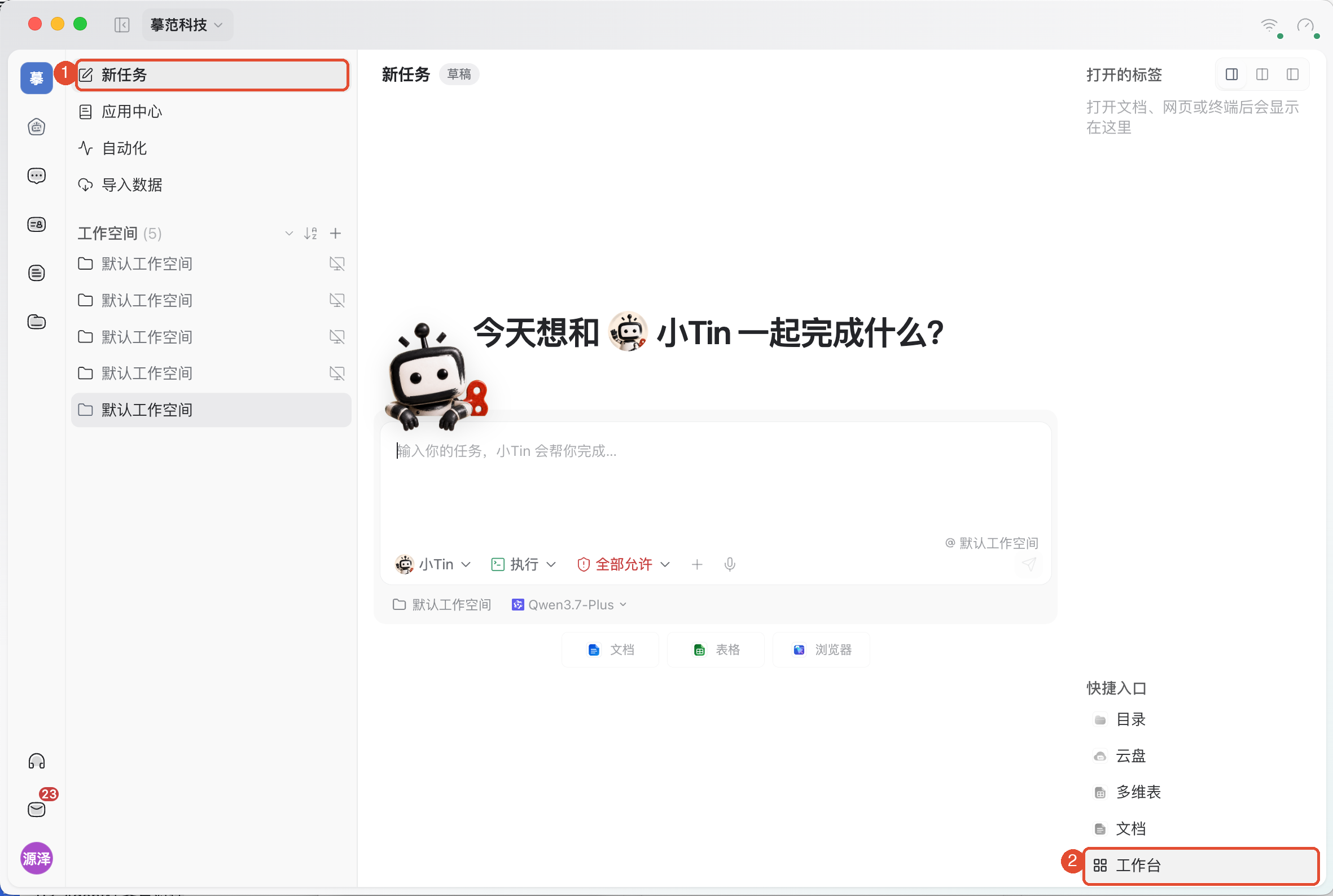
In the workbench, click New document to start editing. If a “Workbench” tab is already visible at the top, click it to return. You can also use the left-side Cloud documents to create or open documents, as described next.
Create a document
Start from a blank page to create material you can keep updating.
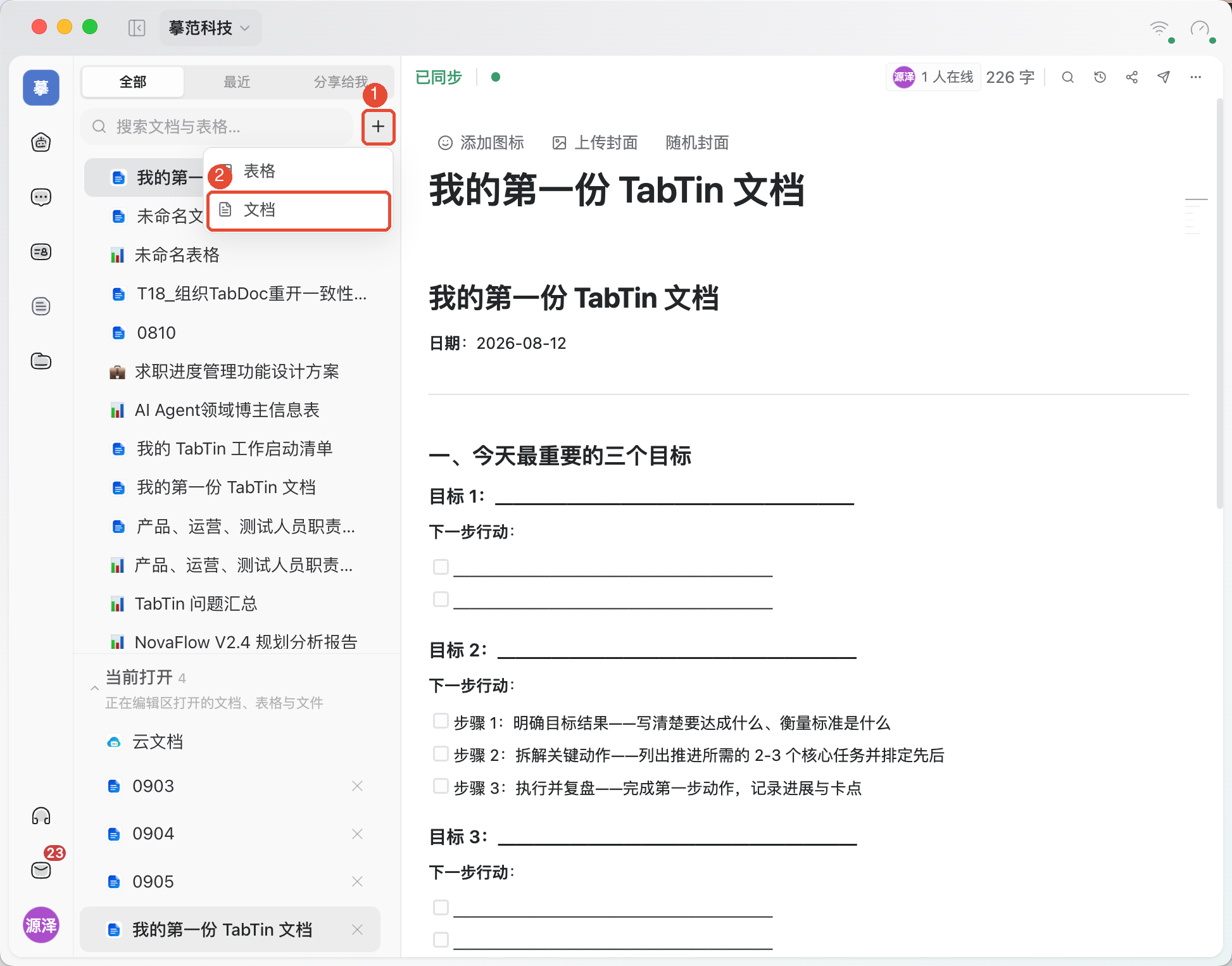
- In the main navigation on the left, click Cloud documents and switch to All.
- To the right of the search box, click +, choose Document.
- Once it opens, enter a title and start editing the body.
To continue existing materials, find them under All, Recent, or Shared with me. “Currently open” in the sidebar switches between open resources; it differs from recent access history.
Edit content
Organize content with headings, lists, and tables so readers can find key points.
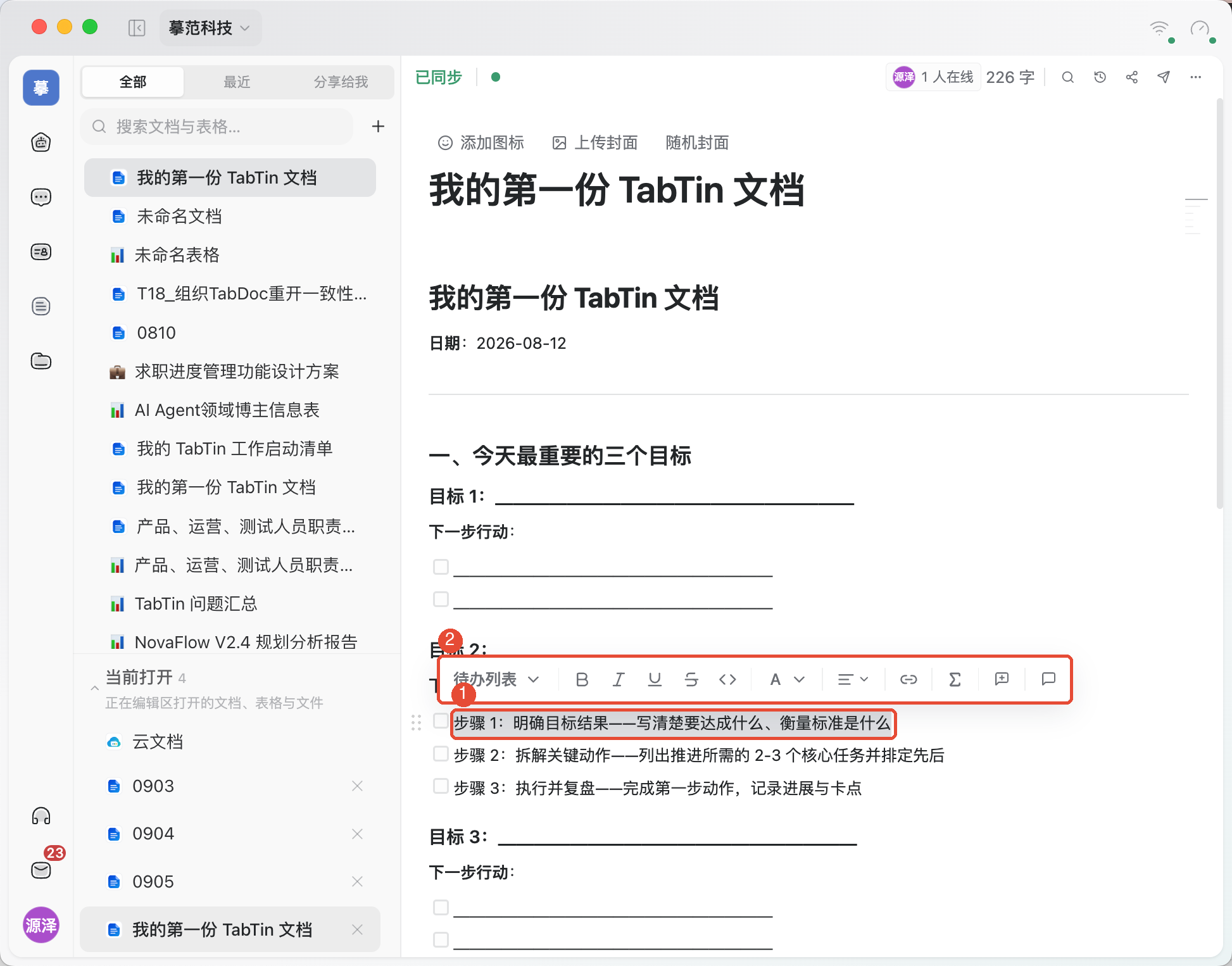
- Format text: Select text and use the floating toolbar for bold, italic, underline, text color, highlight color, links, or paragraph type.
- Insert content: Type “/” in a blank paragraph to choose headings, lists, to-dos, quotes, code blocks, tables, and more. Image and formula availability depends on the current menu.
- Adjust appearance: Use the icon and cover actions above the document. Under More at the top right, choose fonts and toggle Small text or Full width.
- Read quickly: Jump between sections using the outline, or click Find at the top, enter a keyword, and move between previous and next matches.
Watch the save or sync status at the top while editing. Collaborative documents show Connecting, Syncing, Synced, and similar states. Follow interface instructions for errors or disconnections; Syncing is not the same as finished.
Send to AI
Ask AI to organize structure, add content, or edit specific paragraphs. After selecting text, the toolbar’s Send to conversation action brings the content into a task.
Specify which portion to process and the desired result. For example:
Organize these meeting notes into “Confirmed decisions, Action items, Unresolved questions.” Use only the original text; mark unspecified owners and deadlines as “Not specified.”
For direct edits to the original, explicitly name the document, scope, and content to retain. Open it afterward to check. AI records with “View conversation” in version history also let you revisit the related task.
Collaborate and share
Collect feedback through comments and use sharing settings to control viewing and editing.
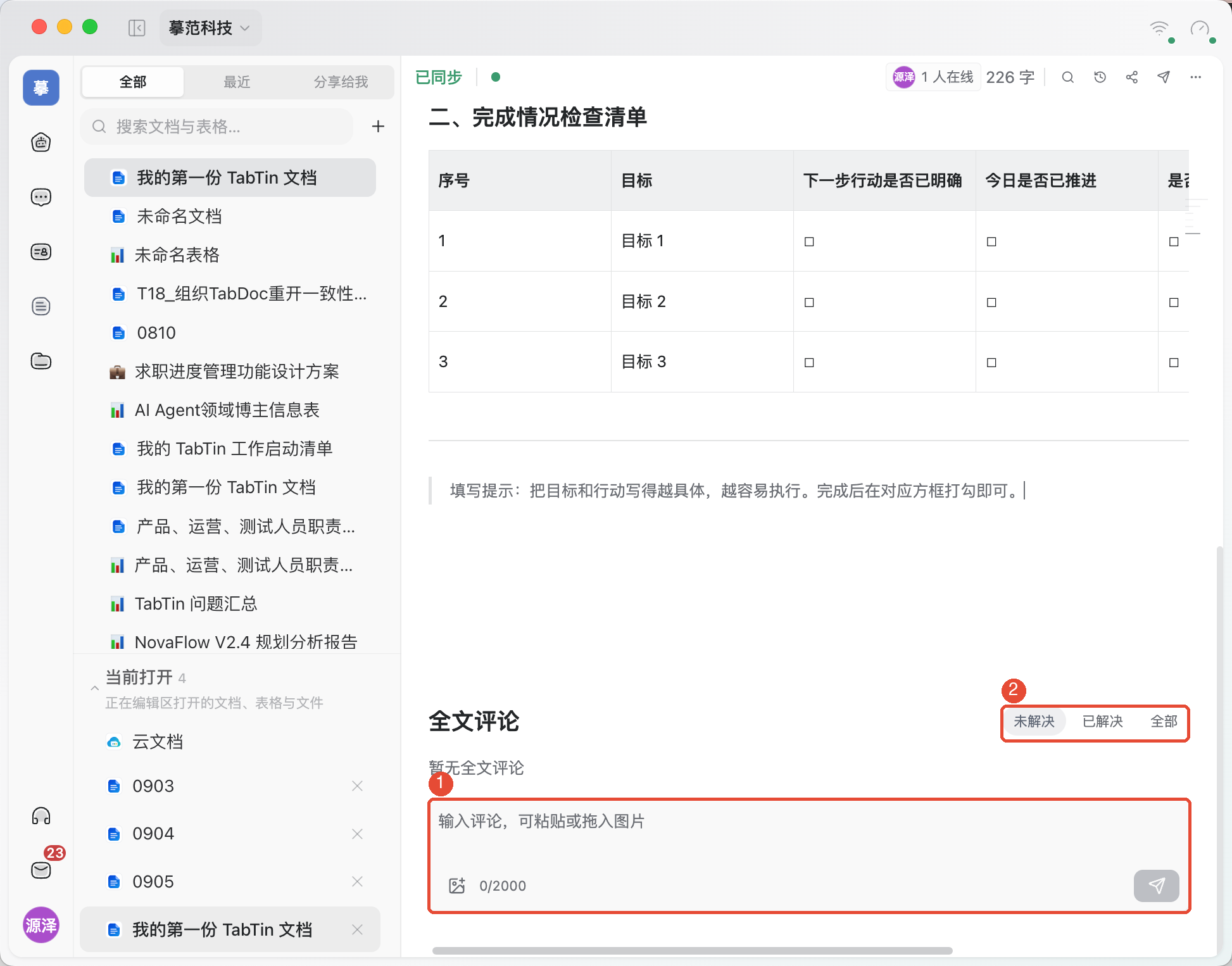
Comment: “Document comments” at the bottom supports text and images, with Unresolved, Resolved, and All filters. The selection toolbar also provides Add comment for discussing the content you are reading.
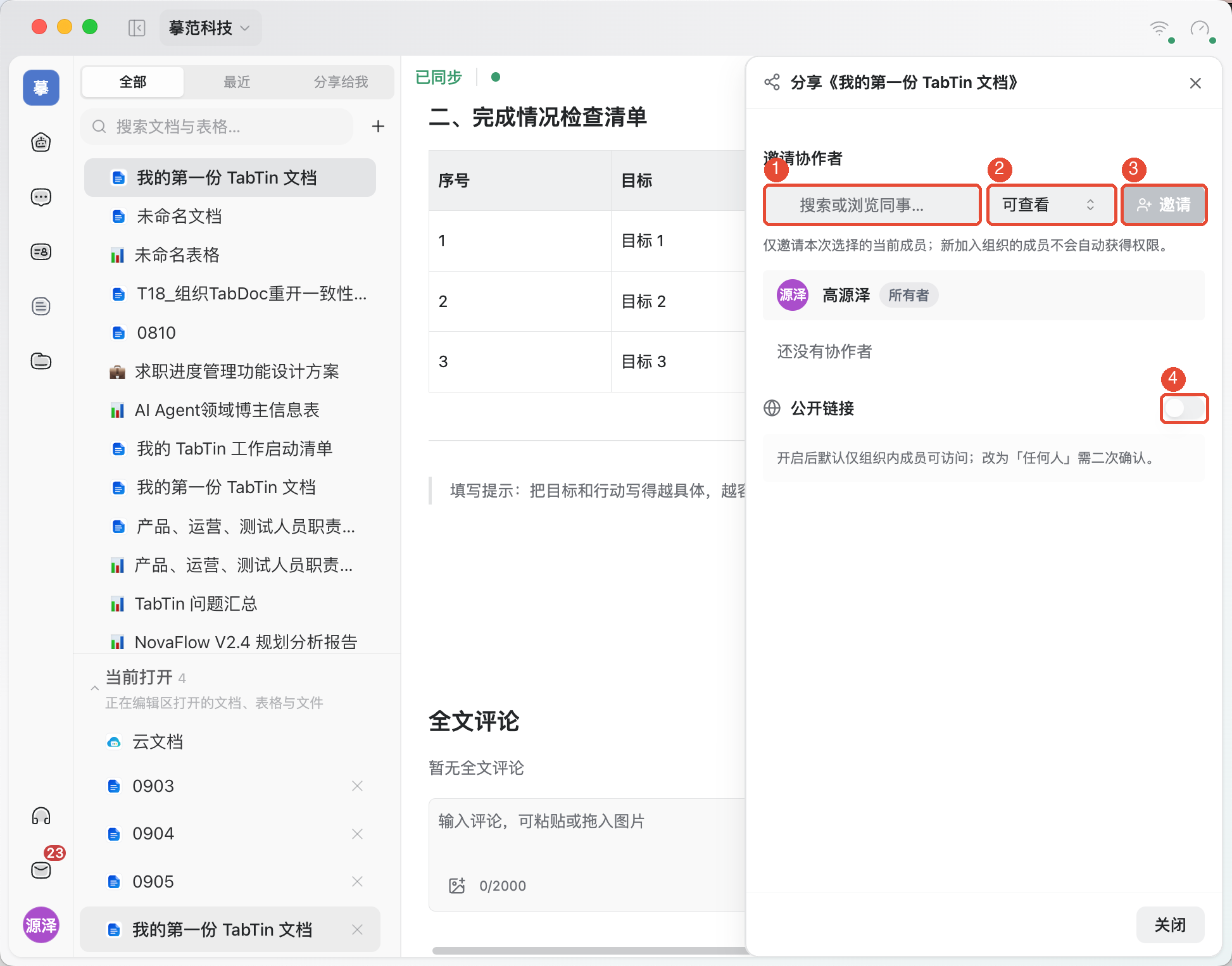
Invite collaborators: At the top right, click Share, select colleagues, and assign Can view, Can edit, or Administrator as needed. Only selected members are invited; people who later join the organization do not automatically receive document access.
Use a link: The sharing panel has a Public link toggle. The current interface says enabling it defaults to organization-only access; expanding to Anyone requires another confirmation. Verify the intended audience before sending the link.
Review versions
To inspect edits or retrieve earlier content, click at the top: Version history.
- Choose a version from the timeline to see its source, time, and preview.
- Check differences first. Some AI records offer View conversation to trace the related task.
- If restoration is necessary, use Restore this version and confirm as prompted. Restoring changes the current document; previewing does not.
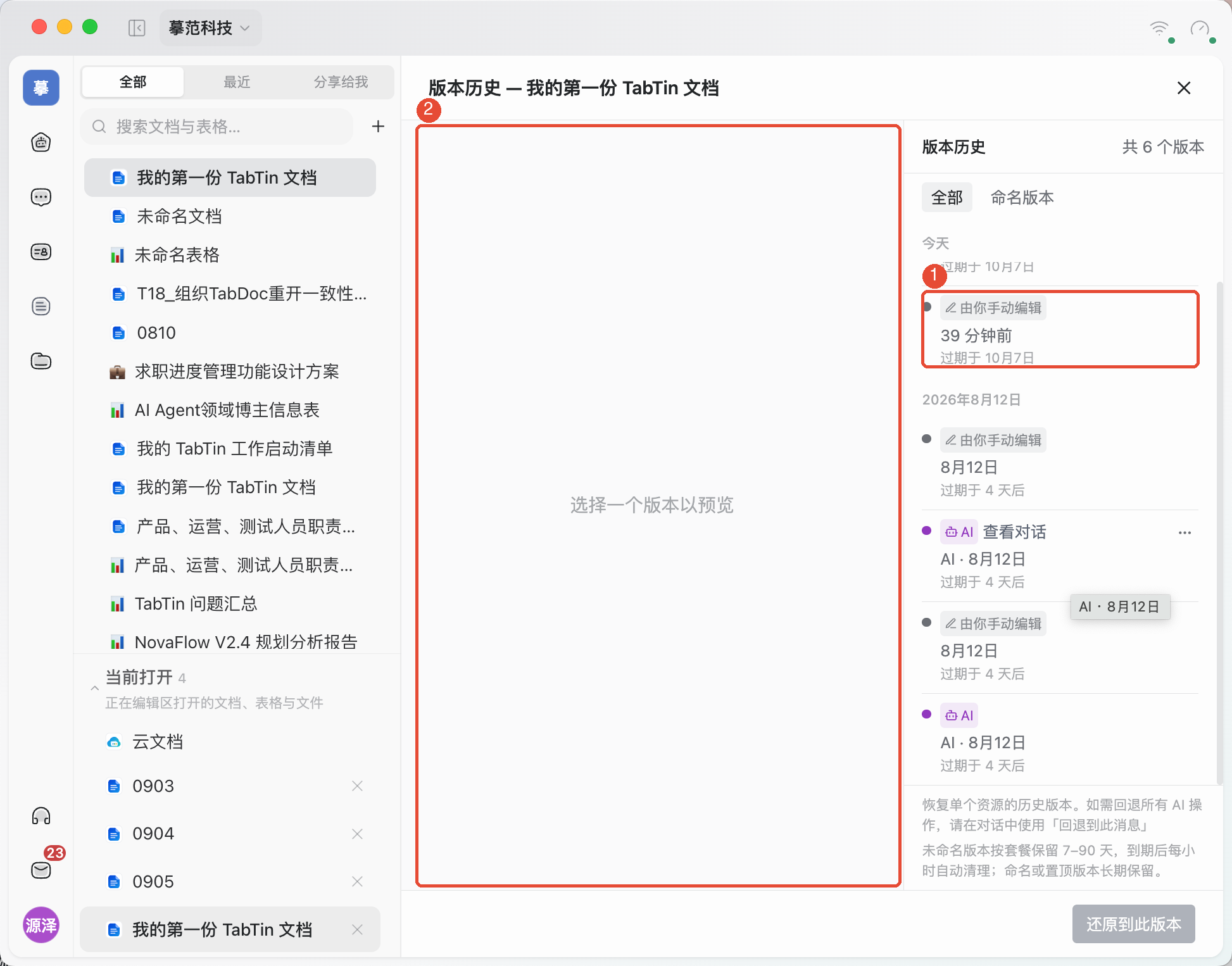
Retention follows the expiry notices in the list. The current interface says named or pinned versions are kept long term. Document restoration affects only that resource. To roll back a round of AI actions, use “Revert to this message” in the relevant conversation.
Export a document
To deliver a file, click at the top right: More → Export, choose a suitable format, and follow the save prompts.
- Word(.docx):Lets recipients continue editing in a word processor.
- PDF(.pdf):Suitable for reading and distribution.
- Markdown, plain text, HTML: Suitable for reusing the body text or moving it into other tools.
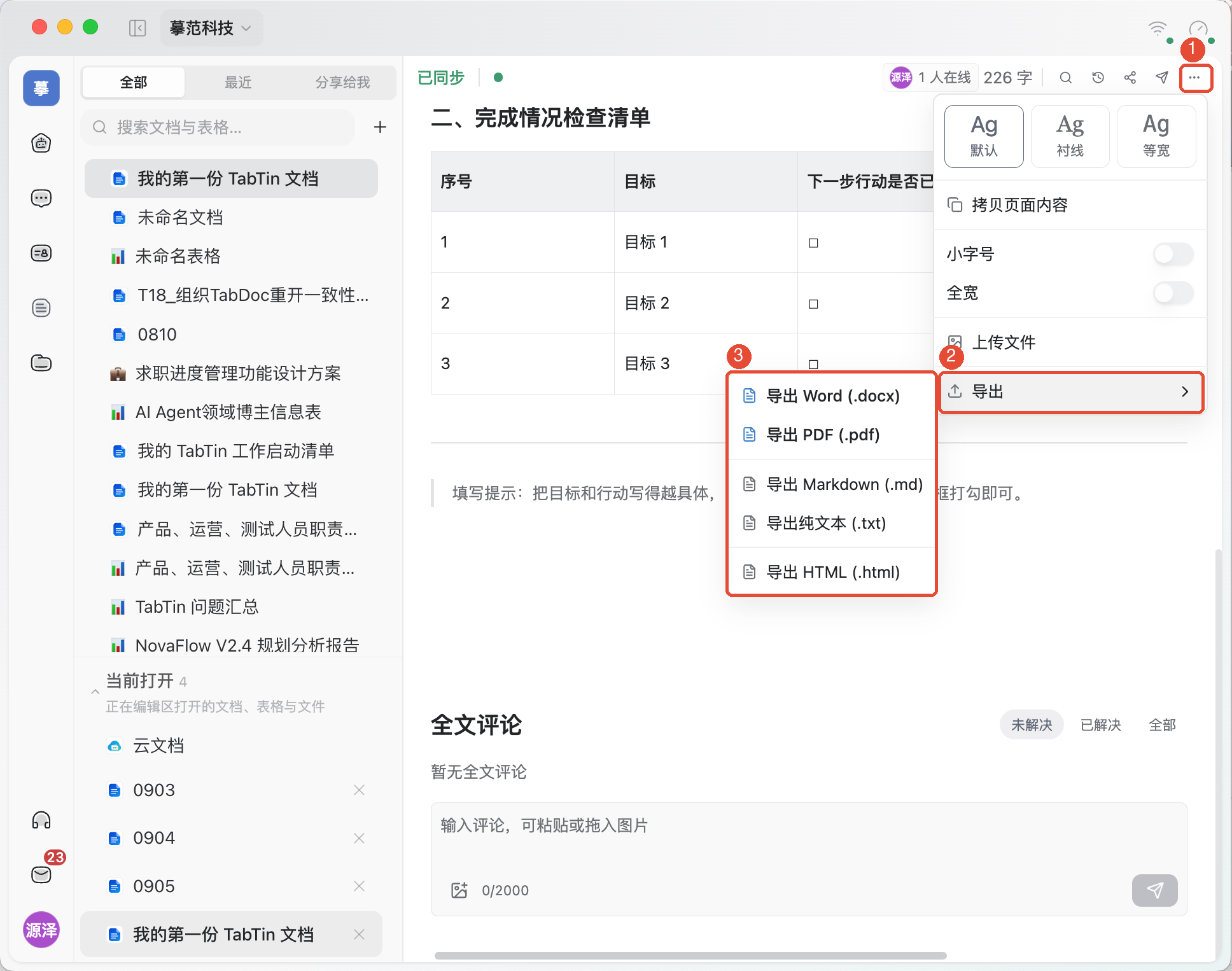
For text only, use “More → Copy page content.” After export, open the file to check images, tables, and layout. Resolve save failures before delivery so the file includes the latest changes.
FAQ
How do Cloud documents and documents in tasks differ?
Cloud documents is the entry point for finding and organizing materials. Documents in the task workbench let you work on content alongside a conversation. Opening the same document resource means working on the same content.
Why can I view but not edit?
Check your current document permissions. Can view does not include editing. Ask the owner or administrator to adjust access if needed.
Will closing a tab delete the document?
Closing a tab only closes the current view. If warned about unsaved content, save or follow the prompt first. You can find the document again in Cloud documents.