Agent & tasks · 5 min read · Updated 2026-09-08
Schedule repetitive work and check its execution anytime
Automations save repetitive work as a schedule for a specified AI persona to execute.
Feature overview
Automations save repetitive work as a schedule for a specified AI persona to execute, such as a daily work summary or weekly to-do roundup. You can also save a manual task and run it when needed.
This guide uses a fictional “Daily work summary.” Before starting, prepare accessible materials and confirm the executing persona and workspace.
How to use it
1. Open Automations
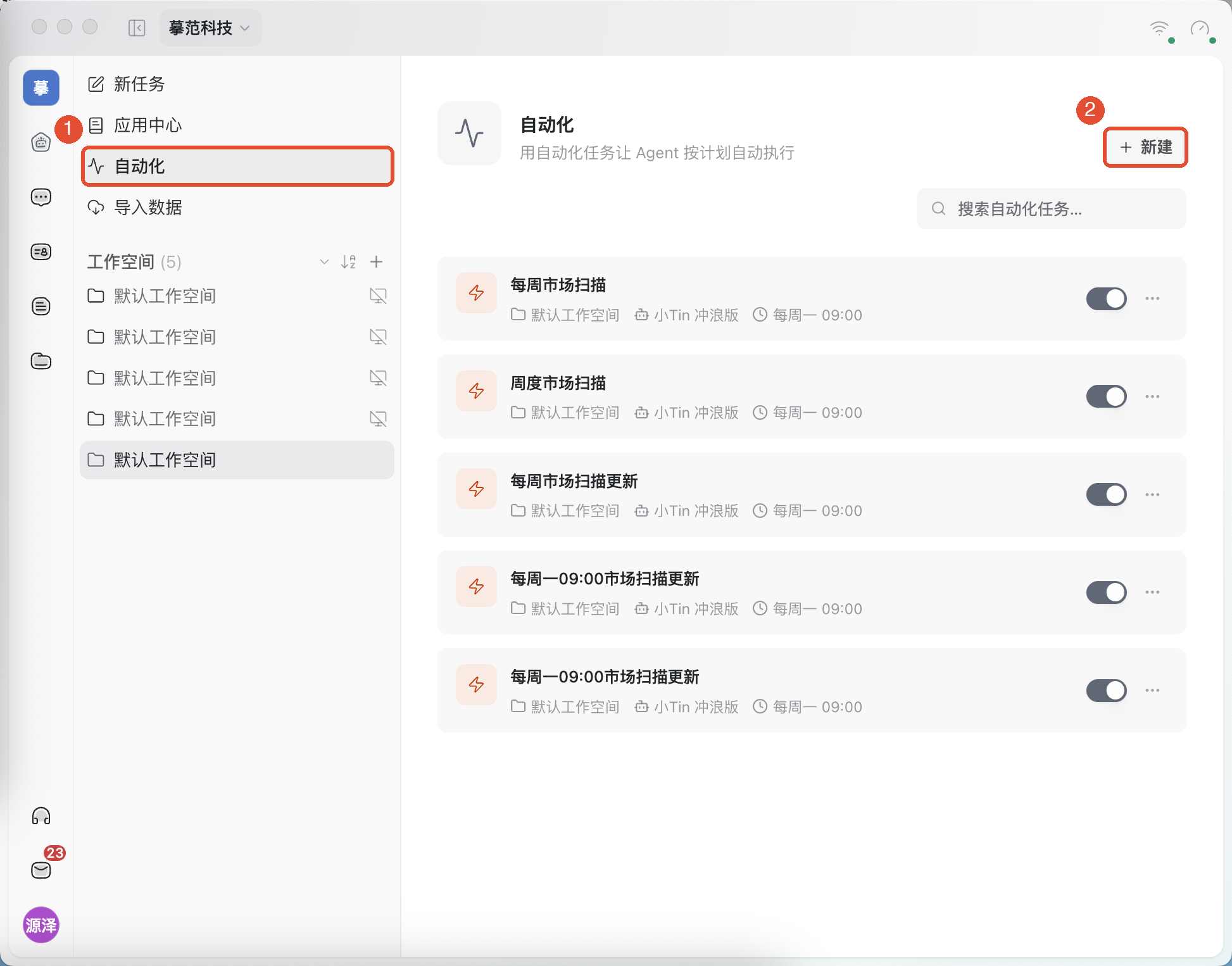
In the main navigation on the left, click Task, then in the task sidebar click Automation. View existing schedules in the list. To create one, click the top-right New.
2. Describe the work to repeat
- When you choose Manual setup and enter a task name, such as “Daily work summary.”
- Under Instructions, specify the materials’ location, processing requirements, and output location. The persona receives this instruction on every run.
- Select the workspace and executing Agent (AI persona), then configure timing as described next.
For example: “Read today’s meeting notes in the workspace’s ‘Daily records’ folder. Summarize Completed, To do, and Pending confirmation, save to ‘Daily summaries,’ and provide a file link. If materials are missing, identify which ones; do not invent content.”
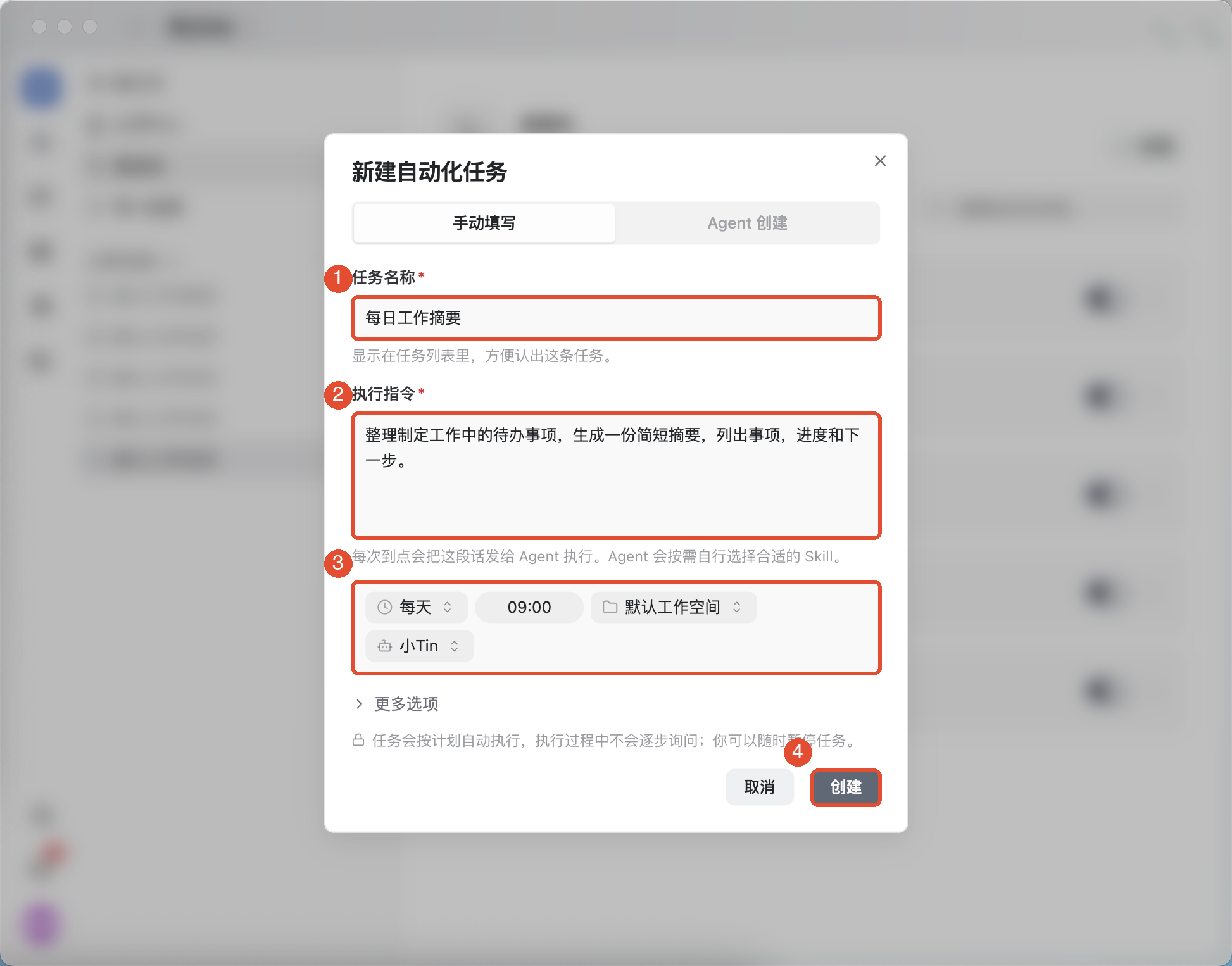
The workspace specifies the execution environment; the Agent specifies the executor. Neither replaces the other. Confirm both before creating the schedule.
3. Set frequency and time
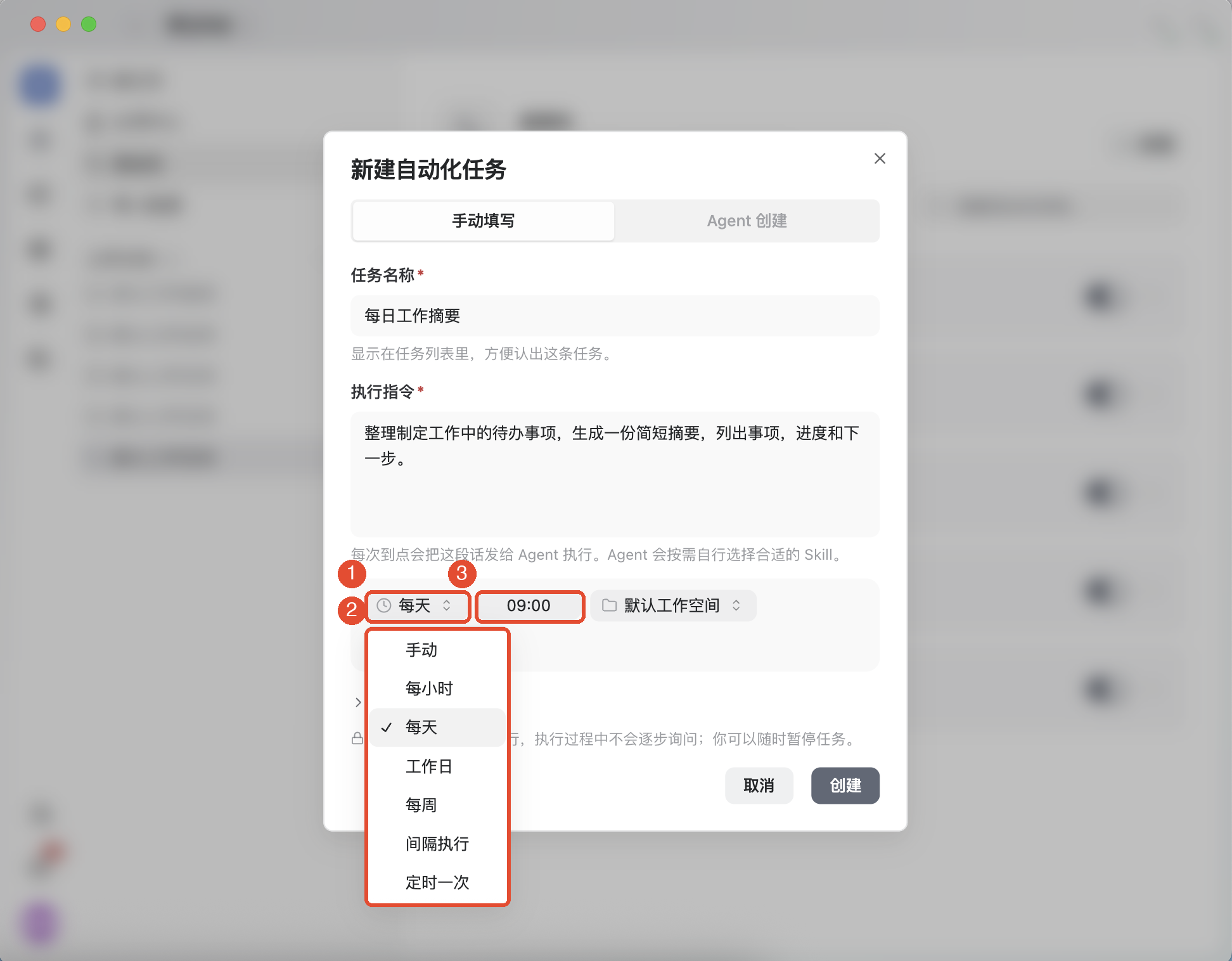
Click the frequency name in execution settings and choose:
- Manual: Does not run on a schedule; click Run now when needed.
- Hourly: Runs at the start of every hour.
- Daily or weekdays: Set a time; weekdays means Monday through Friday.
- Weekly: The current preset runs every Monday, with a configurable time.
- Interval: Repeats at the specified interval in minutes.
- Once: Choose a future date and time for a single run.
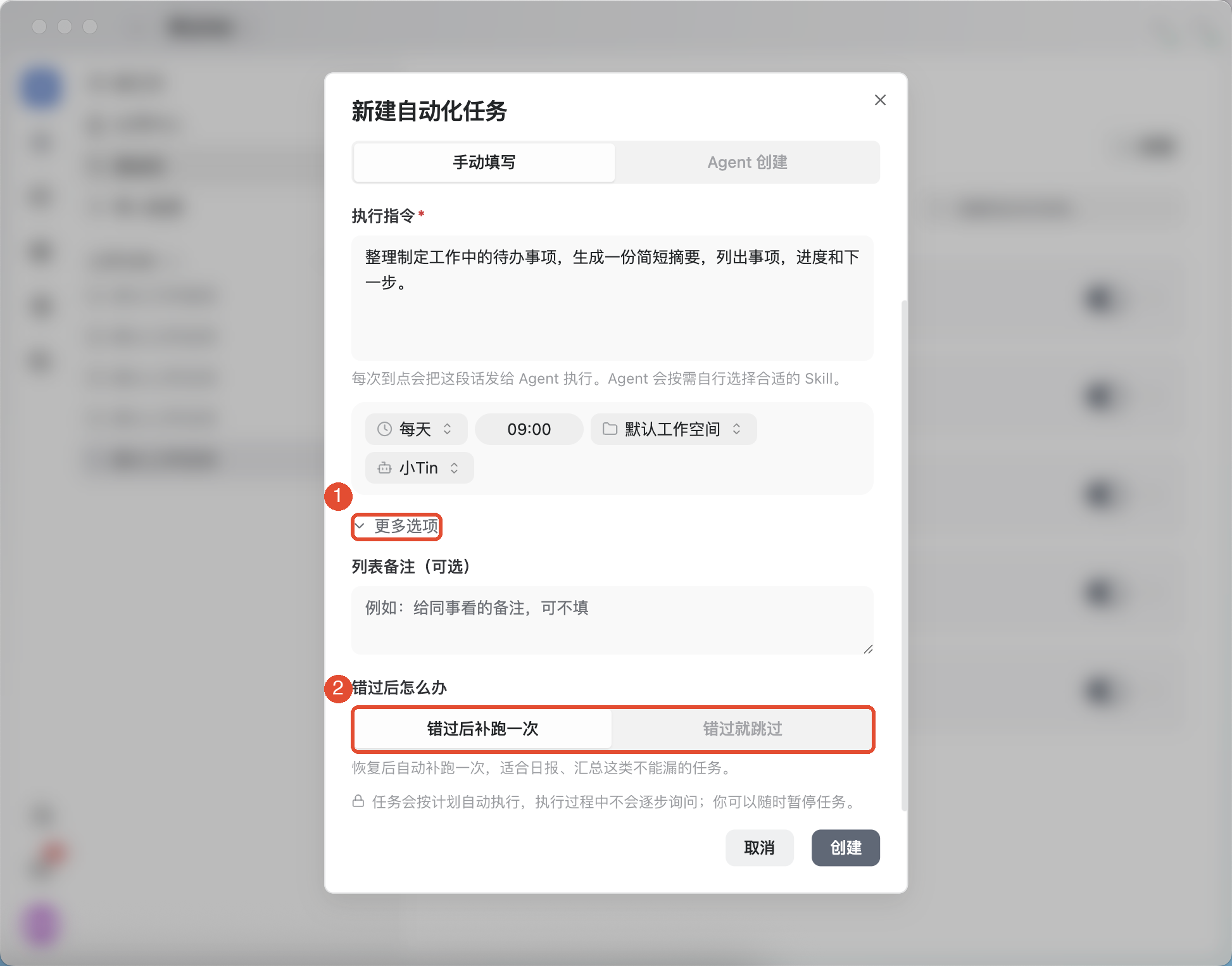
For recurring tasks, expand More options to choose how missed runs are handled:
- Run once after a missed schedule: Catch up once after recovery, suitable for summaries still worth completing.
- Skip missed runs: Wait until the next scheduled time, suitable for work no longer useful once its time has passed.
4. Create and verify the schedule
Confirm the instruction, materials’ location, time, workspace, and persona, then click Create. Back in Automations, find the new task and open its details to check the schedule and next run time.
If creation fails, adjust settings according to the error before retrying. If the list already contains a task with the same name, inspect it first to avoid duplicates.
5. Review run history and actual results
- Click the task name in Automations to open its details.
- Check execution information at the top and individual runs under History below.
- Once a run exists, review its status, result, or error. If a linked conversation is available, open it for the full process.
- Open the generated summary or file and verify its content and save location.
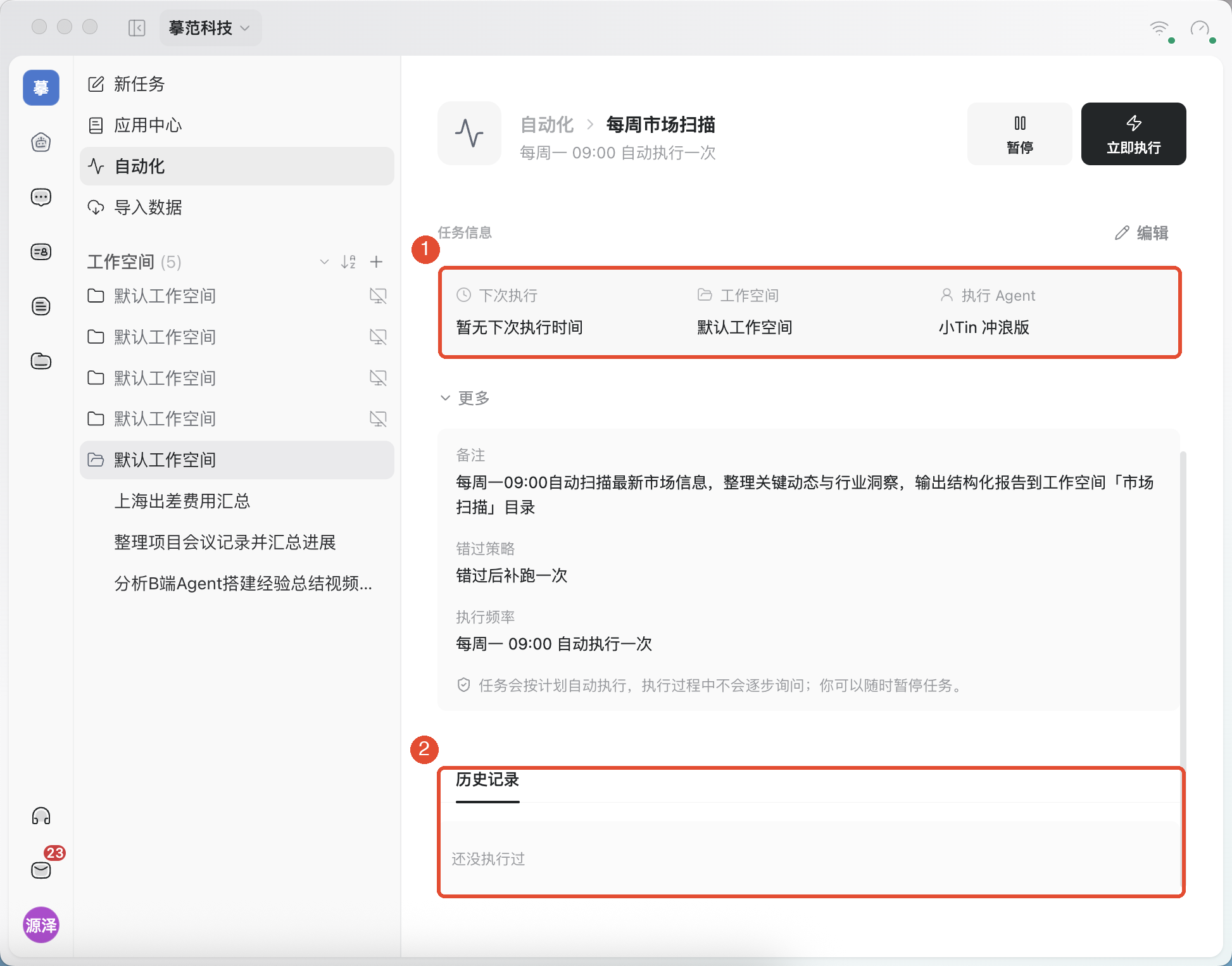
An enabled schedule does not mean the work is complete. Check run history and actual outputs.
Other common features
Pause, resume, and run on demand
Use the toggle to the right of a task in the list, or in its details click Pause / Resume to control future scheduling. For a one-off run, choose from the task menu: Run now.
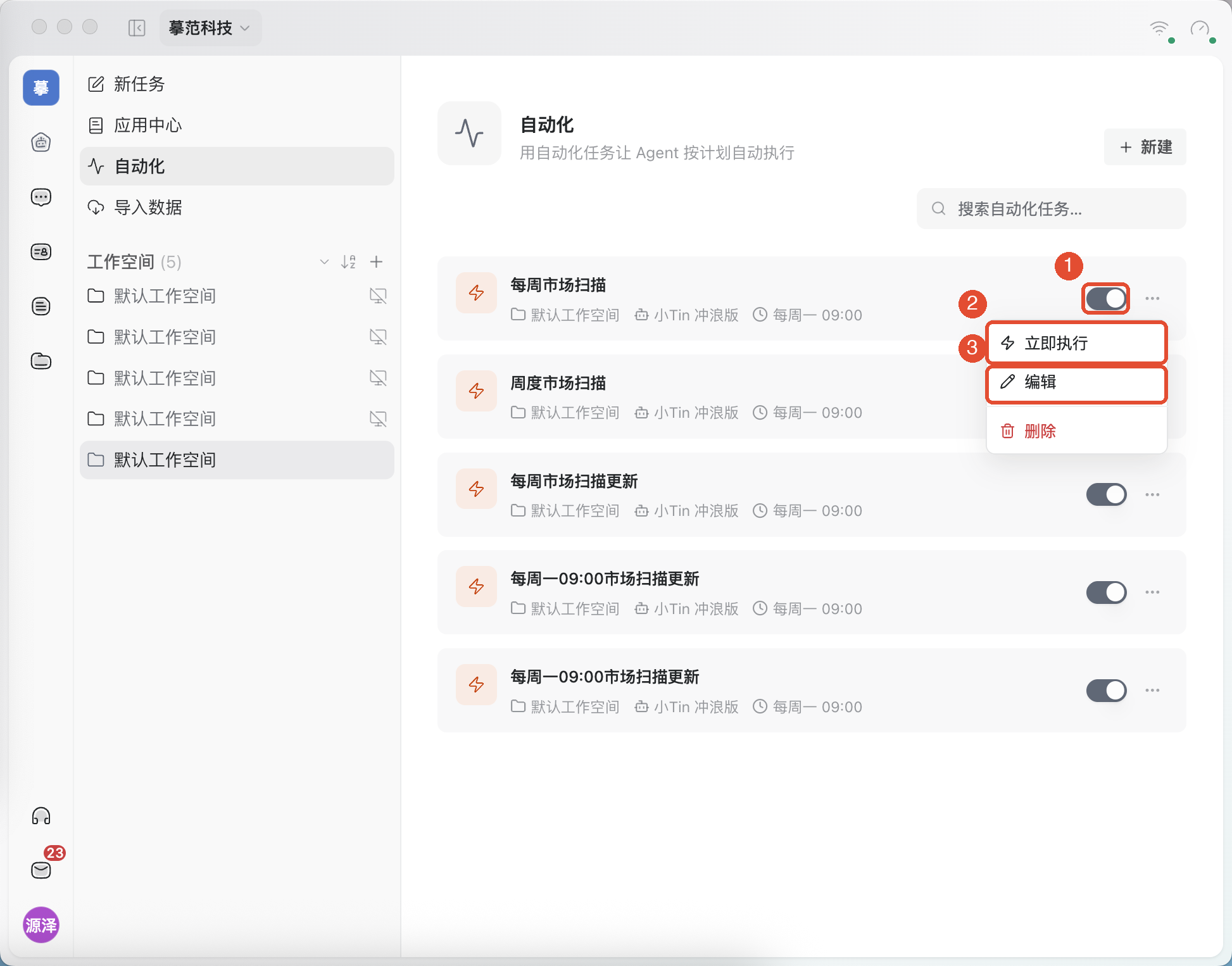
The current client allows a manual run of a paused schedule. If a run is already in progress, wait for it to finish to avoid duplicate execution.
Edit or delete a schedule
From the task menu or details, click Edit, save changes, and check the schedule again. Pause it when temporarily unnecessary; delete only when no longer needed, after reading the confirmation.
Create with natural language
In the creation window, switch to Create with Agent, describe the goal and timing, and click Send to conversation. Then check the conversation and automation list to confirm the final instruction, timing, and execution environment match your requirements.
Things to keep in mind
- Automations run on schedule without asking at each step. Clearly specify the materials’ scope, allowed actions, and output location.
- Local-file tasks require the corresponding device online and directory accessible. External services also need working connections and permissions.
- Pausing affects future scheduling only. It neither stops an already-started run nor undoes completed changes.
- The missed-run policy determines whether to catch up or skip. After reconnecting, check history to confirm what actually ran.
FAQ
Why is there no result after creating it?
Check whether the scheduled time has arrived, the schedule is enabled, and the execution device is online, then inspect history. Without a run record, an enabled toggle does not prove execution.
What if the next run time is blank?
First check whether it is a manual task. For a recurring task, verify frequency, enabled status, and execution environment, then reopen details. If the issue persists, save the error information and contact support.
Why is the current task still running after I pause it?
Pausing affects future schedules. To stop the current run, open that run or its linked conversation and use the available Cancel / Stop action.
Can I retry immediately after a failure?
First read the error and check for partial results. Fix materials, connection, or permission issues before running again to avoid duplicate writes or sends.