Workbench · 7 min read · Updated 2026-09-08
How can XiaoTin read a folder’s files and summarize the results?
Download the sample files and follow a Shanghai business trip expense example to read files, organize expenses, and save results with XiaoTin.
Meeting notes, expense lists, and customer follow-up records may be scattered across files that need to be opened, read, and organized into a table. Tell XiaoTin where the folder is, what to extract, and where to save the result so it can read and summarize them.
This example summarizes a Shanghai business trip: combine transportation, accommodation, and meal records into one expense summary and identify explicitly missing documents. All data is fictional. Download it to follow along, then substitute your own text records.
Download the sample attachment below, extract it, and use the “上海出差费用” folder inside.
Download the Shanghai trip expense sample files (ZIP)
Scope: These instructions use the Mac client.
1. Put the files to process in one folder
Prepare a dedicated folder for this task containing only the original files you need to process.
This example uses the “上海出差费用” folder with the three TXT files below. They are included in the sample archive and ready to use after extraction.
| File | Recorded content |
|---|---|
| 交通费用.txt | High-speed rail: CNY 553; taxi: CNY 86 |
| 住宿费用.txt | Two hotel nights: CNY 960 in total |
| 餐饮费用.txt | Lunch: CNY 68; dinner: CNY 92; dinner receipt missing |
Note: CNY 960 is the total for two hotel nights. Do not multiply it by 2 again. Receipt status is not specified for the other expenses.
Copy the folder path
Select the “上海出差费用” folder in Mac Finder and press Option + Command + C to copy its pathname.
Copy the path to the folder containing all three records, not the path to an individual file.
2. Create a task in TabTin
On the left, click “New task”, and confirm that the mode below the input box is “Run” so XiaoTin can save the summary as a file.
Confirm that the task uses the local workspace containing your files. If a directory access prompt appears, check the directory before deciding whether to allow access.
3. Specify which files to read, what to extract, and where to save
A clear request states which files to read, what information to extract, how to handle missing information, and where to save the result.
Here is the request for this example. Replace the bracketed text with the full path you just copied, then send it:
Please read 交通费用.txt, 住宿费用.txt, and 餐饮费用.txt in “[full path to the 上海出差费用 folder]” and organize the expenses for this trip.
Before starting, confirm that all three files are readable. Use only these three original records; do not read subfolders or previously generated summaries.
Please create a “Shanghai trip expense summary” containing:
- Individual expenses: expense name, category, amount, receipt status, and source filename.
- Category totals: amounts spent on transportation, accommodation, and meals.
- Grand total: the sum of all expenses.
- Missing documents: list only documents explicitly marked as missing in the originals. Mark unspecified receipt status as “Not specified”; do not infer it.
Calculate using the original amounts. Distinguish unit prices from totals and avoid double counting.
Do not modify the three original records. Save the result in the same folder as “上海出差费用汇总.md”. If that filename already exists, save a new file instead.
Finally, tell me which files were read successfully, which could not be read, and the full path to the saved result.

Figure 1: The task request in the actual client. The screenshot uses a shorter version of the same example; replace the folder path with your own when following along.
4. Find the summary and check it against the originals
When the task finishes, follow the save path in XiaoTin’s reply to the folder and find “上海出差费用汇总.md”. This is a local Markdown file that you can open in a text editor or a tool that supports Markdown.
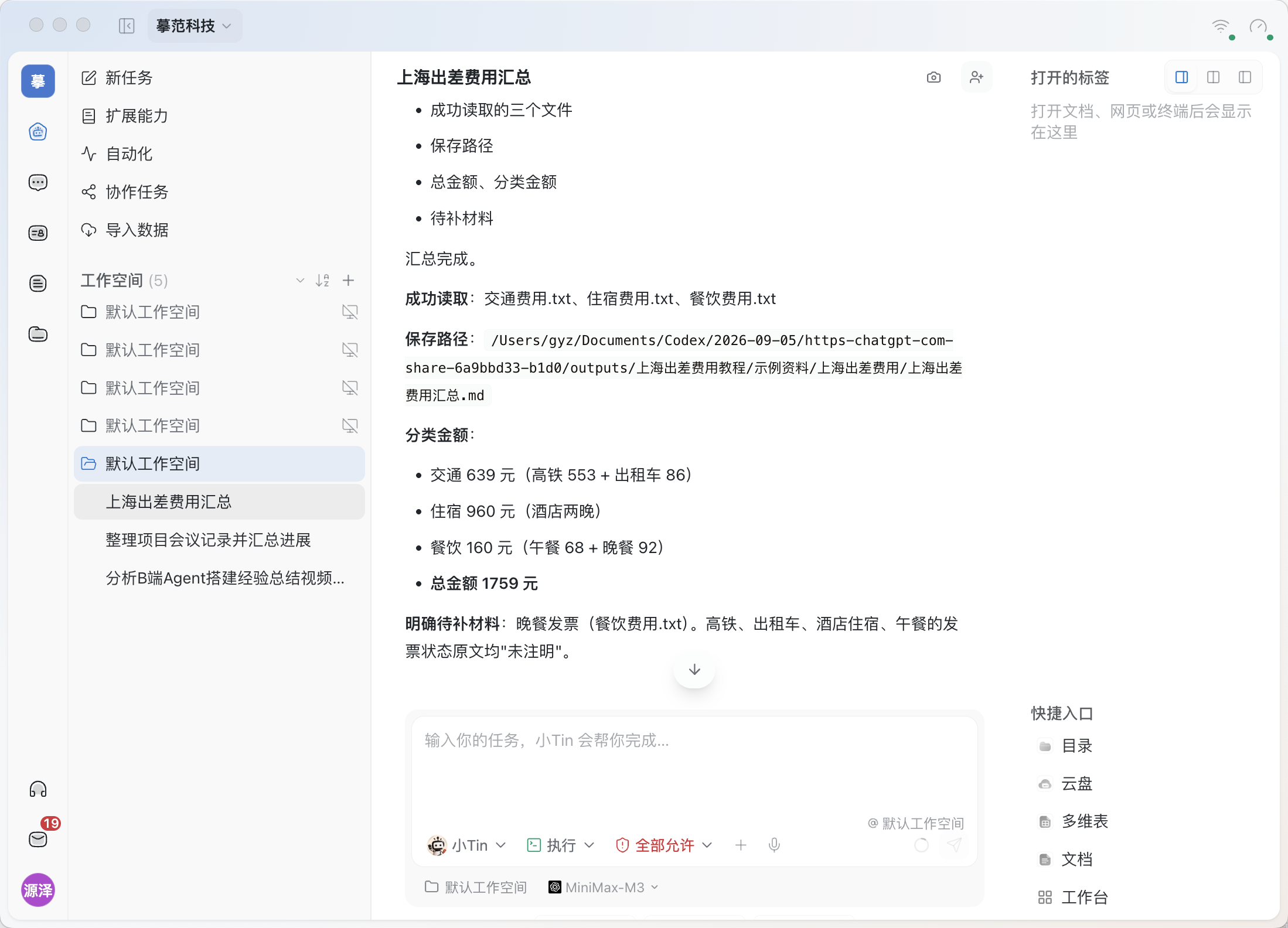
Figure 2: XiaoTin has read all three records and saved the file. Check the total amount first, then the explicitly missing documents.
With this guide’s sample files, the amounts should be:
Total trip expenses: CNY 1,759
| Expense category | Calculation | Subtotal |
|---|---|---|
| Transportation | 553+86 | CNY 639 |
| Accommodation | CNY 960 total for two nights | CNY 960 |
| Meals | 68+92 | CNY 160 |
| Grand total | 639+960+160 | CNY 1,759 |
Itemized expenses
| Expense | Category | Amount | Receipt status | Source file |
|---|---|---|---|---|
| High-speed rail | Transportation | CNY 553 | Not specified | 交通费用.txt |
| Taxi | Transportation | CNY 86 | Not specified | 交通费用.txt |
| Two hotel nights | Accommodation | CNY 960 | Not specified | 住宿费用.txt |
| Lunch | Meals | CNY 68 | Not specified | 餐饮费用.txt |
| Dinner | Meals | CNY 92 | Missing | 餐饮费用.txt |
Only one document is explicitly missing: the receipt for dinner costing CNY 92.
These are the expected results calculated from the sample originals. XiaoTin’s formatting may vary, but each amount, source, and receipt status should match.
Focus on these three checks:
- Were all three files read successfully, and are all five expenses included?
- Was the CNY 960 for two hotel nights counted only once, giving a total of CNY 1,759?
- Do other expenses retain “Not specified” for receipt status, without being assumed complete or missing?
5. Make further changes in the same task
To make the summary easier to read, continue in the same task:
Please revise the summary file you just created. Put the grand total, category totals, and missing documents first, followed by the itemized expenses. Keep each expense’s source and do not modify the originals.
If an amount or status is wrong, point out the specific issue:
Please recheck the accommodation expense. The original CNY 960 is the total for two nights, not the nightly rate. Correct the amounts, recalculate the grand total, and update the summary file you just created.
What should I change for my own task?
Keep the structure “specify files → extract information → cite sources → save results” and adapt the fields to your needs:
| Type of material | Information you can ask it to summarize |
|---|---|
| Meeting notes | Confirmed decisions, action items, owners, deadlines |
| Customer follow-up records | Customer needs, current progress, next steps |
| Expense records | Individual amounts, category totals, missing information |
Whatever the material, ask for sources and explicit handling of missing information, then check the result against the originals. These are task design examples, not verification of every file format.
FAQ
What if the folder cannot be found?
Copy the full path again, confirm that the folder exists, and check that the task is running on the device where the files are stored.
Why was no file created?
Confirm you are using “Run” mode and that your request specifies a filename and save folder. Ask XiaoTin to save the summary it just produced as a file and return the full path.
Can I substitute receipt photos or PDFs?
This guide uses TXT records. Recognition of photos, scans, and PDFs needs separate verification. After changing formats, check that files were read successfully and amounts were recognized correctly.
How do I generate a fresh summary next time?
After updating the original expense records, explicitly specify which files to read so an old summary is not included as input.
Demo notes: The data and scenario are fictional. The amounts summarize recorded spending only; they do not mean expenses have been approved or are fully reimbursable. The Shanghai example was run in Run mode in the Mac client: all three TXT files were read, the summary was saved, and amounts, sources, and receipt statuses were checked against the originals. Continuing edits in the same task was verified in an earlier meeting-notes example.
References:TabTin work modes · TabTin permissions