Agent & tasks · 5 min read · Updated 2026-09-08
Configure an AI persona for your needs: personality, skills, and tools
An AI persona is an AI work partner you can reuse.
Feature overview
An AI persona is an AI work partner you can reuse. Choose different personas for writing, organizing materials, or data analysis, with their own rules, skills, and tools, so you spend less time repeating instructions.
This guide uses a fictional “Weekly meeting notes assistant” to explain creation and use. “XiaoTin Writer” in the screenshots is a similar template; use it or create your own persona.
How to use it
1. Open AI personas
In the client’s main navigation on the left, click the AI persona icon to open the persona list. Select an existing persona to view its profile, skills, tools, memory, and recent tasks. To create one, click the top-left New AI persona.
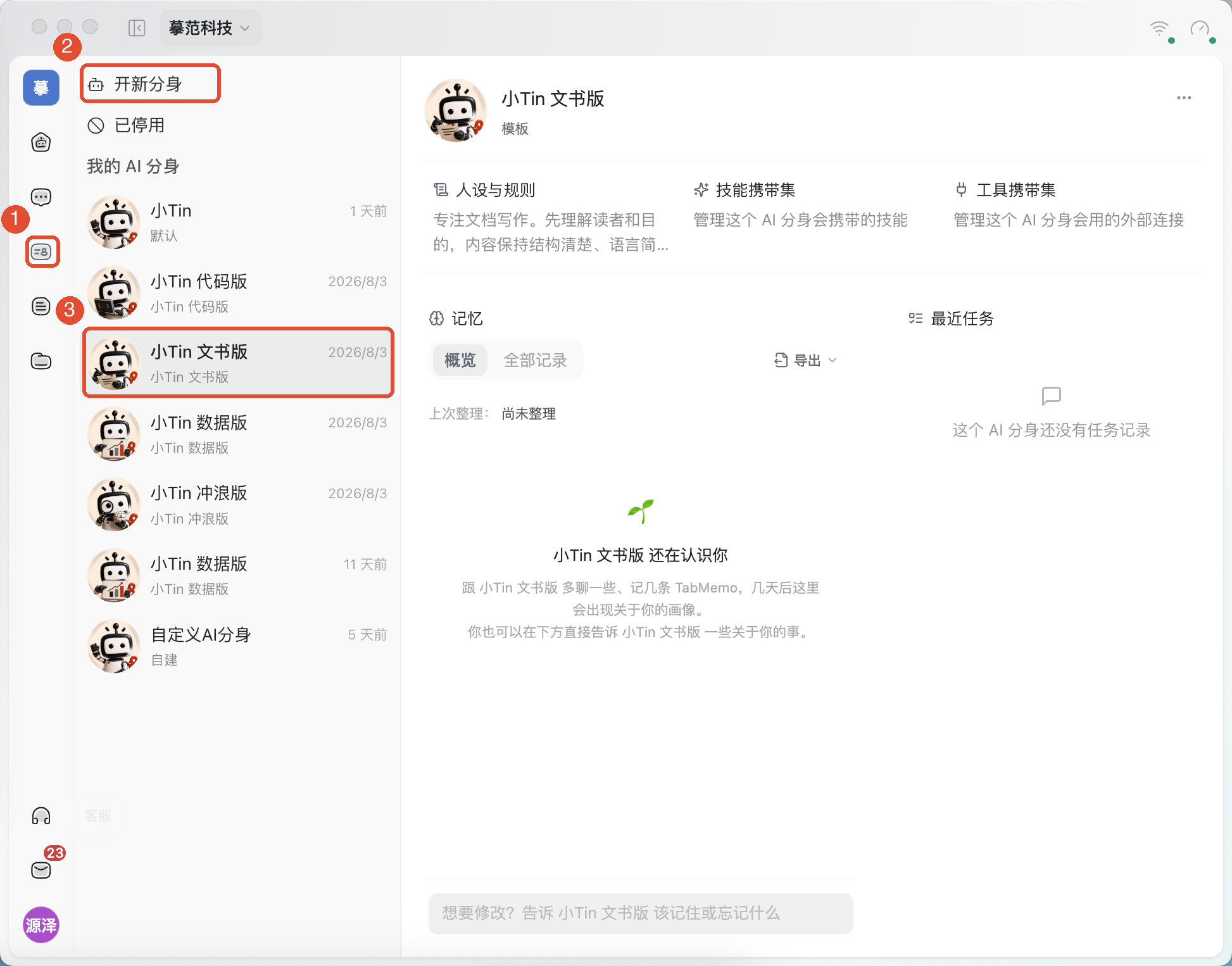
2. Choose a template and create it
- In the creation window, choose a template for your work. For meeting notes, you could choose XiaoTin Writer.
- Confirm the name or change it to “Weekly meeting notes assistant.” To configure one yourself, choose Start from scratch and set its name and avatar.
- Click Create, then open the new persona from the left list.
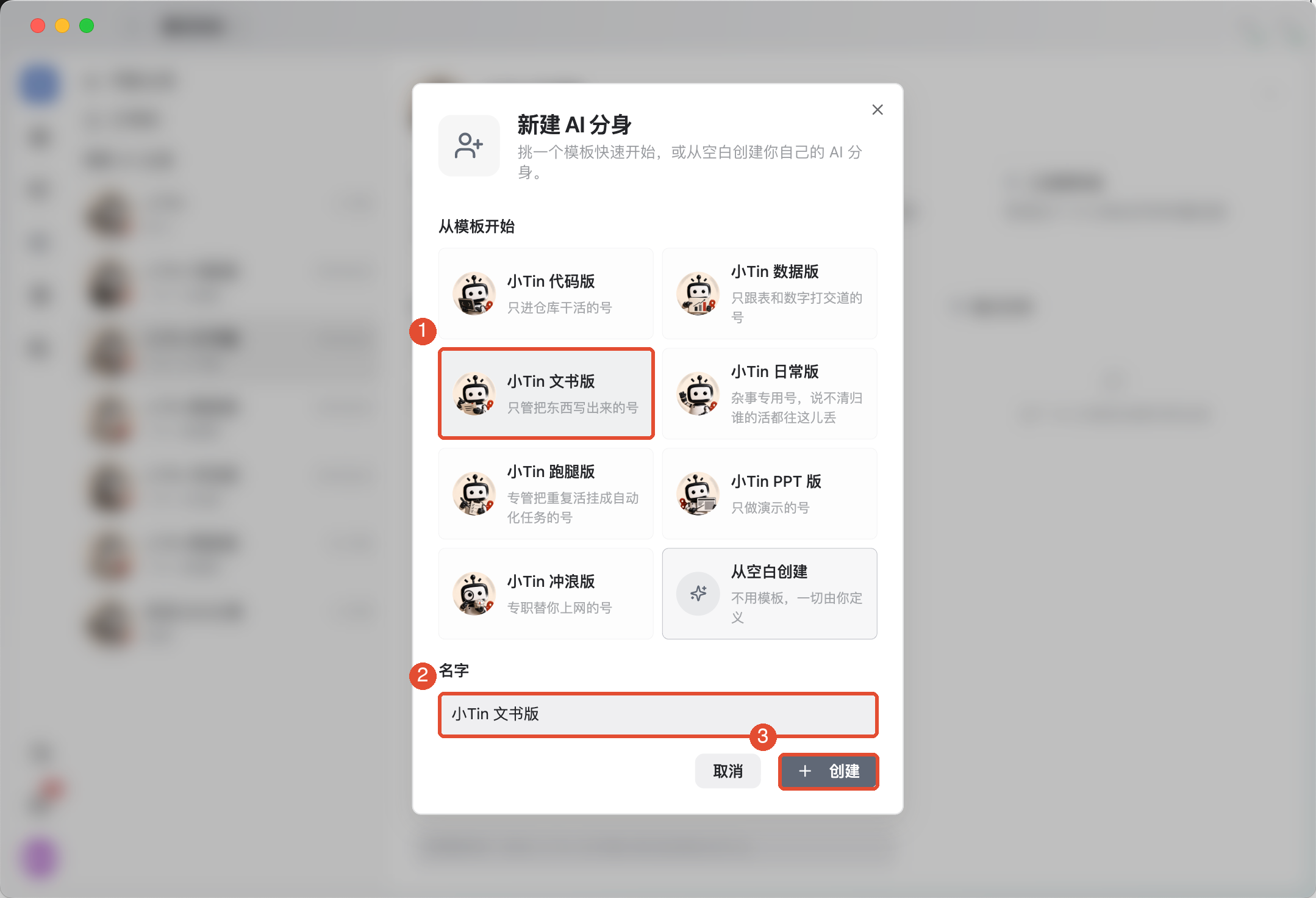
Creating a persona adds an AI identity you can select. It does not automatically start a task or create a workspace.
3. Define its profile and rules
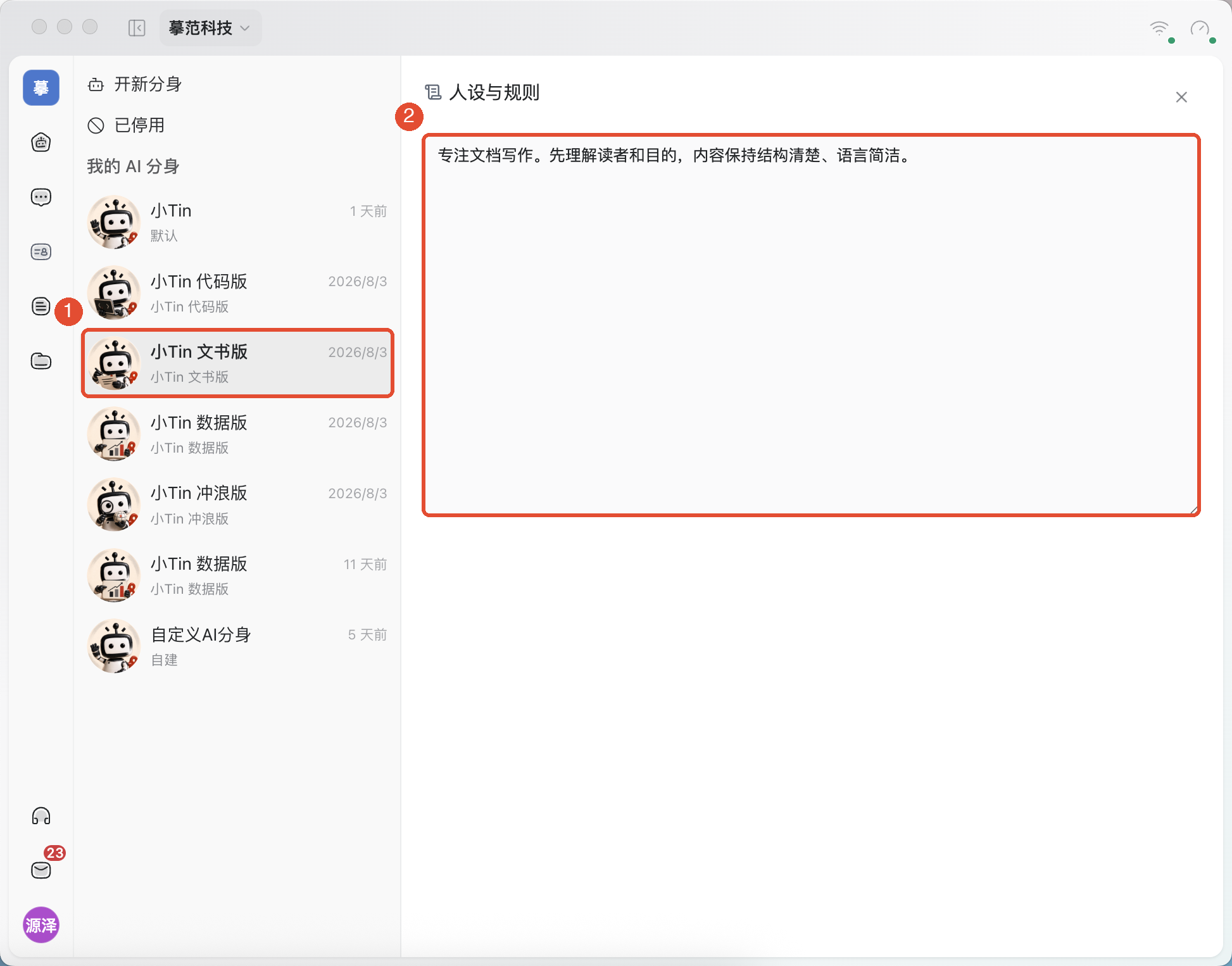
- Select the persona and, in its overview, click Persona & rules.
- Clearly state its responsibilities, communication style, and required rules.
- After editing, click the newly displayed Save, then check that your content was retained.
For example: “Organize weekly meeting notes into confirmed decisions, action items, and unresolved questions. Include an owner and deadline for each action item. Mark anything absent from the original as not specified; do not fill it in yourself.”
4. Use the persona in a new task
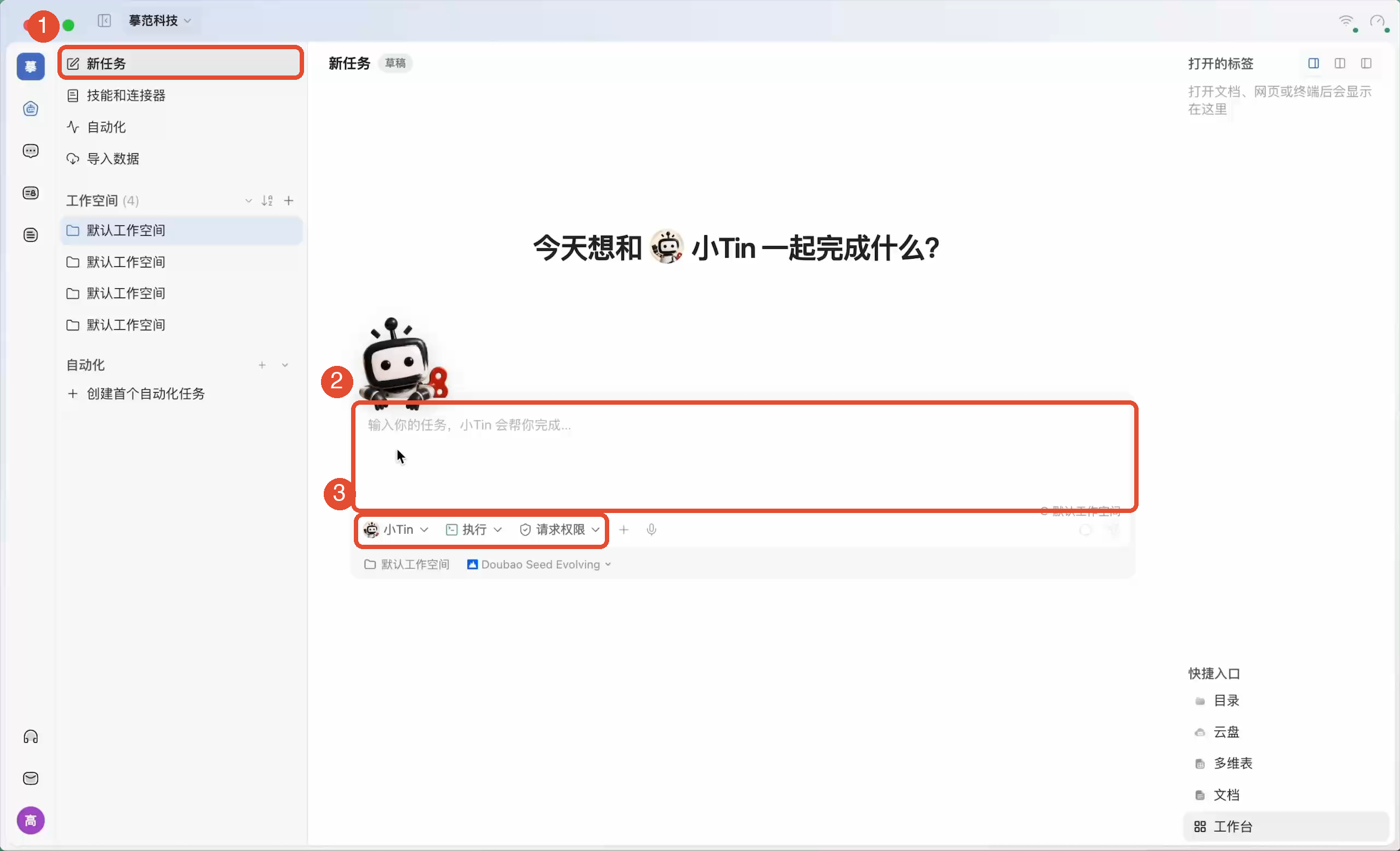
- Return to the left-side Task page and click New task.
- Click the AI name below the input box and select the “Weekly meeting notes assistant” you created.
- Confirm the work mode, permissions, and workspace, then add meeting records, enter your request, and send.
- Open the generated minutes and check items, owners, and dates. Request adjustments in the original task.
Try: “Turn the attached weekly meeting records into meeting minutes, save them as a document, and provide an opening link. Mark missing action item owners or dates as not specified.”
Other common features
Add or adjust skills
In the persona overview, click Equipped Skills. Select a skill and read what it does, when it is used, and how to invoke it. To add another, click Add skill, search, and add it to the current persona.
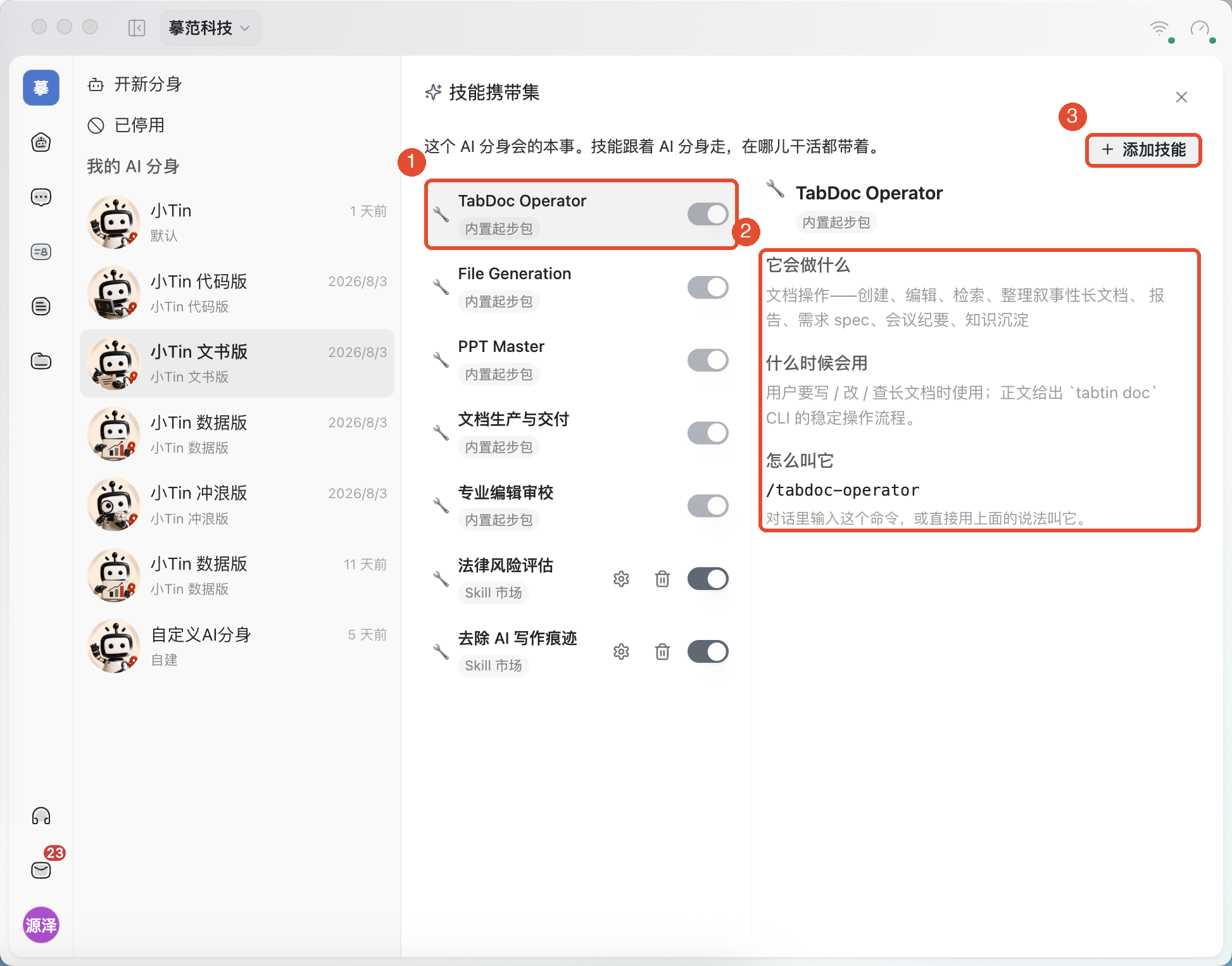
Use the available actions to enable, disable, configure, or remove added skills. Default skills of system personas are protected and cannot be disabled or removed.
Add tools or connectors
In the overview, click Tool set → Add tool and choose an available connector or application. If the list is empty, check the App Center to ensure the application or connector is configured, then return to add it.
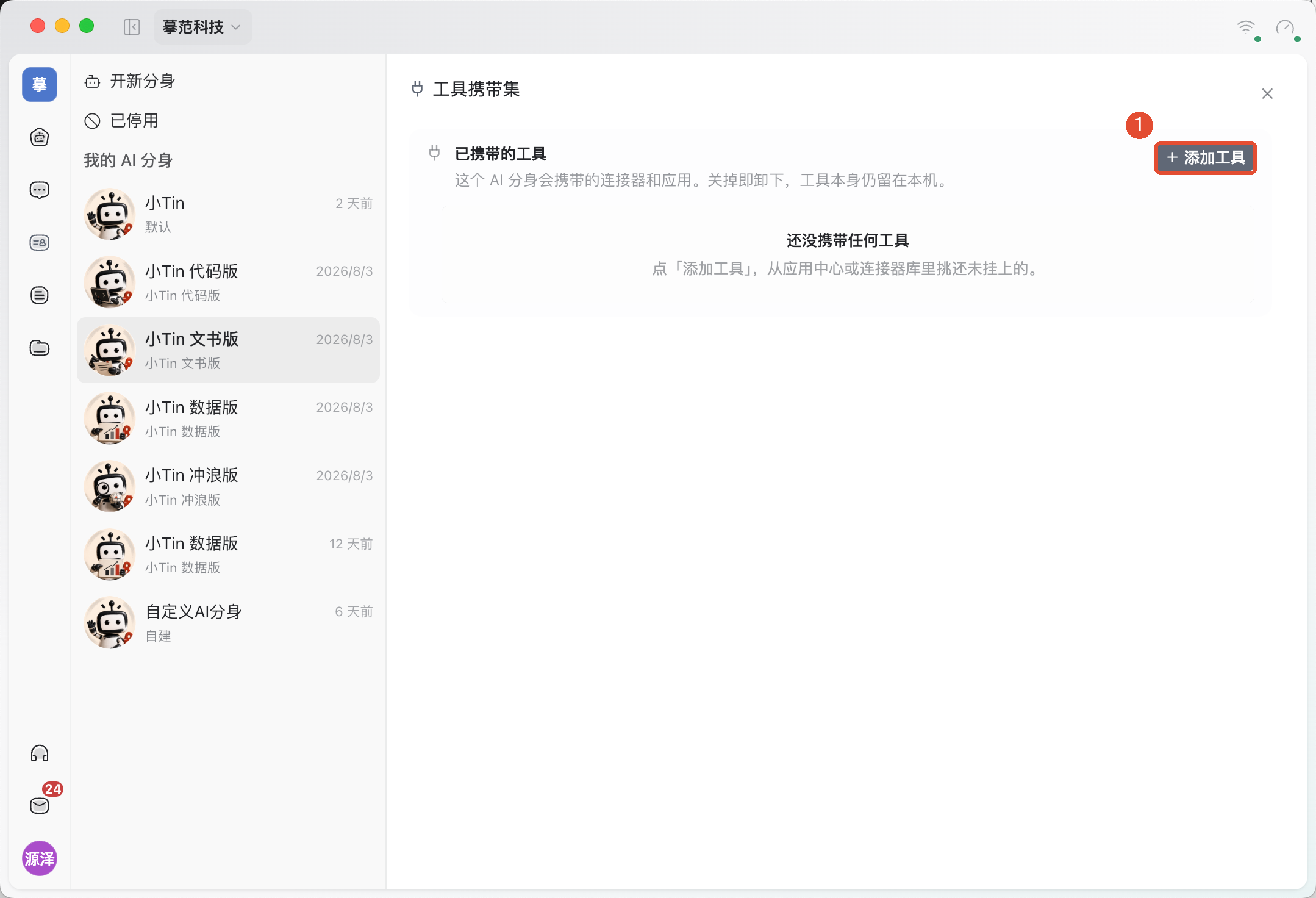
Removing a skill or tool changes only this persona’s configuration; it does not delete the original library item. Tool availability also depends on connection, authorization, and the execution device.
View and correct memory
Return to the persona overview and, under Memory, select Overview or All records. Overview shows its synthesized understanding; All records lets you inspect individual entries and filter by About you, Insights, Collaboration summaries, or Journal.
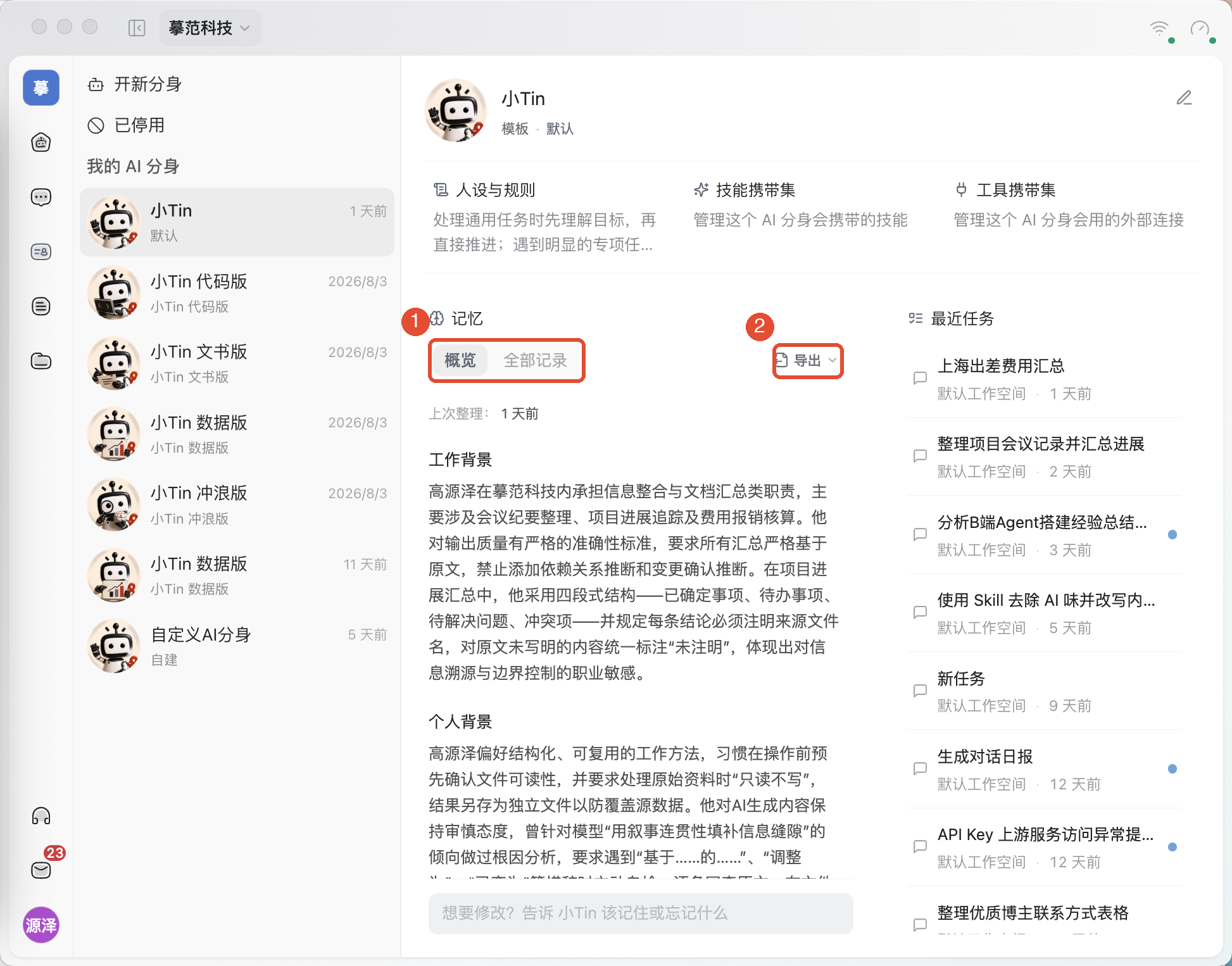
If content is inaccurate, use the record’s correction action. To stop retaining it, use forgotten and read the confirmation prompt. The overview’s synthesized understanding updates during later organization. If there are no records, start using the persona normally; you need not fill its memory before beginning a task.
Revisit tasks, rename, or disable
In the overview’s Recent tasks, click a record to return to a task the persona participated in. Rename, edit avatar, and disable actions are in the top-right More actions.
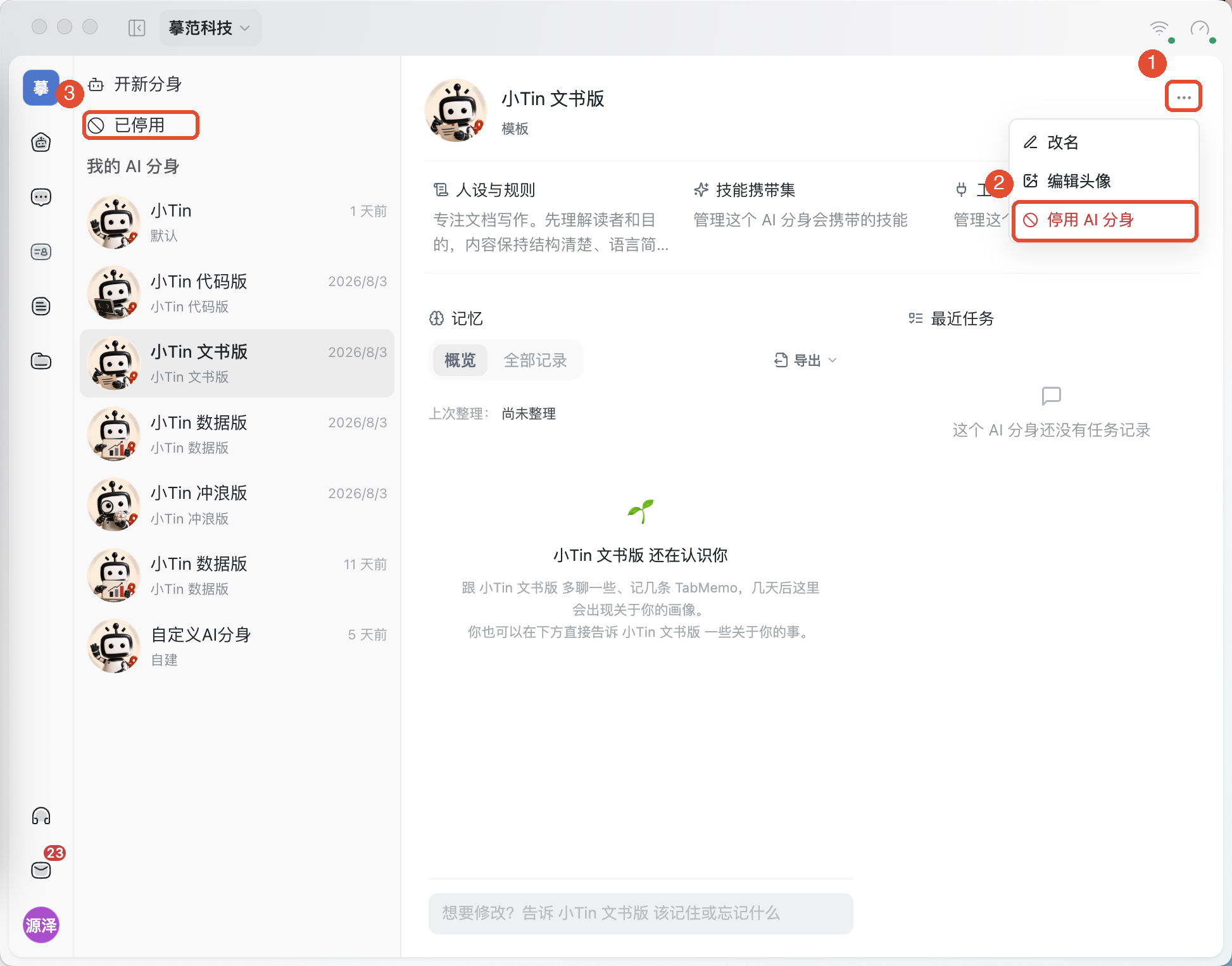
Things to keep in mind
- The persona determines who handles the work and under which rules. The workspace determines the local execution environment. Select them separately.
- Profile instructions and memory do not grant file access. Tasks still need accessible materials, connected tools, and an available device.
- The default persona cannot be disabled. Permanent deletion differs from temporary disabling; read the confirmation before acting.
FAQ
Why did creating a persona not start work?
Return to New task, select the persona in the input area, and send a specific request.
Why is there no Save button after I edit the rules?
First confirm that the body text actually changed; the Save action appears only after a change. After saving, reopen the rules and verify the content.
Why can I not toggle a skill?
Read the note beside the toggle. Default skills of system personas are protected and cannot be disabled or removed. For other skills, check their availability.
Can I add a persona directly to IM to handle group tasks?
Agent support in IM is not available yet. Select a persona on the task page to execute work, then share results with the appropriate resource permissions.