Organizations & collaboration · 5 min read · Updated 2026-09-08
Work together or hand off? Ways to collaborate on AI tasks
Task collaboration lets colleagues work from an existing AI conversation without explaining the background again.
Feature overview
Task collaboration lets colleagues work from an existing AI conversation without explaining the background again. Invite them to collaborate in real time, or hand over the existing context so they can continue in their own task.
To try another approach yourself, fork the task to preserve the original conversation and edit independently. This guide uses fictional project meeting notes to demonstrate sharing a summary and adding action items.
How to use it
1. Open the task to share
In the main navigation on the left, click Task, expand the relevant workspace, and open the conversation. Check the task name and latest content, then click the Share with colleagues icon to the right of the conversation title to open “Share task.”
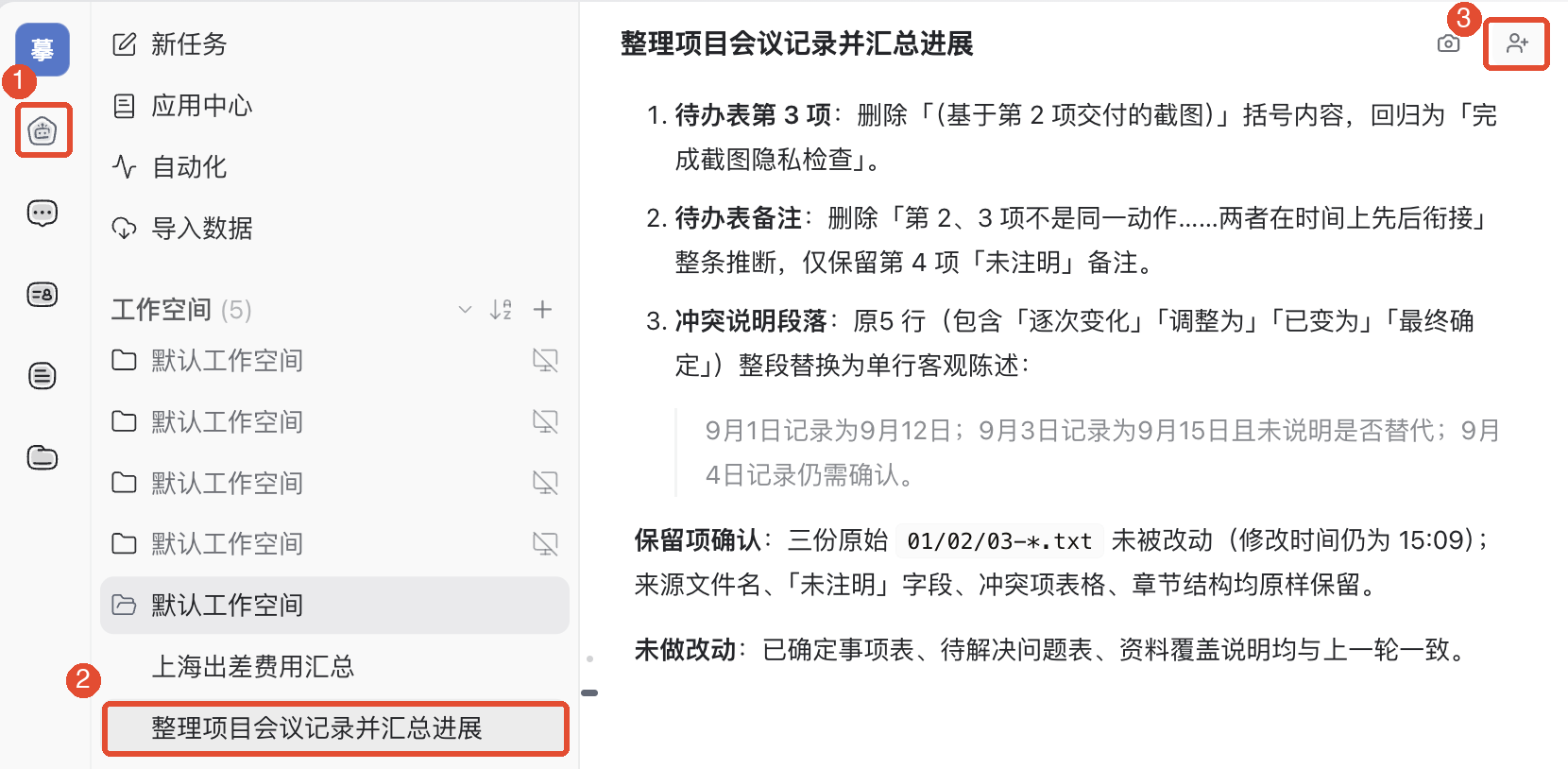
2. Search for and select a colleague
Under “Share with,” use Search members to enter a colleague’s name. Check the name and account in the list, then select the member. A recipient card appears; if incorrect, click its right-hand × and choose again.
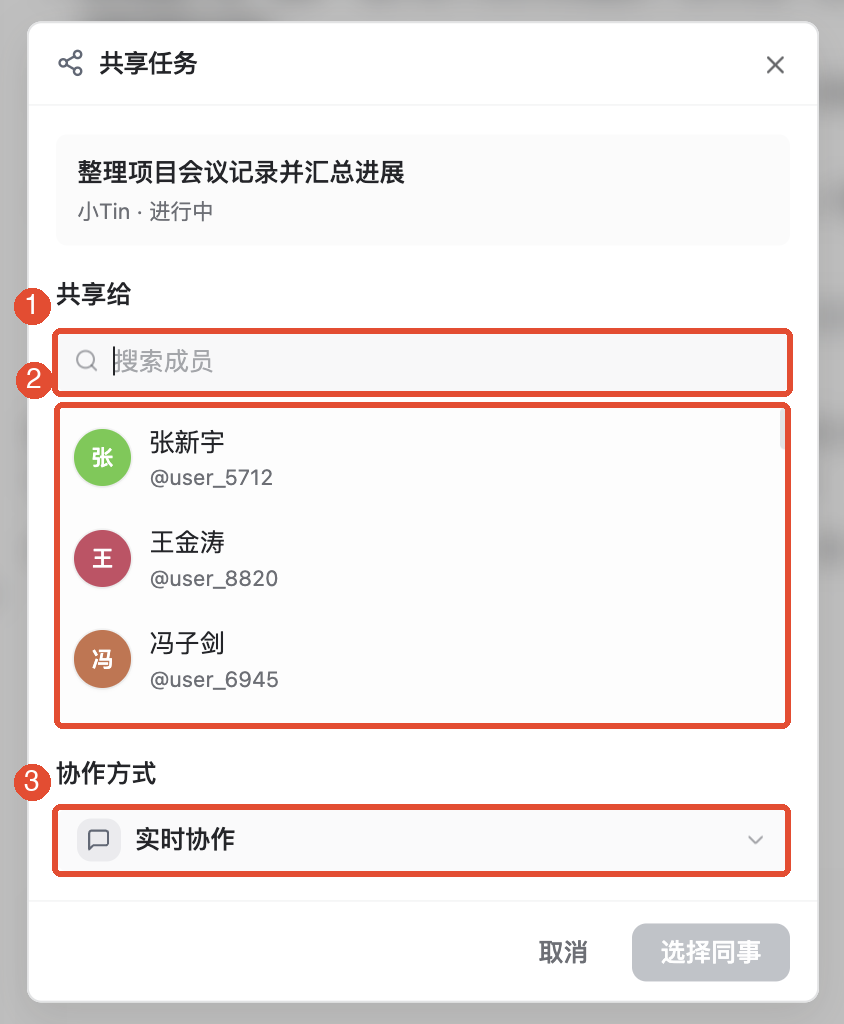
3. Choose real-time collaboration or handoff
Open Collaboration option drop-down and choose according to what the recipient should do:
- Real-time collaboration: For colleagues to add requirements and work together in the original task, such as checking meeting conclusions. Collaborators can direct the Agent through messages; the original task’s side still handles execution, approvals, and costs.
- Hand off to a colleague: For someone to complete the work independently from the existing content, such as adding action items. This freezes the existing context and creates their own task.
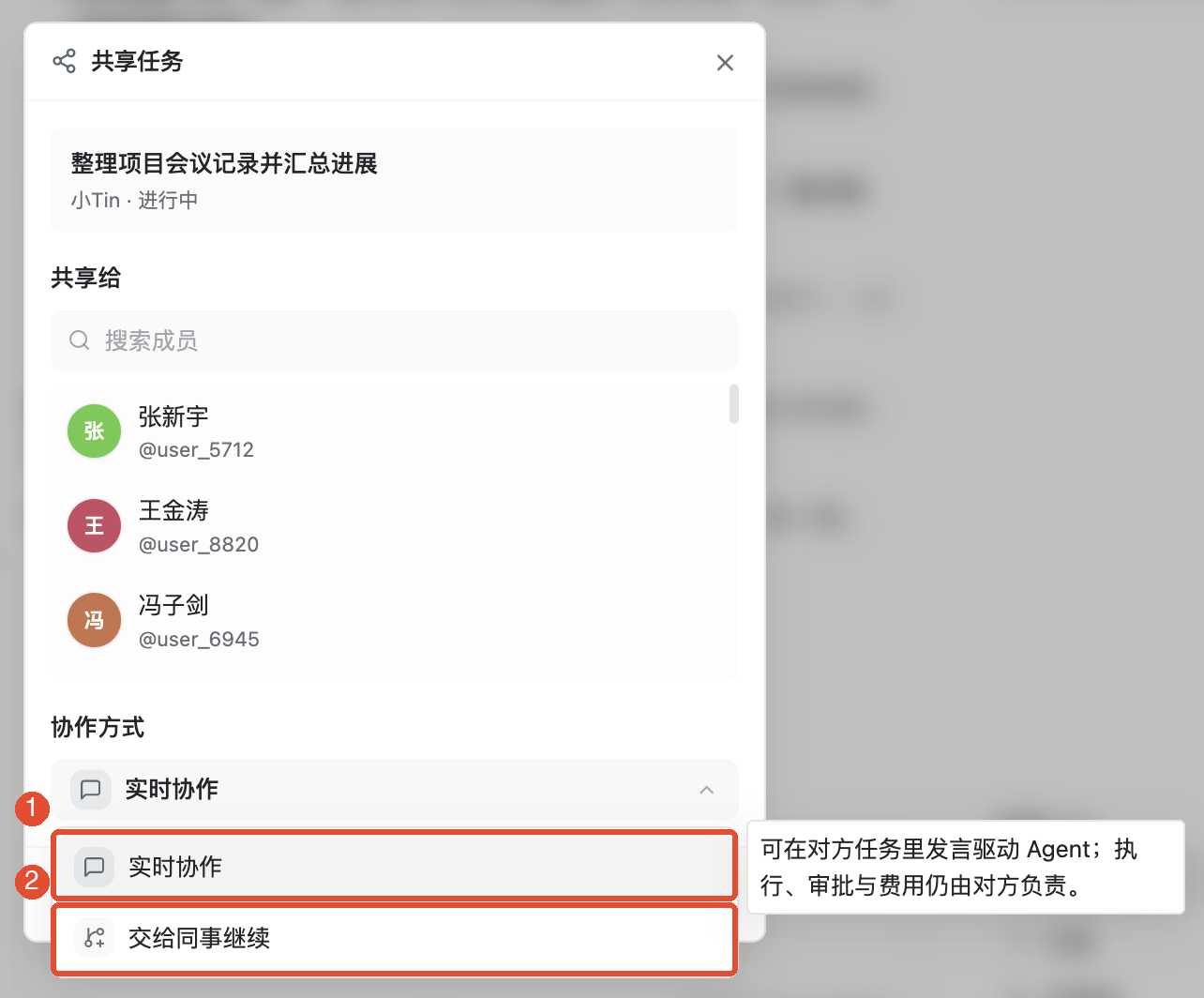
The key difference is whether they continue in the original task or in their own task. After choosing, check the recipient and task name again.
4. Confirm sharing and have the colleague open it from Messages
For a handoff, choose Hand off to a colleague and the confirmation button becomes Hand off to + colleague’s name. Verify the recipient, collaboration option, and task, then confirm.
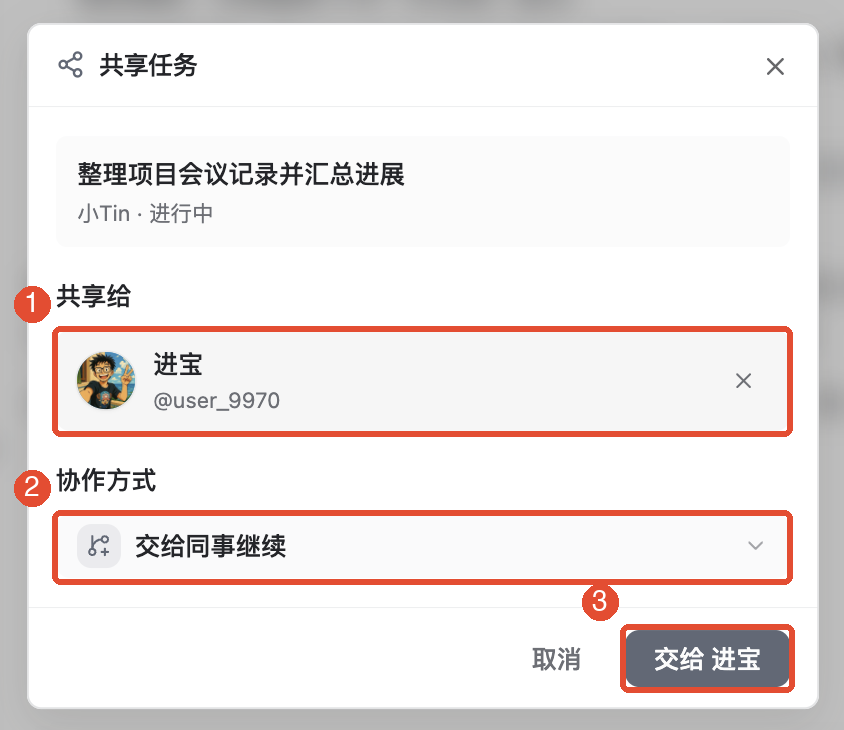
Check the completion notice and ask the colleague to find the task card in your IM direct conversation. They should read the task’s source and existing content before continuing. Real-time collaboration opens the original task; independent continuation should open their own task.
To help them start, add a direct message: “The meeting notes are summarized. Please continue organizing action items, owners, and deadlines. Mark unclear information as pending confirmation.”
5. Fork your own task to try another approach
Fork creates an independent task from the existing conversation. Use it to preserve your current approach while trying a different organization method.
- Right-click the target task in the left task list.
- When you choose Fork task.
- Wait for creation to finish and confirm you are in the new task before entering new instructions. For example: “Using the existing meeting notes, create a separate to-do list grouped by owner.”
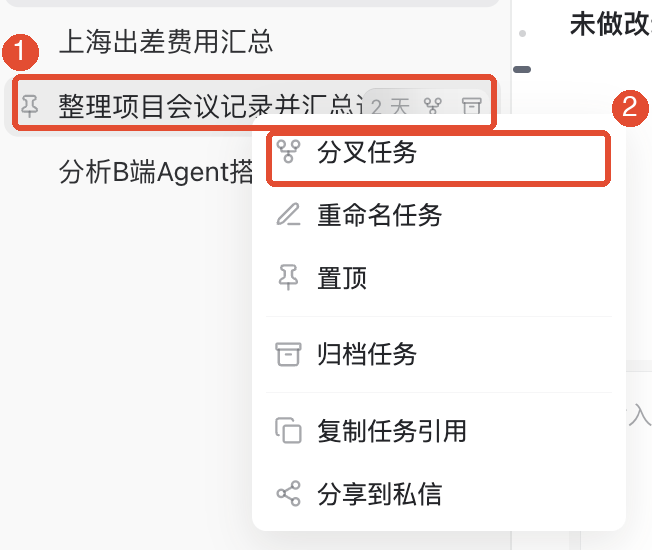
Forked and original conversations continue separately; later messages do not merge automatically. If both reference the same cloud document, remember they still edit the same file.
Other common features
Fork from a specific message
To reuse only one stage of a conversation, use the target message’s action: Fork from here. It copies that message and earlier messages, excluding later ones. Verify the starting point so you do not omit conclusions you need.
Share from the task menu
You can also right-click a task and choose Share to direct message to open Share task, then select the colleague and collaboration option. You do not need to recreate a task to share it.
Send only the output file
If a colleague only needs the final file, share the document or attachment directly. Use task collaboration when they need the process, want to add requirements, or will continue execution. For messages and attachments, see IM Messages.
Things to keep in mind
- Real-time collaboration lets the recipient direct the original task’s Agent through messages. Verify recipients and collaboration options before sending; responsibility for execution, approvals, and costs does not automatically transfer.
- Handoffs and forks do not automatically grant document, file, or connector access. Your local path does not imply your colleague can access it.
- The sharing window shown here selects recipients from organization members. If the group plus menu says “Group chat not supported yet,” use this colleague-sharing entry point.
- After handoff, new original-task messages do not enter the frozen context automatically. Send additional materials to the recipient separately.
FAQ
Should I choose real-time collaboration or handoff?
Choose real-time collaboration to work together on the same task. Choose handoff for your colleague to finish independently in their own task.
Why can I not find a colleague?
Check the organization, name, and account, then clear keywords to see the member list. Retry a loading failure; it does not mean there are no members.
Why can a colleague open the task but not its files?
Task and resource access are checked separately. Confirm that the original file was shared and whether it exists only on your computer.
Why did clicking Fork not open a new task?
Wait for the creation result and check the task list and errors. Retry only after confirming failure, to avoid duplicate tasks from repeated clicks.
Will my colleague take control of my computer after handoff?
Handoff creates their own task from frozen context. It does not transfer the original task’s computer directories, accounts, or approval permissions.
For collaborator capabilities and execution/resource permission boundaries, see What can teammates see when I share an Agent task?.