Install & get started · 2 min read · Updated 2026-09-04
Windows installation guide
Download the installer, choose Run anyway if Windows blocks it, and follow the setup wizard.
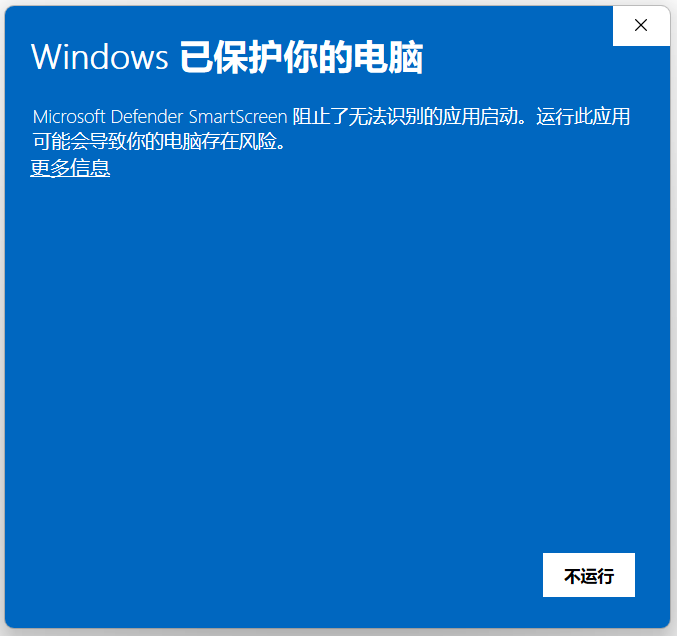
Windows may show a Windows protected your PC warning. This is a standard prompt for an unfamiliar app, not a problem with TabTin. If you downloaded it from the official site, choose More info → Run anyway to continue.
Using a Mac? Follow this guide →
Download the Windows installer
On the TabTin download page, choose Windows 64-bit and wait for the installer to finish downloading.
Open the installer
Double-click the installer in your browser's downloads list or Downloads folder.
If Windows blocks the installer
If Windows shows Windows protected your PC, do not choose Don't run. This is a standard SmartScreen warning.
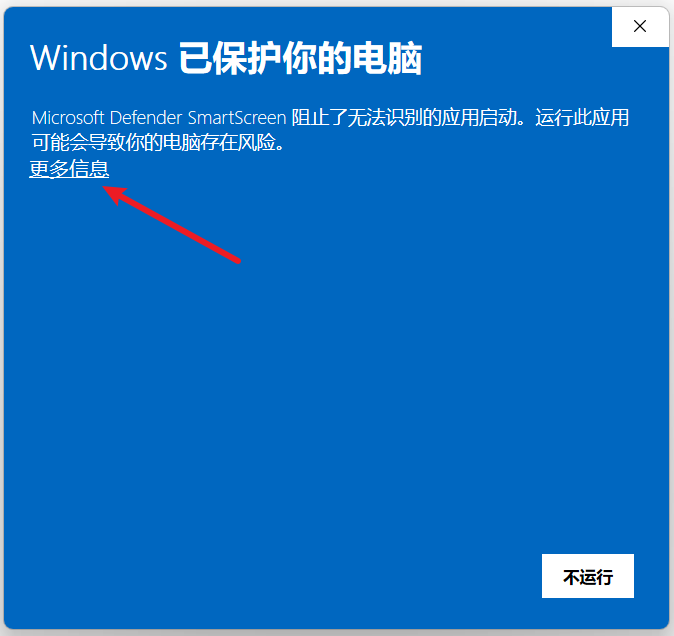
Choose More info
Choose More info in the warning window to reveal the option to continue.
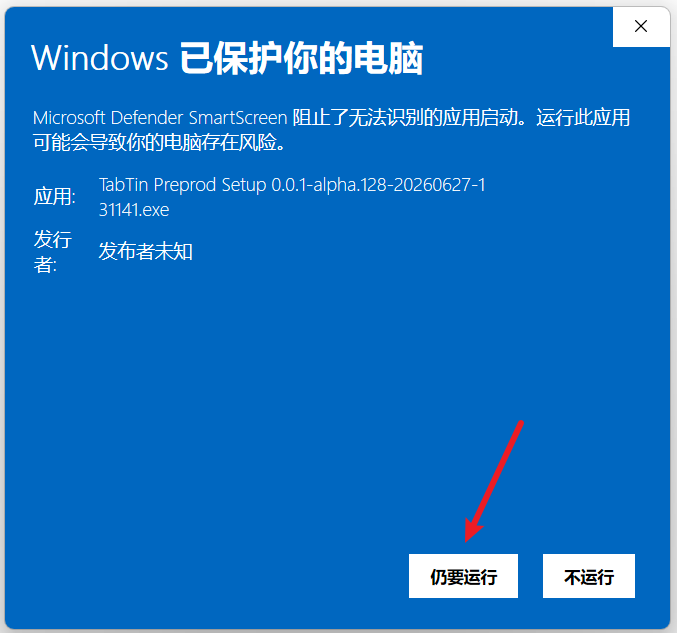
Choose Run anyway
Choose Run anyway to continue with the installer.
Complete the setup wizard
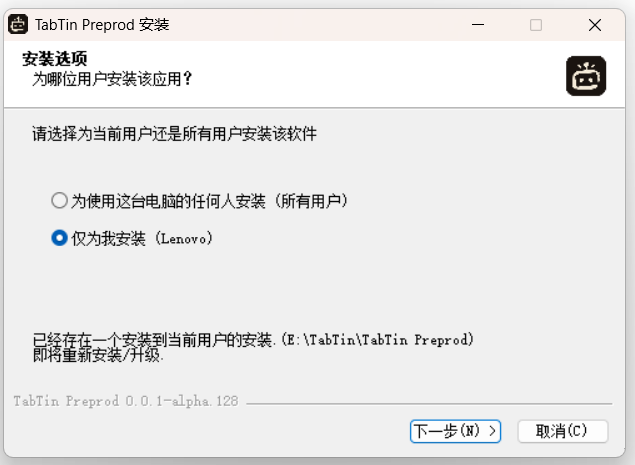
Click Next
Follow the wizard. The default options work for most people.
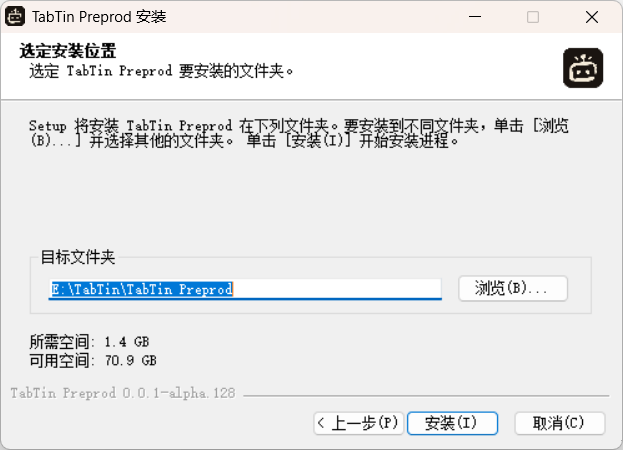
Choose an install location, then click Install
The default location is fine. To change it, click Browse.
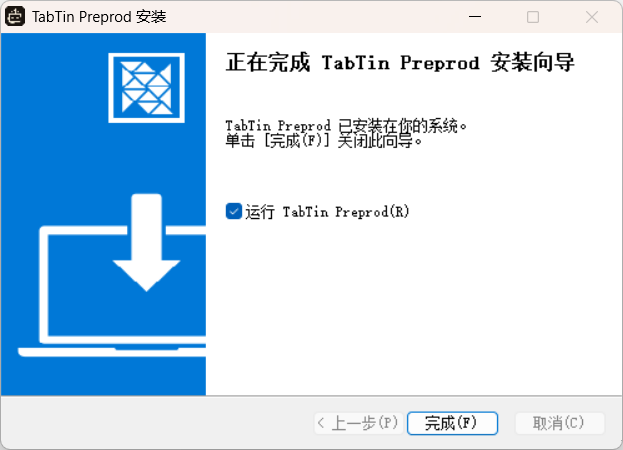
Click Finish
Once installation is complete, click Finish. TabTin is ready to use.