Organizations & collaboration · 6 min read · Updated 2026-09-08
Organize work items, materials, and colleagues in a project
Follow a development project from creation to work breakdown and a collaborative task.
Using a development team’s “Enterprise knowledge base search optimization release,” break requirements into work items, prepare project materials, and start a XiaoTin task from a work item.
First distinguish projects, work items, and task conversations
A project organizes work items, members, and resources around a shared goal. A work item specifies the deliverable, owner, and progress. A task conversation records a particular piece of work with XiaoTin. One work item can link to multiple conversations.
The screenshots show a tutorial project actually created in TabTin. It follows a real development workflow covering requirements, development, integration, testing, and release preparation. It does not mean that this development work is complete or released.
1. Create a project with a clear goal
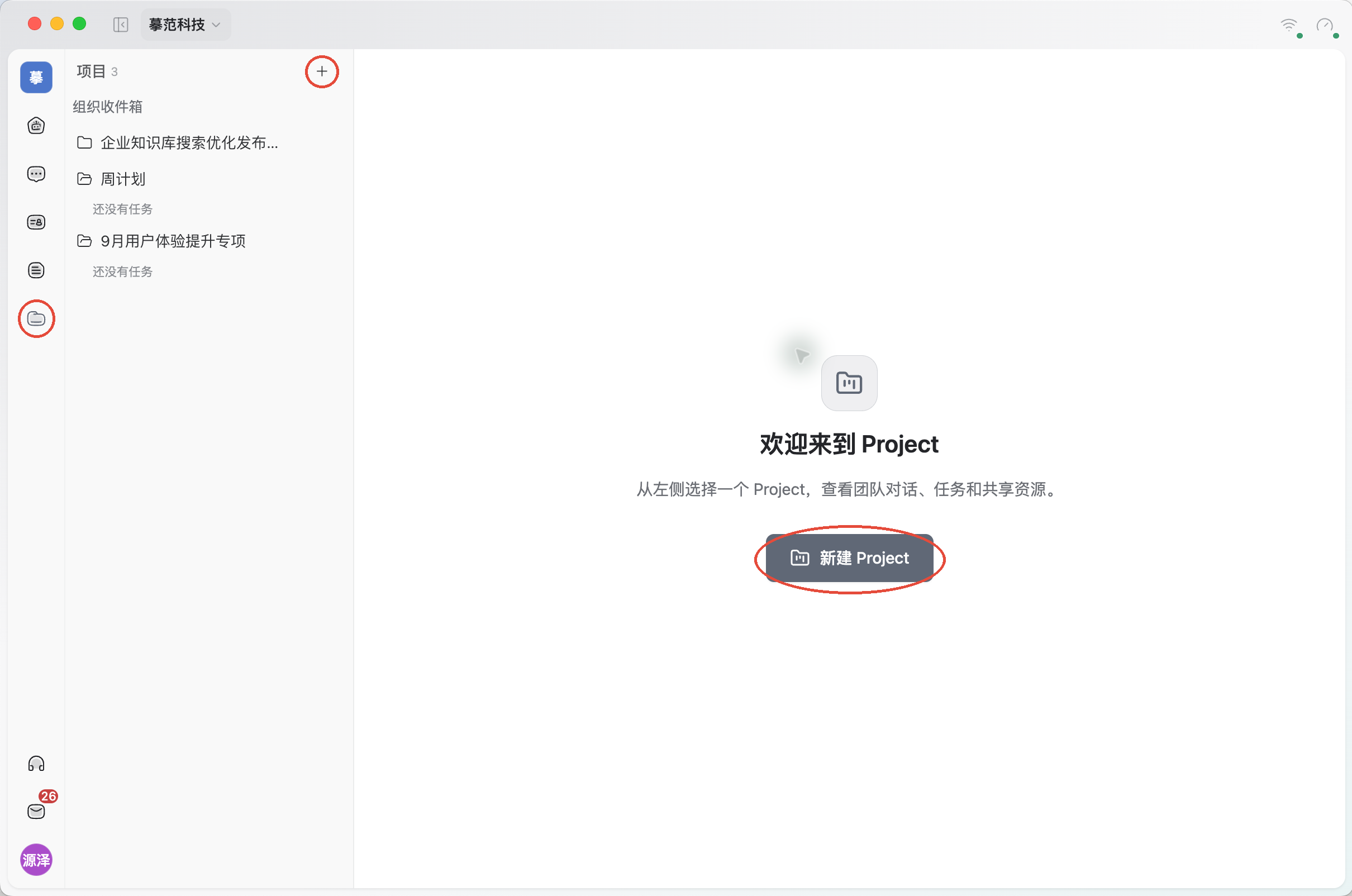
Open “Projects” on the left and click the + beside the project list, or click “New Project” on the welcome page. The red circles below mark these entry points.
Enter a project name and goal, then click “Create.” For example, name it “Enterprise knowledge base search optimization release” and describe the features to improve, expected deliverables, and acceptance criteria.
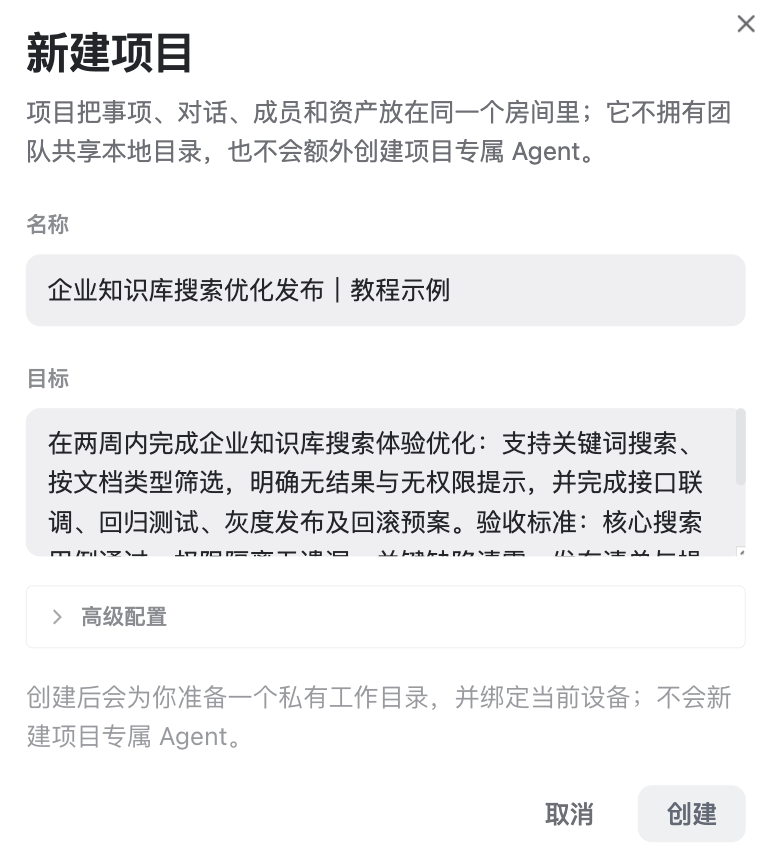
This example aims to complete keyword search, type filtering, and no-results and no-access messages within two weeks, with integration, regression, release, and rollback plans. For a first project, enter only the name and goal; expand “Advanced configuration” when additional work item information is needed.
2. Invite colleagues to the project
In the project, open “More → Members.” Search under “Invite Organization members,” select colleagues, and click “Invite.” Organization means the organization you belong to. They join only after accepting on their own devices.
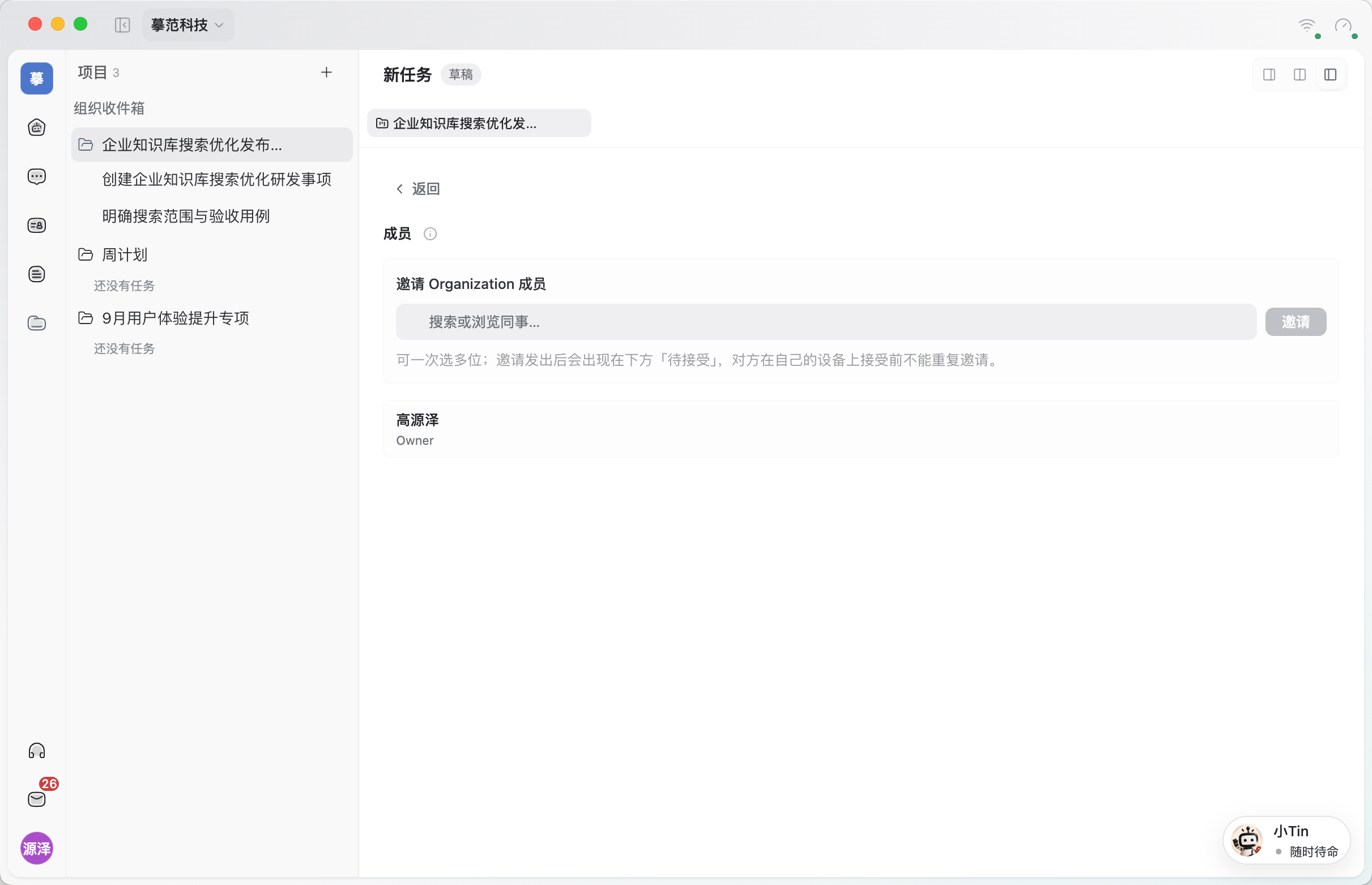
No invitations were sent in this example. The creator temporarily owns the work items, while roles such as product, frontend, backend, QA, and operations are described in their details. For a real team, select owners and deadlines in work item details after members join.
3. Prepare requirements and acceptance materials
First prepare “Search optimization release requirements and acceptance checklist,” covering goals, scope, acceptance cases, dependency order, and release criteria. Open “Resources → Reference cloud drive resources,” search for the document, and select it. For local materials, use “Upload resource.”
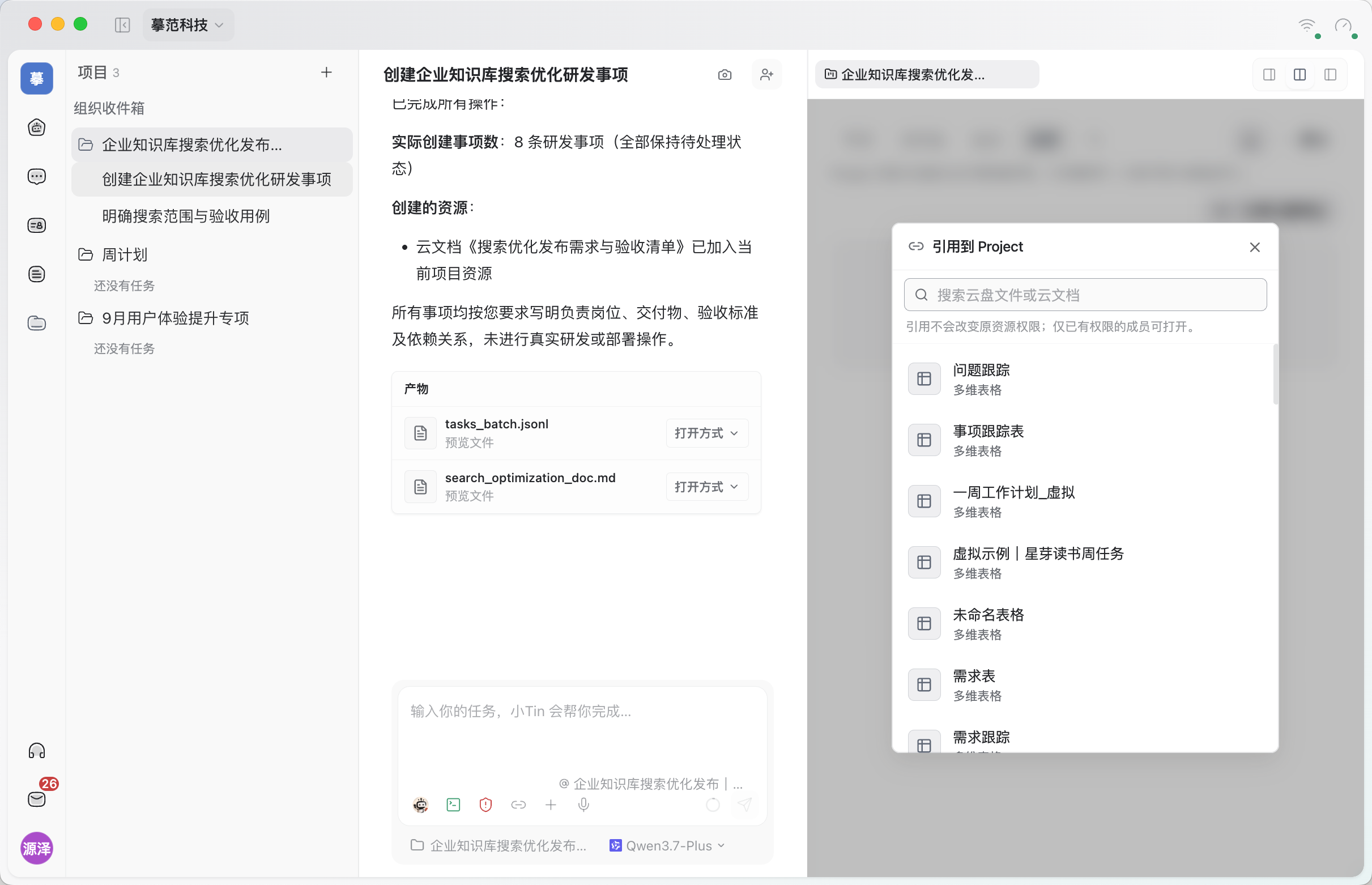
A reference uses the original resource without copying it or changing its permissions. Return to the resource list afterward and confirm that it appears and opens; do not rely only on XiaoTin’s completion message. Outputs generated in tasks do not automatically enter project resources either.
4. Break a development goal into deliverable work items
Return to “Work items.” Use “Create manually” or open XiaoTin and ask it to create items from an explicit list. Each should specify at least the responsible role, deliverable, acceptance criteria, and dependencies. The team confirms owners and dates.
- Define search scope and acceptance cases: product covers keyword search, type filters, no results, and no access.
- Design the search API and permission checks: backend defines parameters, pagination, error codes, and access rules.
- Implement search results and filters: frontend builds lists, filters, loading states, and empty states.
- Complete search API integration: frontend and backend verify fields, pagination, and error messages.
- Write permission isolation and search regression cases: QA prepares normal, boundary, and permission scenarios.
- Run regression tests and close critical defects: produce a regression report and confirm release blockers are resolved.
- Prepare a staged rollout and rollback checklist: operations specifies release steps, monitoring, and rollback conditions.
- Write usage instructions and release notes: product records changes, limitations, and follow-up items.
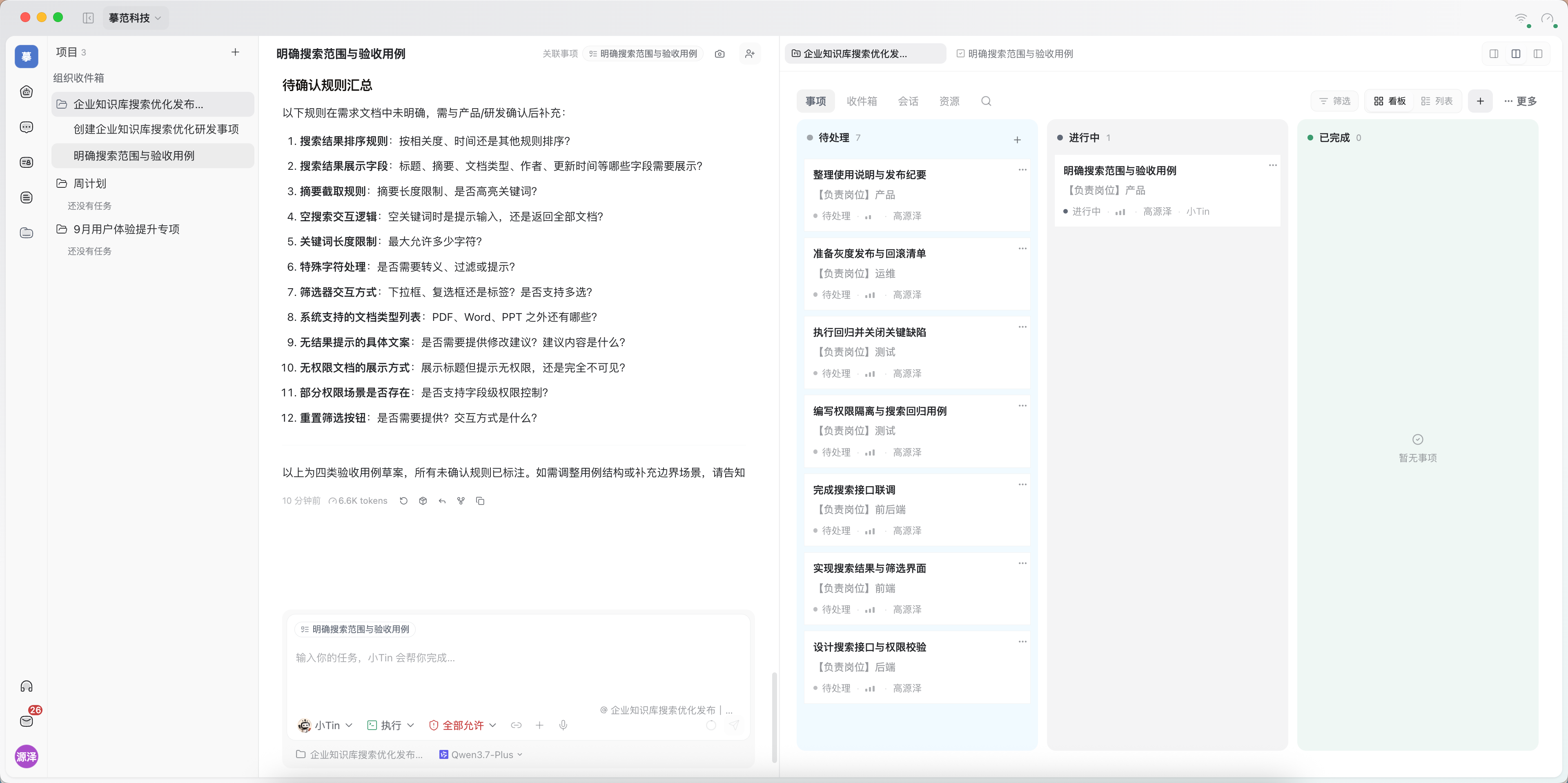
The sequence is requirements confirmation → API and UI development → integration and regression → release preparation. Switching “Board / List” changes the view without duplicating work items.
5. Start a specific task from a work item
Open “Define search scope and acceptance cases” and check its description, owner, priority, and deadline. Under “Linked conversations,” click “Do it.”
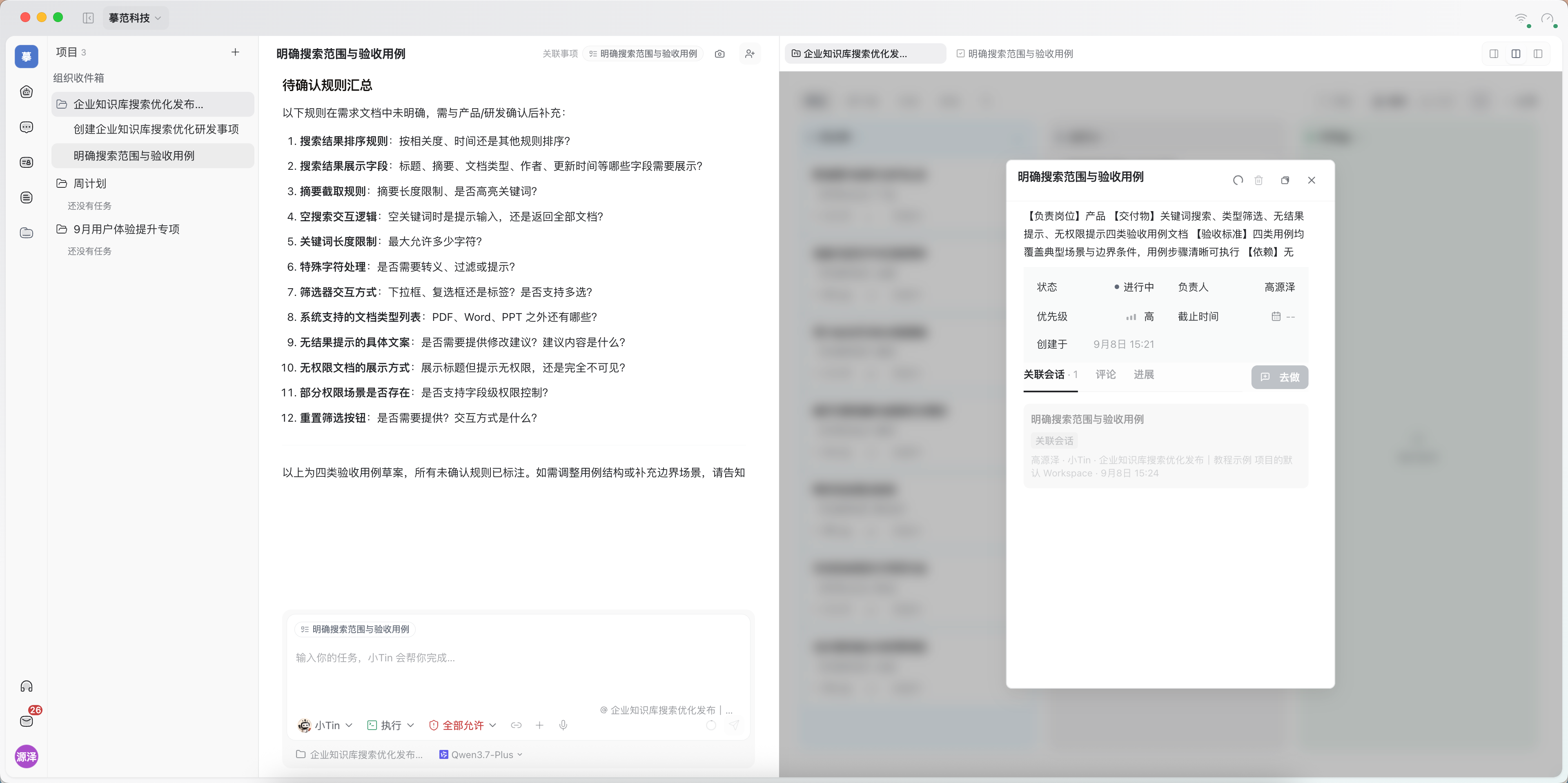
In the conversation, confirm the “Linked work item” at the top, then describe the work for XiaoTin:
Please draft four categories of search acceptance cases for the current work item: keyword search, type filtering, no-results messages, and no-access messages. For each, include preconditions, steps, and expected results. Mark unconfirmed rules as pending confirmation and give me a draft first.
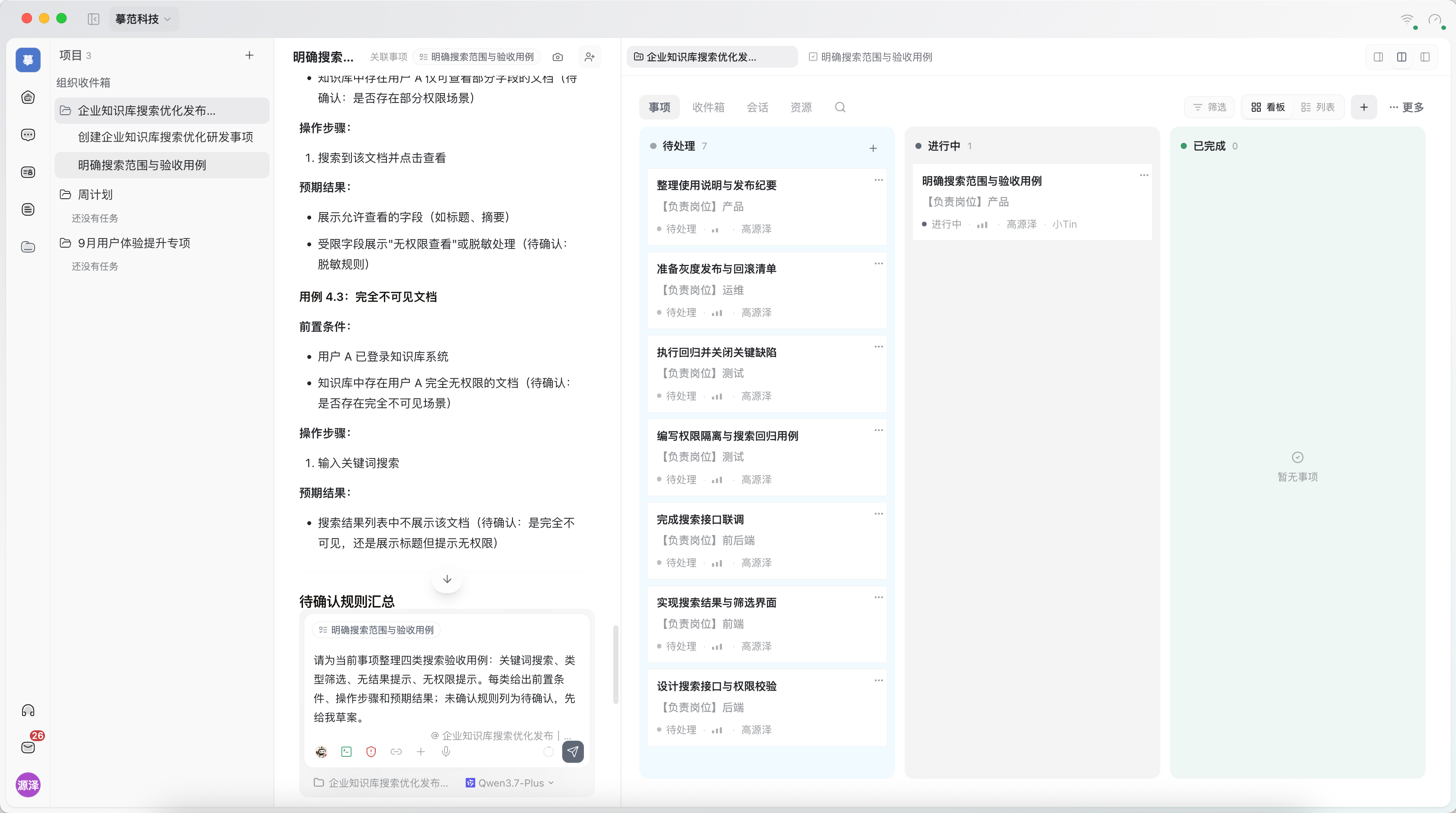
Check that the response covers the requirements, ask about missing rules, or request revisions. A draft of test cases does not mean testing has passed or the entire work item is complete.
6. Collaborate, record progress, and complete acceptance
To involve colleagues in this task, click “Share with colleagues” at the conversation’s top right, verify the recipient and collaboration option, and send. Project invitations and task sharing are separate: one joins a project, while the other joins a specific conversation.
For instructions, see Work together or hand off? Ways to collaborate on AI tasks.
Open the work item’s “Comments” and record completed work, output locations, open questions, and next steps. Update its status in the properties. Set it to “In progress” when work starts and “Completed” only after it passes acceptance checks.
For example, the acceptance case draft still needs product confirmation of search rules, so this work item is not yet accepted. Later integration, regression, and release items also need their own deliverables checked.
To follow up, open the project’s “Inbox” or use “Filter” on the work items page to find a status, owner, or deadline. If the team needs task outputs, explicitly share them to the project and check the resource entry point.
FAQ
Why does XiaoTin say it is done while the board or resource list is unchanged?
Confirm the project and filters, then reopen the relevant tab to check. If a resource reference reports success but still does not appear, keep the message and resource name for a report; avoid repeatedly creating or referencing it.
Why can I still not open materials after joining a project?
Project membership does not grant access to every original resource. Ask the owner to check the original file’s permissions.
Can XiaoTin work on the same work item more than once?
Yes. One conversation can handle research and another continue with a proposal. Find prior work under “Linked conversations,” or start new work with “Do it.”
Is a project a shared local folder for the team?
No. Projects organize work items, conversations, members, and resources. The workspace that runs tasks has its own device and directory settings. Creating a project does not automatically create a project-specific AI persona.