Agent & tasks · 6 min read · Updated 2026-09-08
Give work to XiaoTin: start a task, review results, and keep refining
Tasks and conversations let you give XiaoTin a specific job: describe the goal, provide materials, follow progress, and refine the result.
Feature overview
Tasks and conversations let you give XiaoTin a specific job: describe the goal, provide materials, follow progress, and refine the result. Start a task to organize meeting notes, create a checklist, or analyze files.
This guide uses a fictional “My TabTin work startup checklist.” For your first use, keep the default XiaoTin and complete a small task.
How to use it
1. Open a new task
In the main navigation on the left, click Task, then at the top of the sidebar click New task. A task input box appears in the middle. To continue existing work, open its original task under the relevant workspace.
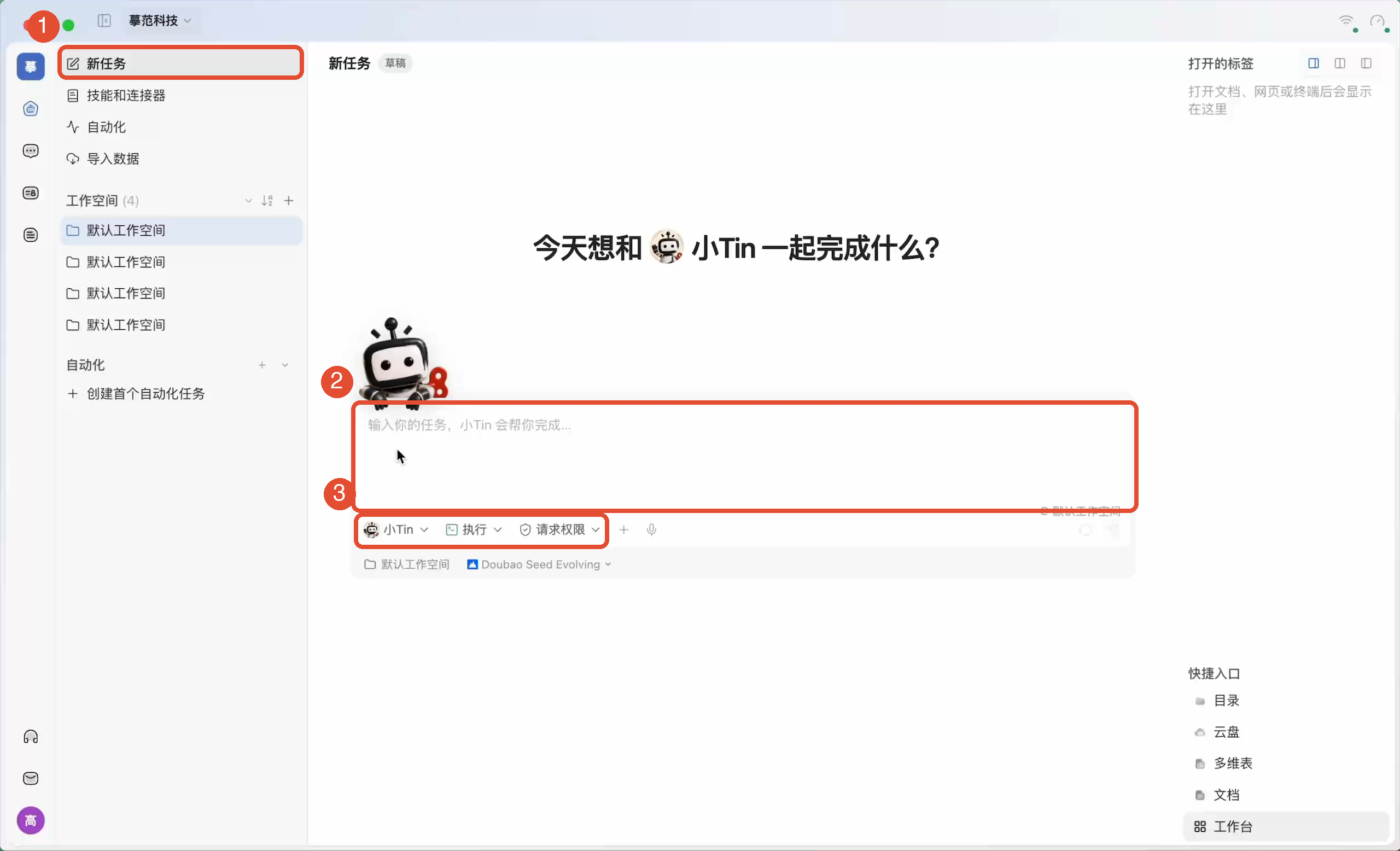
2. Confirm who executes and where
Before sending, check the settings below the input area:
- AI persona: Click XiaoTin’s name to choose the executor. Keep the default for your first task.
- Work mode: Choose Q&A to explain materials, Run to create or modify results, and Plan to discuss an approach first. PMO breaks down complex work; availability depends on current configuration.
- Workspace: For computer files, confirm that the execution device and directory are available.
- Permissions: These determine how actions are confirmed. For your first use, choose Ask every time and inspect each action before deciding.
Selecting “Run” does not approve every action. Persona, mode, permissions, and workspace are separate settings to verify individually.
3. Add requirements and materials
Try to include three things:what to do, the requirements, and the desired output. For example:
Please create “My TabTin work startup checklist.” Include three things to check before starting, three small goals for today, one concrete action per goal, and an end-of-day completion checklist. Save it as a TabTin document and provide a link to open it.
To add reference files, click the input area’s + to select attachments, or drag in files or paste images. Check names, count, and readiness before sending. Remove incorrect attachments and follow any upload failure instructions.
“Help me organize this” may produce only a text reply. For an output you can open, explicitly request “Save as a document” or specify the file type and location.
4. Send and follow progress
After checking the content, click the input box’s Send button. The conversation shows replies and execution activity. To inspect specific actions, expand Execution details.
- Waiting for an answer: Provide the requested information and submit your answer.
- Confirmation required: Review the action, target file or path, and authorization scope before allowing or denying it.
- Execution failed: Read the error and check materials, connections, or settings before deciding how to proceed.
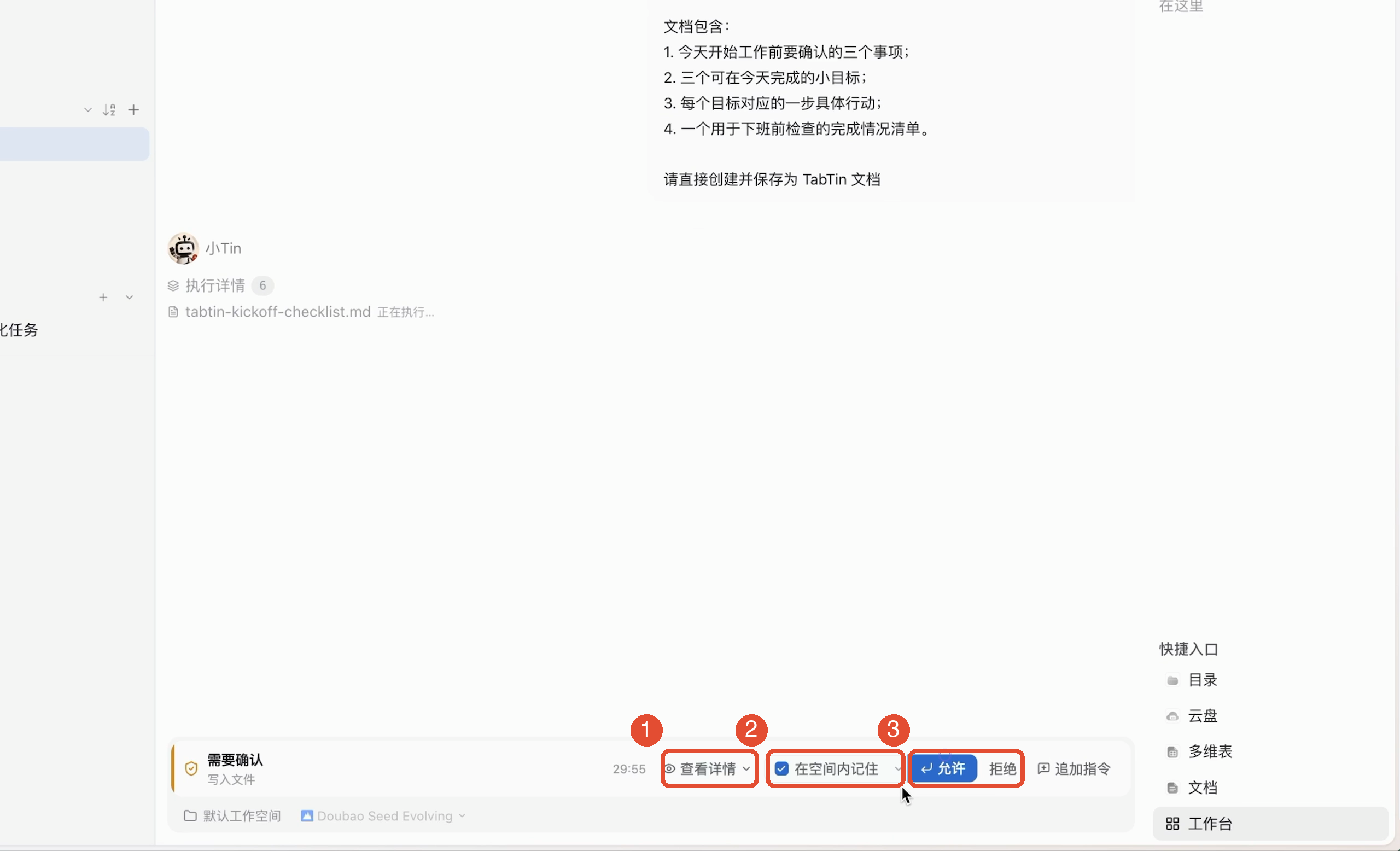
To allow only the current action, use the one-time option in the interface. Options such as “Remember in this workspace” may affect future actions.
5. Open the result and keep editing
- When the task returns a document link, file entry point, or artifact card, click to open or preview it.
- Check the actual content, filename, and save location against your requirements.
- For changes, describe the scope in the original task. Reopen the updated result and check it.
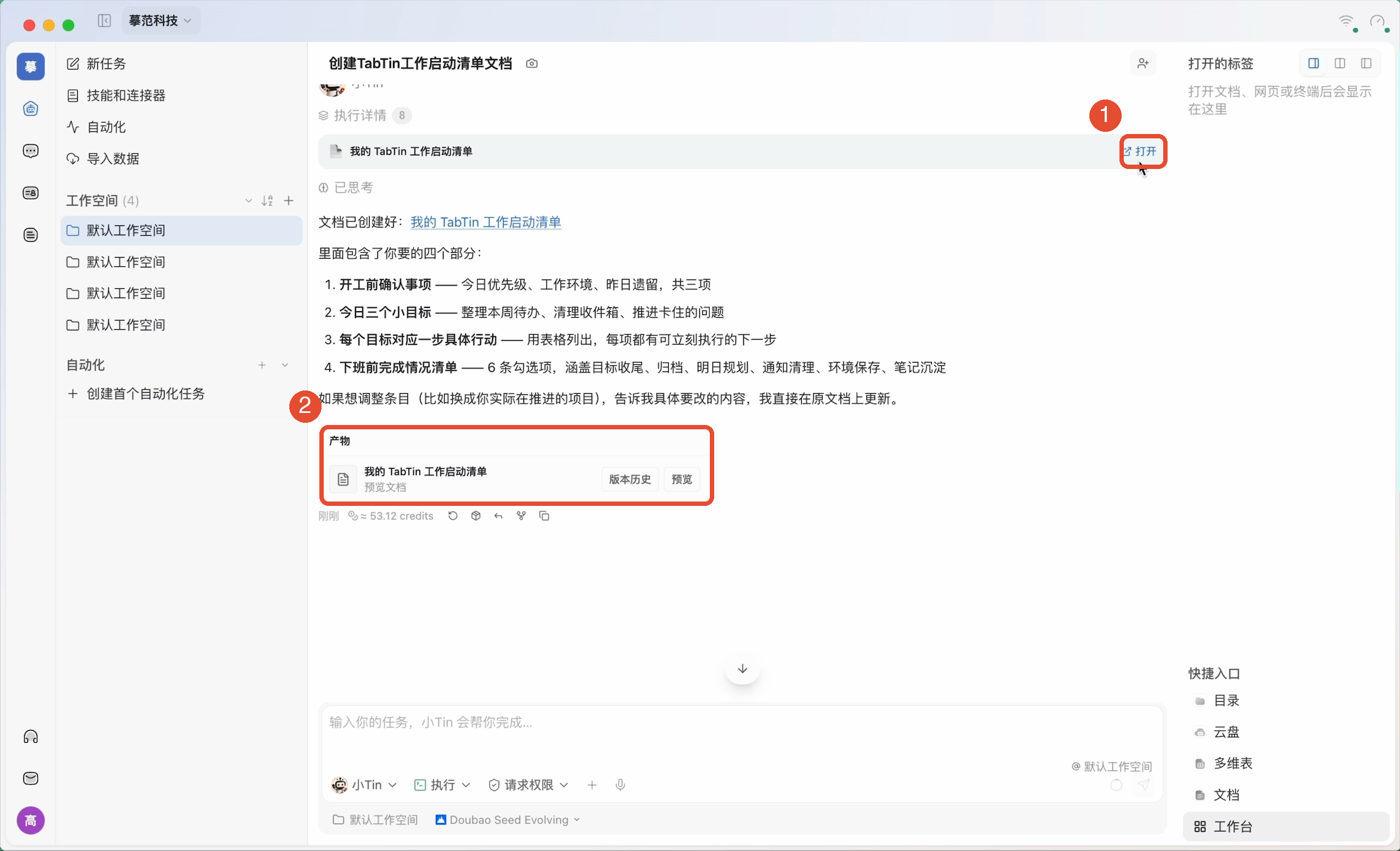
For example: “Add a daily reflection section to the original work startup checklist and keep everything else unchanged. Update the original document and provide a link to open it.”
Other common features
Open applications in the workbench
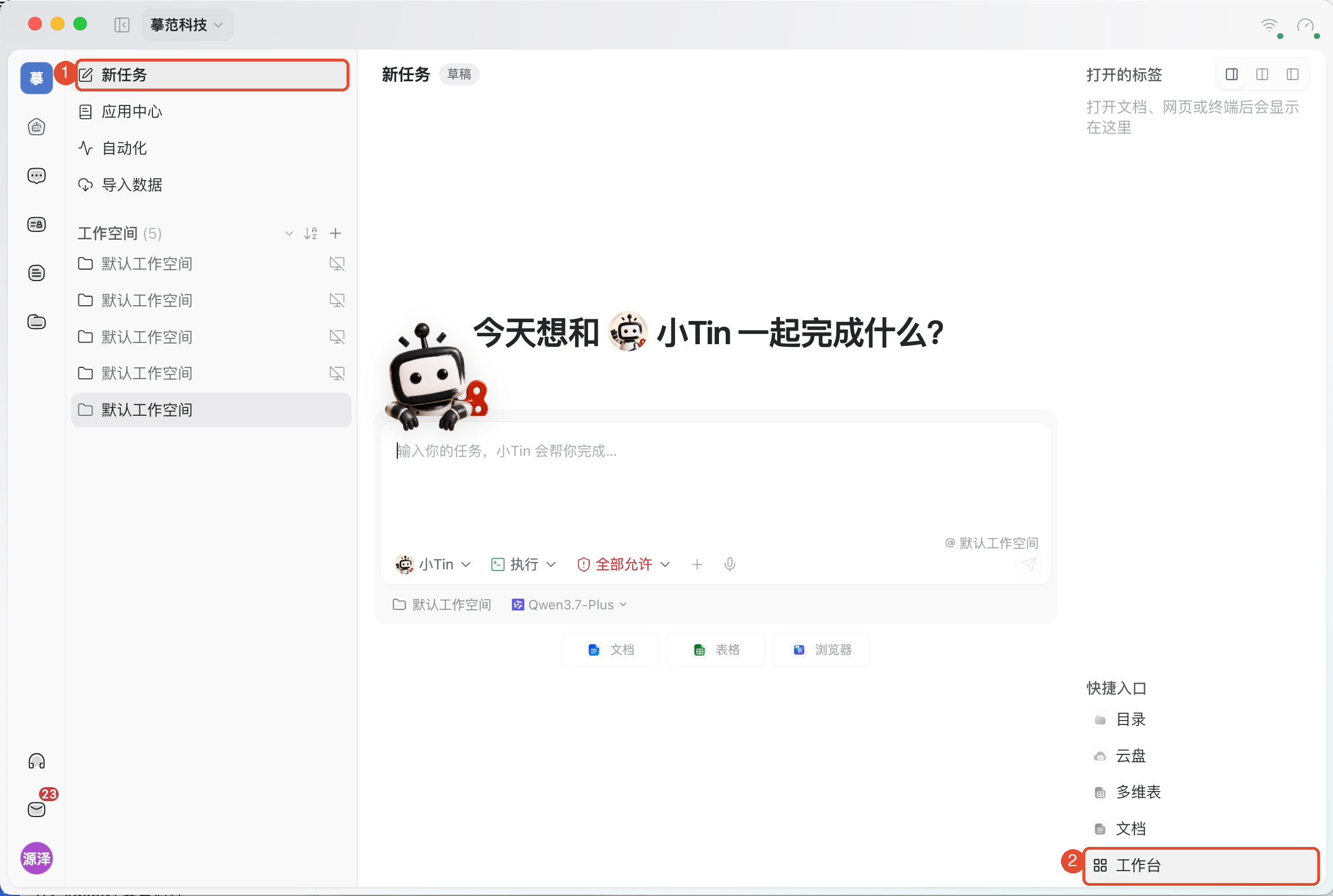
At the bottom right of the new task page, the shortcuts Click Workbench let you open documents, spreadsheets, browsers, terminals, and other applications. Open resources appear as tabs; click a tab to switch.
Add instructions or stop while a task is running
While XiaoTin is working, use the input area’s available controls to add requirements. Queued content is handled later. To change direction immediately, use the interrupt-and-send action; to stop entirely, click Stop. Check the status and existing outputs before deciding what to do next.
Revisit, name, and reuse tasks
Reopen conversations from the workspace’s task history. Give tasks recognizable names and pin frequently used ones. Continue the same work in its original conversation; create a new task for unrelated work.
Share with colleagues
Use the task’s sharing action to share context with specific colleagues. Select an available access scope, then have the recipient check that it opens. Task sharing and document/file permissions are separate; access to a conversation does not grant access to every attachment.
IM and Agents: IM is for communicating and sharing materials with colleagues. Direct Agent execution within IM is not available yet. Start AI work from the task page and share the results you need.
Add skills, connectors, or voice as needed
For a specific working method or external service, add available skills or connectors from the input area’s + menu and check that the current persona may use them. Voice input can help enter text; review the recognized draft before sending.
Things to keep in mind
- Stopping does not automatically undo completed changes. To restore them, check available versions or rollback actions and what they cover.
- Local files require the right device, directory, and permissions. Cloud resources also have independent access permissions.
- Even after “Completed” appears, open the actual result. A chat reply alone does not confirm successful saving.
FAQ
Why did it reply with text instead of creating a file?
Check the mode and whether your request is explicit. For a file, select Run and add “Please save this as a document and provide an opening link and save location.”
Why has the task paused?
Check whether it is waiting for an answer or approval. If nothing is pending, inspect execution details and errors. Avoid repeatedly sending the same request.
Why can it not read an attached file?
Check attachment readiness, supported format, device, and permissions. A filename alone may not locate it; provide the location or attach it again.
Must I start over if I dislike the result?
Usually, first explain what to change, what to keep, and whether to update the original file in the existing task. Create another task only for unrelated work or an independent attempt.
Why can my colleague not open the result I shared?
Check whether it is a local file or cloud resource. A local path does not give them access. Cloud documents and files also require the appropriate resource permissions.