Apps and Skills · 6 min read · Updated 2026-09-08
Add skills to XiaoTin: find the right Skill for a task
A Skill is a reusable working method telling AI which steps to follow for a type of task and what its output should contain.
Feature overview
A Skill is a reusable working method telling AI which steps to follow for a type of task and what its output should contain. Choose suitable skills for reports, document organization, or spreadsheet analysis to reduce repeated instructions.
This guide turns weekly meeting notes into a report outline. Find a skill, configure it for your AI persona, then select it in a task and provide materials. The AI persona is XiaoTin or another assistant selected at the input box’s bottom left.
How to use it
1. Open the skill list
Open TabTin and confirm the organization at the top left. In the main navigation on the left, click Task, then in the sidebar click App Center and select the top Skills tab. You do not need to open the right-hand workbench first.
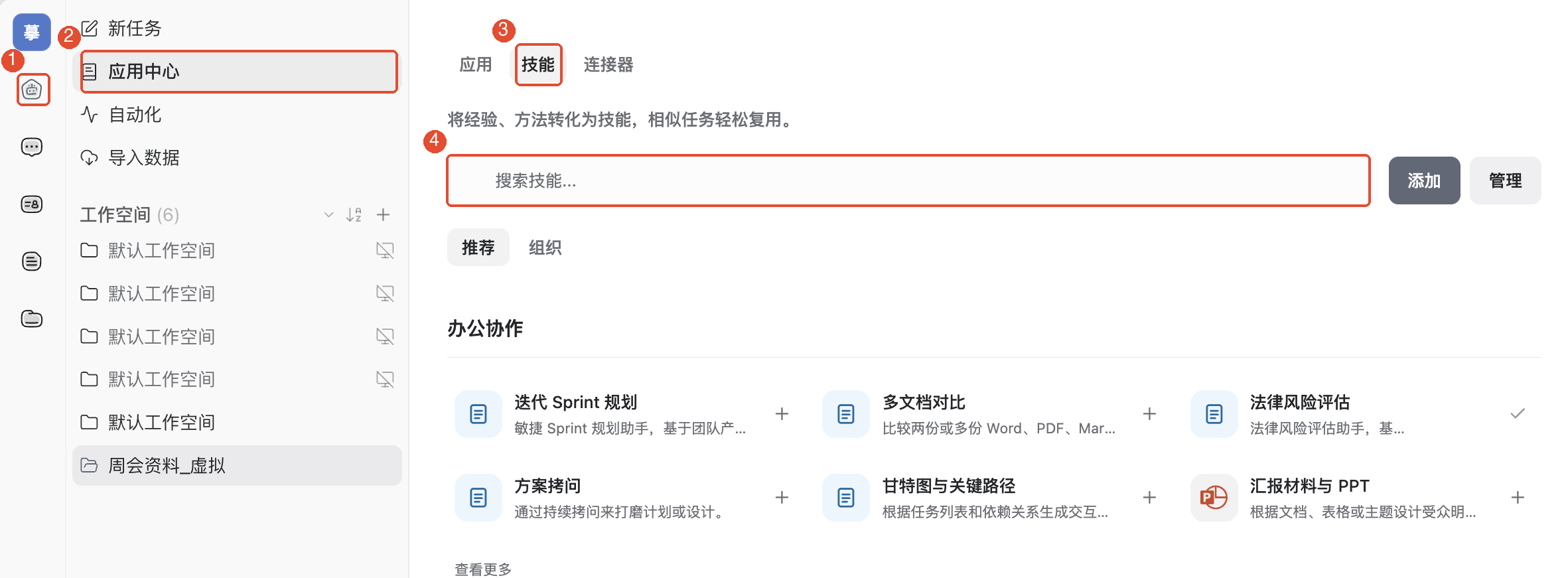
2. Find a suitable skill
Enter “report” in the search box and find Report materials and PPT, then click its name for details.
Read the description to confirm it suits reports, then the workflow to understand needed input such as audience, duration, and source materials. Beneath the name, /presentation-builder is the skill’s invocation identifier, which you can use to find it in a task later.
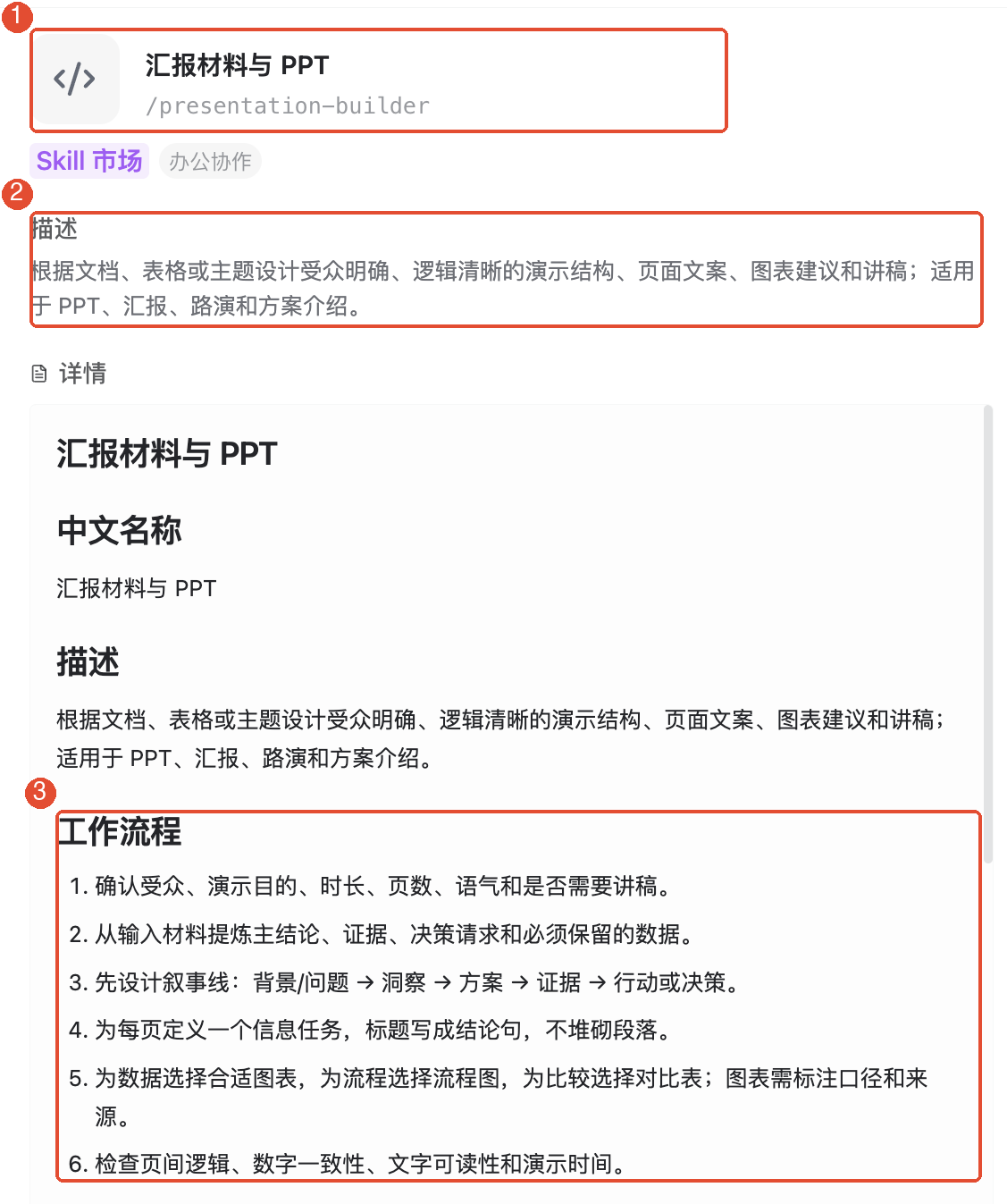
3. Configure it for your persona
Close details and return to the skill list. For Report materials and PPT, click the right-side + to open Configure skill.
For this example, choose Specific personas and assign it only to XiaoTin Writer. If all personas are selected, first click Deselect all, then select XiaoTin Writer. Check that Selected shows 1 and click Save (1 persona).
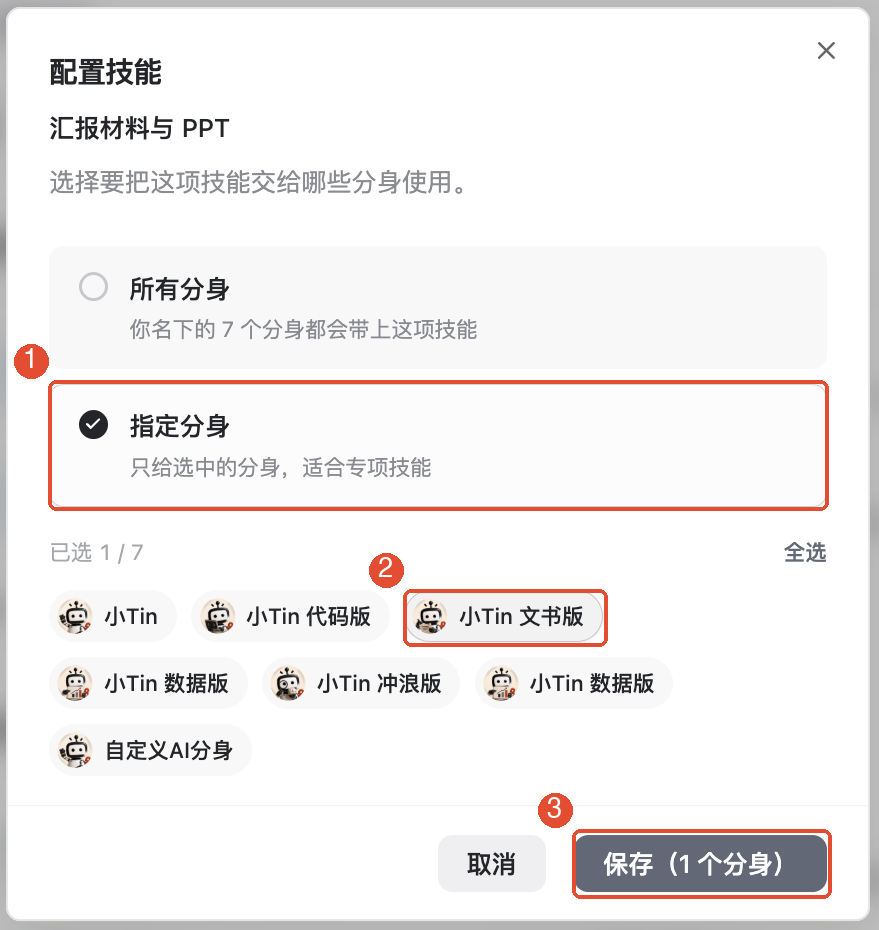
To use it with several personas, select them individually. To use it with every persona listed in the window, choose All personas. After saving, check the list feedback to confirm success.
4. Select the same persona and skill in a task
- In the sidebar, click New task.
- Click the persona name at the input box’s bottom left and select the one just configured: XiaoTin Writer.
- Click the input box and type /, then enter presentation to find the skill.
- Check the candidate names and choose Report materials and PPT. Then add this task’s requirements.
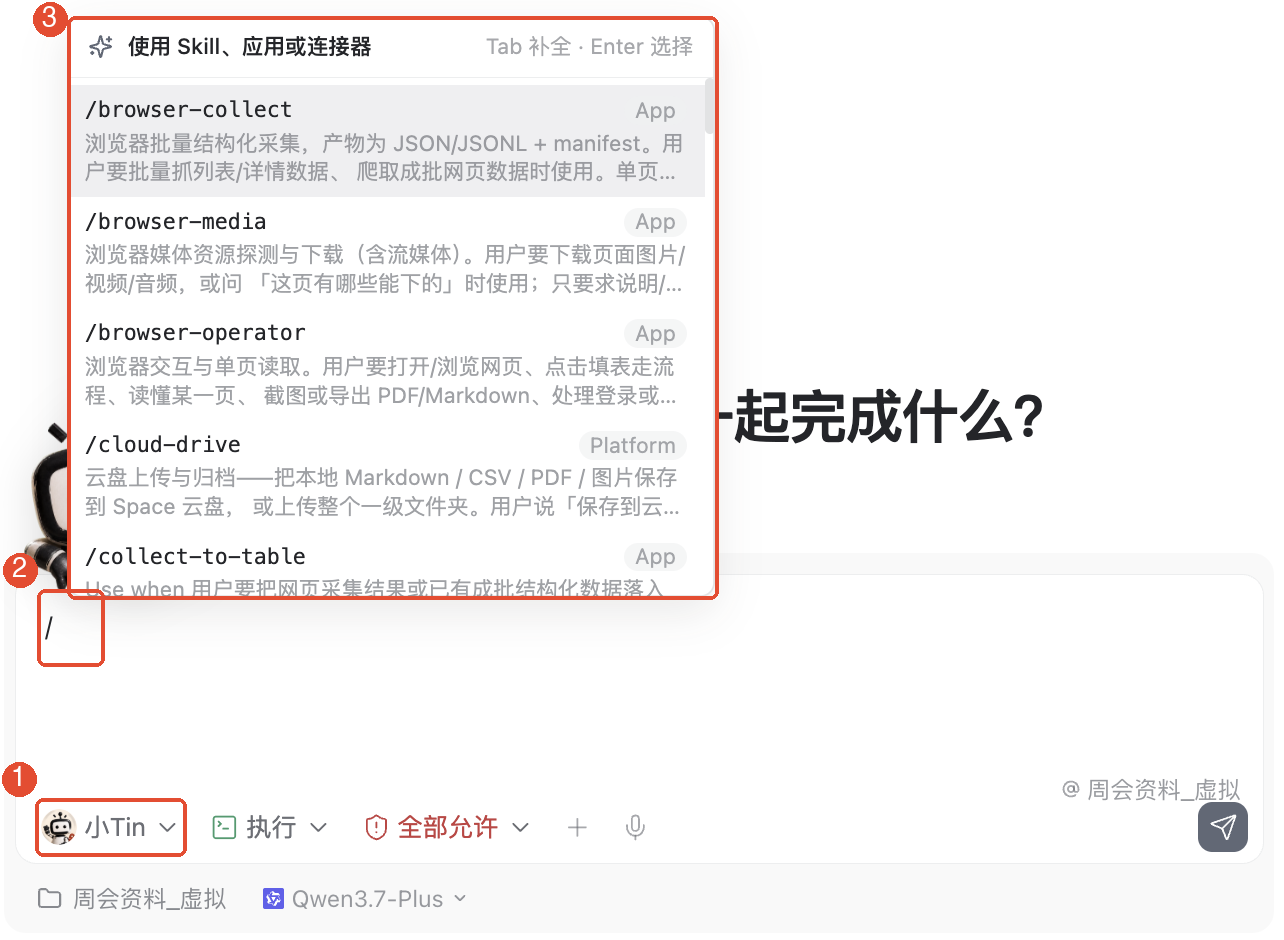
The list may also include applications and built-in capabilities. Choose by skill name and invocation identifier, not simply the first item. If missing, confirm the persona matches step 3 and the configuration was saved.
5. Provide materials and the current request
After selecting a skill, tell AI what to process this time. Beside the input box, click + to add meeting files, or paste the meeting text directly.
Practice with this fictional record:
“This week we finished the first draft of the event registration page; the promotional poster still needs confirmation. Next week we plan to finish the poster and open registration. Lin owns the page and Chen owns the poster; deadlines are pending confirmation.”
Then add:
“Turn this record into a five-slide weekly meeting report outline for teammates, with an expected five-minute presentation. Include this week’s progress, unresolved issues, and next week’s plan, with speaker notes for each slide. Do not add facts absent from the original; mark missing information as pending confirmation.”
Check the persona, selected skill, materials, and requirements, then send. A skill chooses a method; it does not supply your source materials.
6. Review results and refine
Check for five outline slides and speaker notes for each, and verify owners and progress against the original. Deadlines absent from the source should remain pending confirmation.
For changes, continue in the same task: “Make slide 3 a to-do list grouped by owner; keep the other slides.” No need to create another task or add the same skill again.
Other common features
Manage added skills
At the top right of App Center, click Management to open Local apps, then choose Skills to view existing items. To find other skills, click View marketplace to return to the catalog.
Choose different skills by task
Find reporting skills for reports, multi-document comparison for comparing files, and spreadsheet analysis for table conclusions. Read descriptions and scope before choosing rather than judging by name alone.
Things to keep in mind
- Use the persona you configured for the skill. Opening a skill’s details does not configure it.
- Skills provide methods, not automatic file access. Supply materials as attachments, pasted content, or accessible resources.
- A skill name containing PPT does not guarantee a PPT file on every run. This example requests an outline and speaker notes. Request a file explicitly if needed and verify it opens.
- Check skill outputs for facts, numbers, and missing information. If sources are incomplete, do not treat AI additions as facts.
FAQ
Why can I still not find the skill after typing /?
Confirm step 3 saved successfully and the correct persona is selected at the bottom left. Add keywords from the skill name or invocation identifier to narrow results.
Must I add it again every time?
No, once configuration is saved. Next time, select that persona, choose the skill in the task, and provide new materials.
Why must I write instructions after selecting a skill?
The skill stores a general method. You still need to specify this task’s materials, audience, length, and delivery format.
Why did I get only an outline, not a PPT file?
This example requests an outline and speaker notes. Ask explicitly for a PPT file if needed; generation also depends on available file creation tools.