Workbench · 7 min read · Updated 2026-09-05
What is a workspace, and when should I create one?
What workspaces control, how to choose a folder, why they appear offline after switching computers, and what deleting one removes.
You ask XiaoTin to organize some materials, then later to process another customer’s files. The two jobs use different folders. The key question is: where will this task actually run?
A workspace is the local working location you specify for the Agent: which device and which working directory it uses.The interface calls it “Workspace”; the same term in product materials refers to the same thing.
Remember this distinction: a new task starts a new conversation; a new workspace sets up another local working location. You do not need a new workspace for every question.
When is creating one worthwhile?
The key consideration is whether this task needs a separate set of local materials or a different directory.
- Keep two customers’ files separate.For customer A’s contracts and customer B’s research, bind each customer’s folder to its own workspace and name it clearly by customer or purpose.
- Maintain two code directories separately.If your website and internal tools live in different directories, create a workspace for each and confirm the correct one before starting a task.
- Give ongoing work a fixed home.For example, weekly operations materials that you revisit are easier to find in a consistent workspace.
If you are simply processing the same materials differently, such as summarizing interviews and then outlining an article from them, a new task in the same workspace is usually enough.
Start with one workspace you use regularly. Add another when you actually need a different directory or separate materials.
Where to find import
The following instructions use the current Mac desktop client.

- Open TabTin and confirm that the organization at the top left is the one you want.
- Go to “Tasks” on the left.
- Find the “Workspaces” group in the sidebar and click the button on its right: +, which means “New workspace.”
- The dialog is titled“Create new workspace”, with the note “Choose a local folder as the Agent’s working directory” below it.
To check which folder an existing workspace uses, open its “Workspace settings” and look at “Working directory.”
How do I choose a folder when creating a workspace?
The dialog has two main fields:Working directory and workspace name.
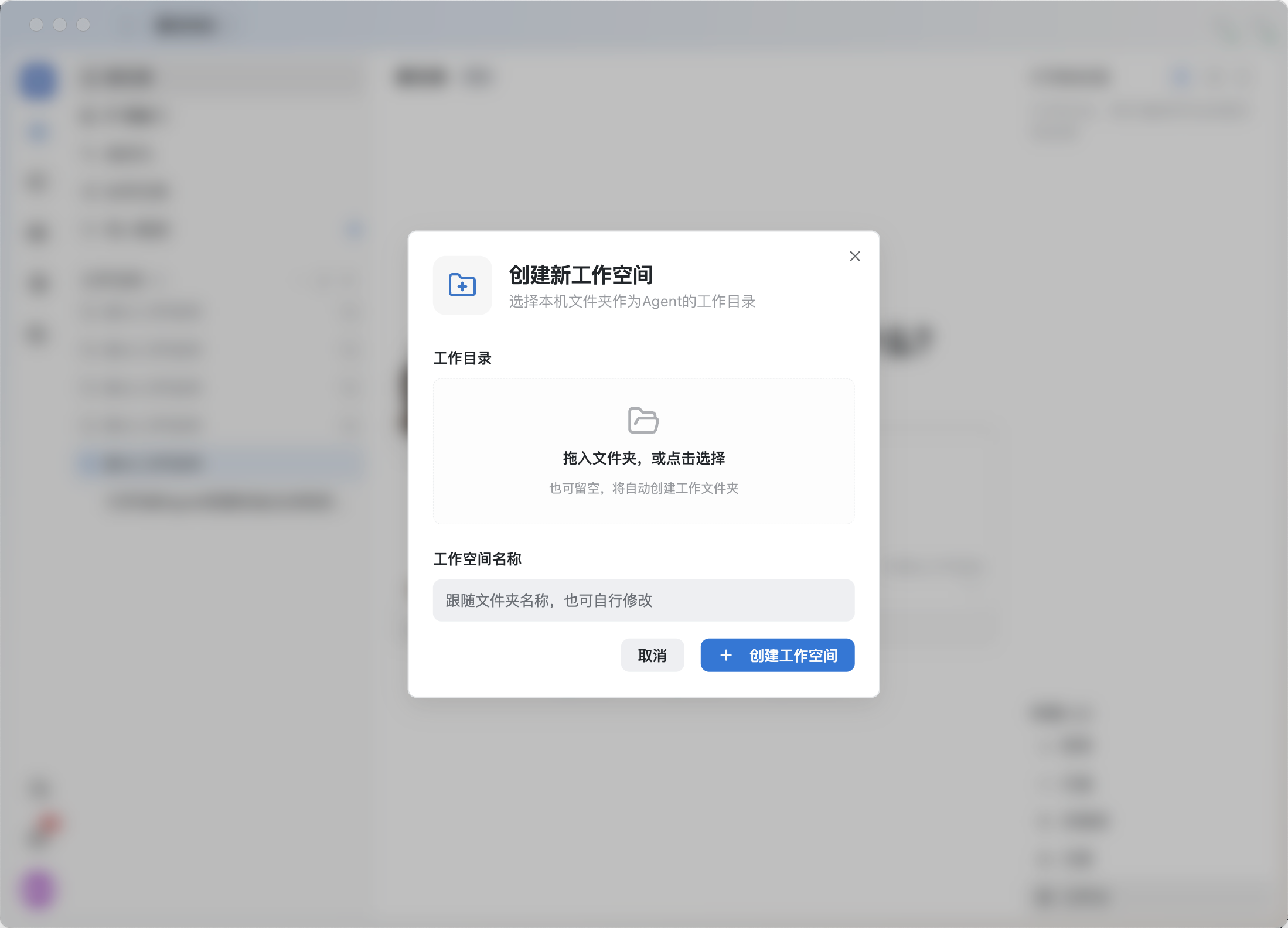
Already have files? Choose an existing folder
Drag the folder into the selection area, or click “Drag in a folder, or click to select” to choose an existing local folder.
For example, if your materials are in “Customer A / Research,” choose that folder. Then verify the path in workspace settings to make sure you did not choose its parent directory.
This binds a local working directory. It does not mean the entire folder has been uploaded to cloud storage or shared with colleagues.
No files yet? You can leave the directory blank
The dialog explicitly supports “You can also leave this blank to create a working folder automatically”. You do not have to manually create a directory on your computer before starting.
After creation, check “Workspace settings → Working directory” for its location. Use the actual path shown in the interface.
Name it by purpose so it is easy to find
The name field says “Uses the folder name; you can also change it.” Names such as “Website content” or “Customer A research” work well.
Finally, click “Create workspace”. The new workspace appears in the left list once created. Before starting a task, confirm it appears below the input box and verify its working directory.
How do workspaces, the workbench, and cloud documents differ?
A workspace answers “Where does it run?”It identifies your local working directory and execution device.
The workbench opens and handles resources.Documents, spreadsheets, browsers, and terminals can open here. The workbench is not another folder inside a workspace.
Content in cloud documents and cloud storage has its own resource permissions.Creating a workspace does not replace document sharing. To let a colleague view a document, configure that document’s sharing and access permissions.
Seeing a workspace name in the sidebar does not mean its local files are shared with your team. To determine what colleagues can see, check the specific resources being shared.
How do I check which directory the Agent is using?
First check the execution location below the task input area, then click the settings button beside the workspace on the left to open “Workspace management.”
The “Working directory” card on the right shows the current path, directory type, and device status. Click it for the full path or to change the directory type. The details page lets you check:
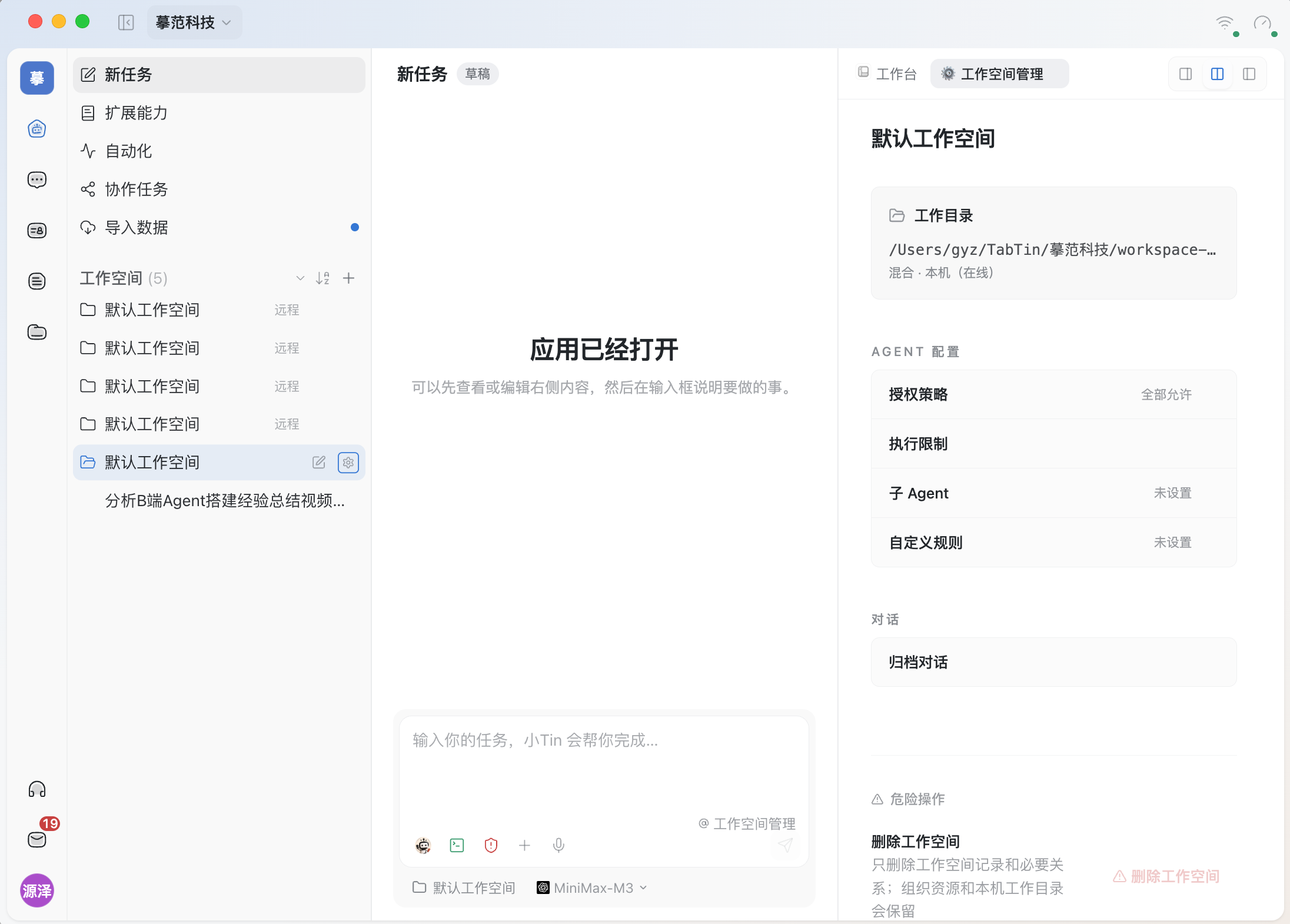
- Device: the execution device containing the working directory, and whether it is online.
- Working directory: the exact folder path, with an “Open in file manager” action.
- Directory type: choose between “Code,” “Mixed,” and “Documents.”
The directory type describes the work’s main purpose. It does not switch to a different physical folder or change permissions under “Authorization policy.”
Before organizing, rewriting, or generating files, spend a few seconds checking the path. That is easier than discovering afterward that you used the wrong materials.
FAQ
Why do some workspaces appear “Offline” after I switch computers?
First check which device they are bound to.
The working directory details explain that the execution device is fixed once bound and the workspace will not migrate. A workspace tied to another computer that is not online may appear offline; your new computer has not taken over that local directory.
To continue on the original device, make sure TabTin is running there and the network is connected. To process local files on your current computer, prepare the folder here and create a workspace for this device.
Can a workspace be a collection of several folders?
A workspace has one defined working directory. You can organize subfolders within it by business area. If two jobs already use separate directories, separate workspaces are clearer.
Does the “Documents” type make files read-only?
No. Directory type and operation authorization are separate settings. To control whether the Agent asks for your approval, check “Authorization policy.” Directory type does not replace permission settings.
Will deleting a workspace also delete files on my computer?
The workspace management page explicitly states:Only the workspace record and necessary relationships are deleted; organization resources and the local working directory are retained.
Keeping local files does not mean every workspace-related record is retained. Read the current confirmation prompt before deleting, especially if imported conversation history is involved.
Why is “Delete workspace” grayed out?
If it is this organization’s last workspace on the device, the button is disabled and the page says at least one workspace must remain.
This preserves a local entry point for work. A gray button alone does not indicate a permission problem.
Still cannot find the right working location?
Record the current organization, workspace name, working directory path, and device status. Include any exact error message, then contact support through the client’s support entry point to help diagnose the issue.