Workbench · 6 min read · Updated 2026-09-08
Ask AI while browsing: put your research to work
The browser opens websites in the TabTin workbench so you can research and ask AI to organize page content.
Feature overview
The browser opens websites in the TabTin workbench so you can research and ask AI to organize page content. Read while comparing information, making lists, or preparing documents.
This guide uses “Weekend outing research.” Attractions, opening hours, and prices are fictional. The pictured 127.0.0.1 is a local demonstration address; open your actual reference website when using the feature.
How to use it
First open the workbench
Open TabTin and go to the left-side Task page and click New task. In “Shortcuts” at the bottom right of New task, click Workbench to open the application entry list.
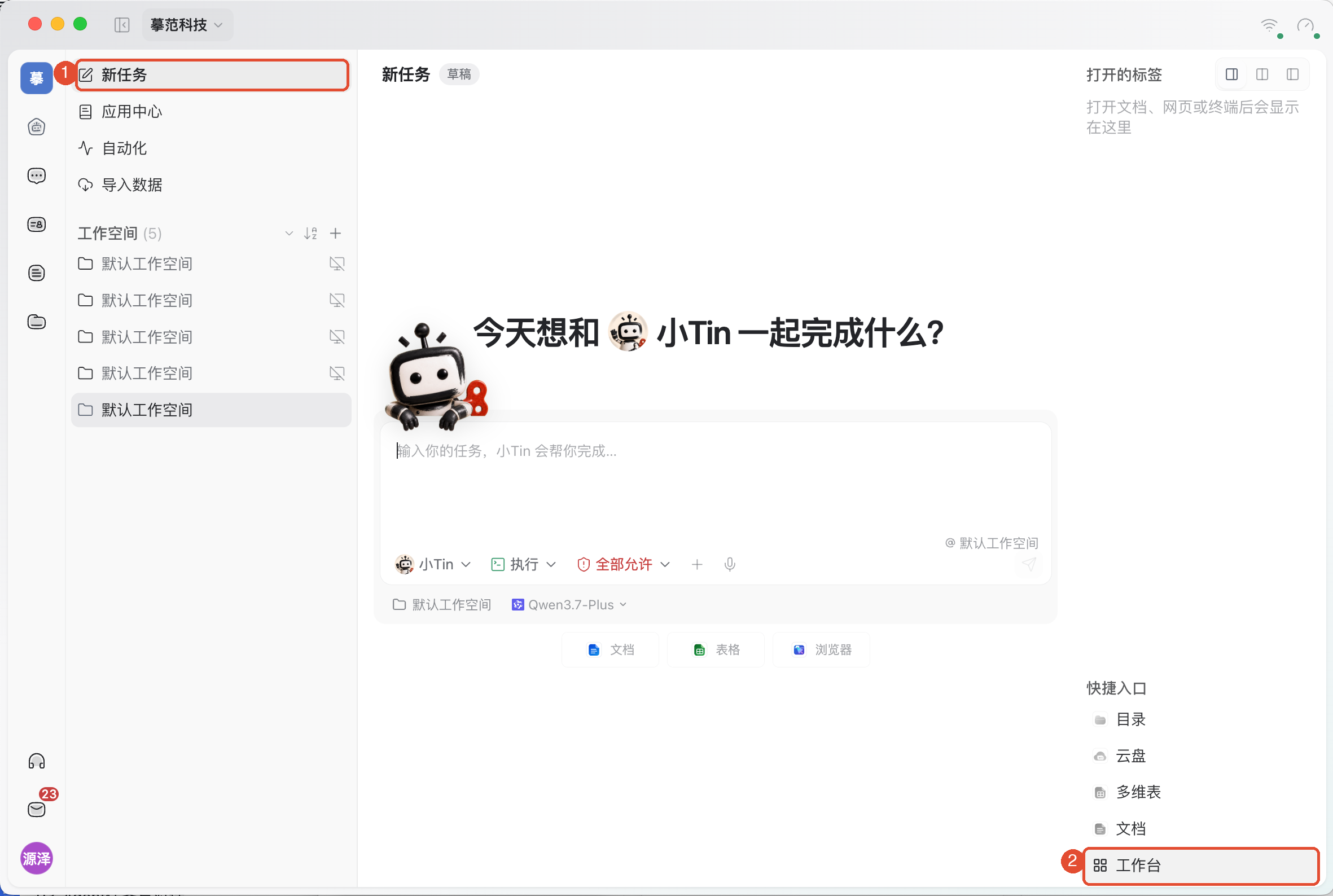
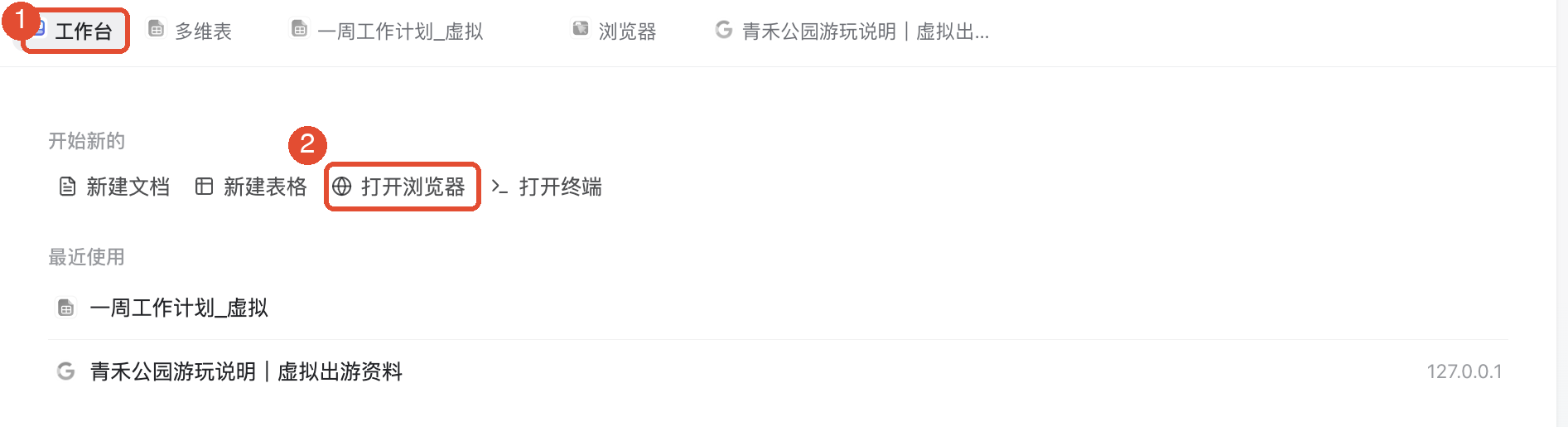
Once there, open the application using the steps below. If the top Workbench tab is already visible, click it to return to the application list.
1. Open the browser
In a task, click Workbench, then click Open browser. You can also choose Browser under All apps in the workbench.
2. Enter a URL and browse
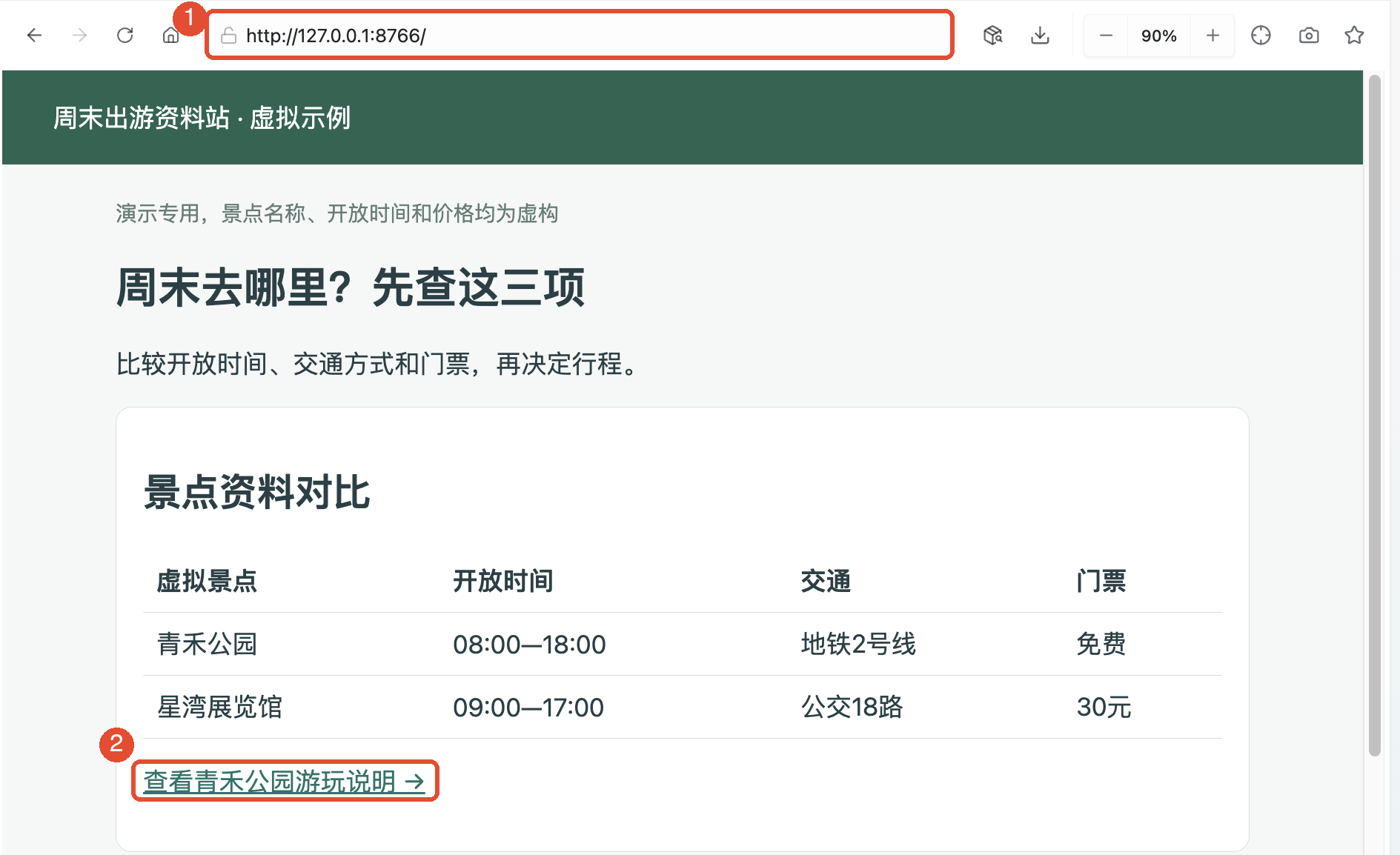
- On the browser start page, enter a full URL or search terms and press Enter. The page opens as a top tab.
- Check the title, URL, and body to confirm the intended page. To visit another page, enter a new URL in the address bar and press Enter.
- Click body links to read more—for example, go from an attraction comparison to park visiting details.
3. Go back and bookmark useful pages
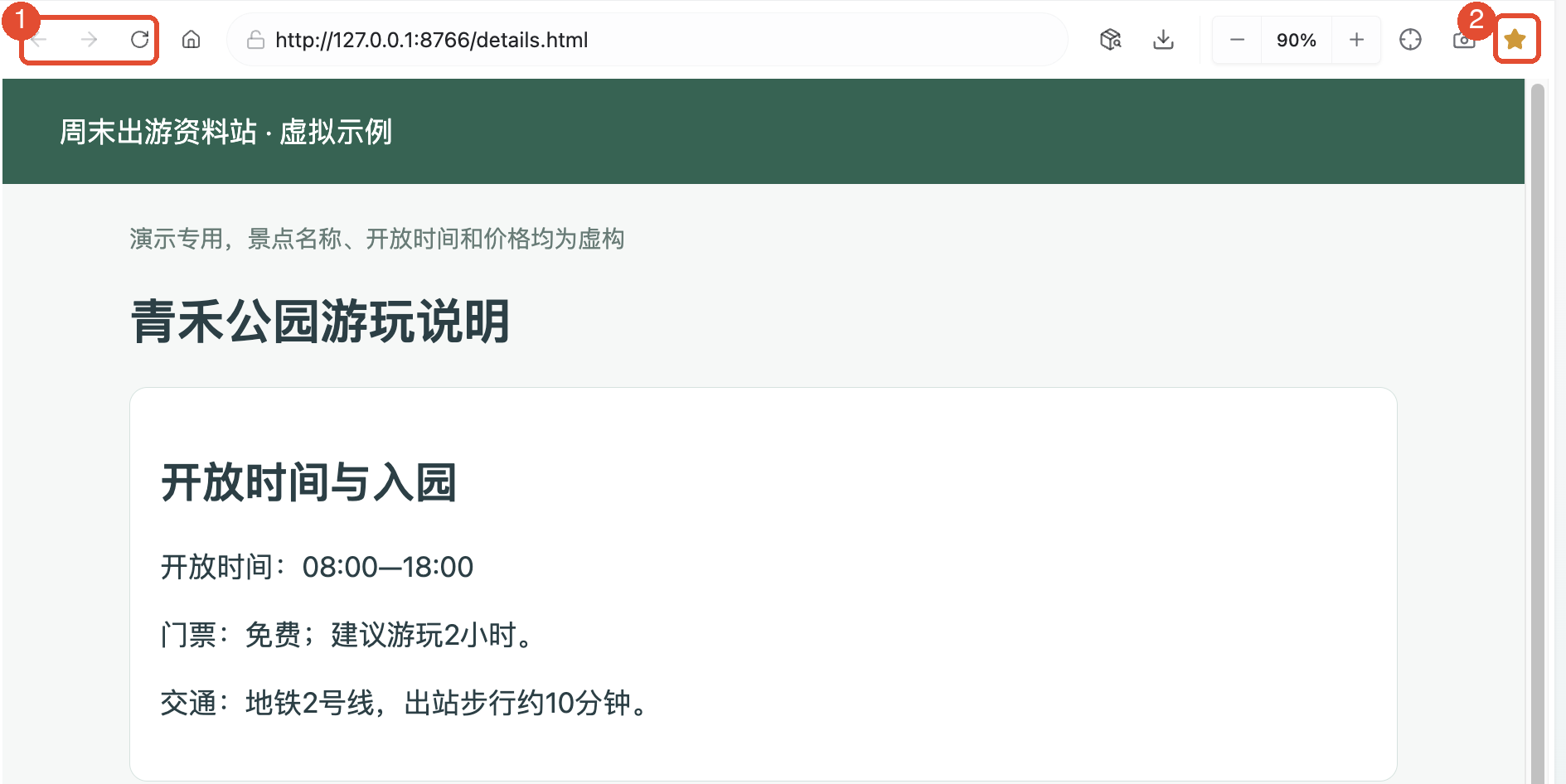
On the toolbar, click Back to return to the previous page, or click Forward to revisit it. To reload, click Refresh. Buttons are grayed out when no previous or next page is available.
To revisit the outing information later, click the right-side star-shaped bookmark button. Once saved, go from the browser start page to Bookmarks, find it by title or URL, and open it.
4. Find text on the current page
- Click the webpage first to focus the browser.
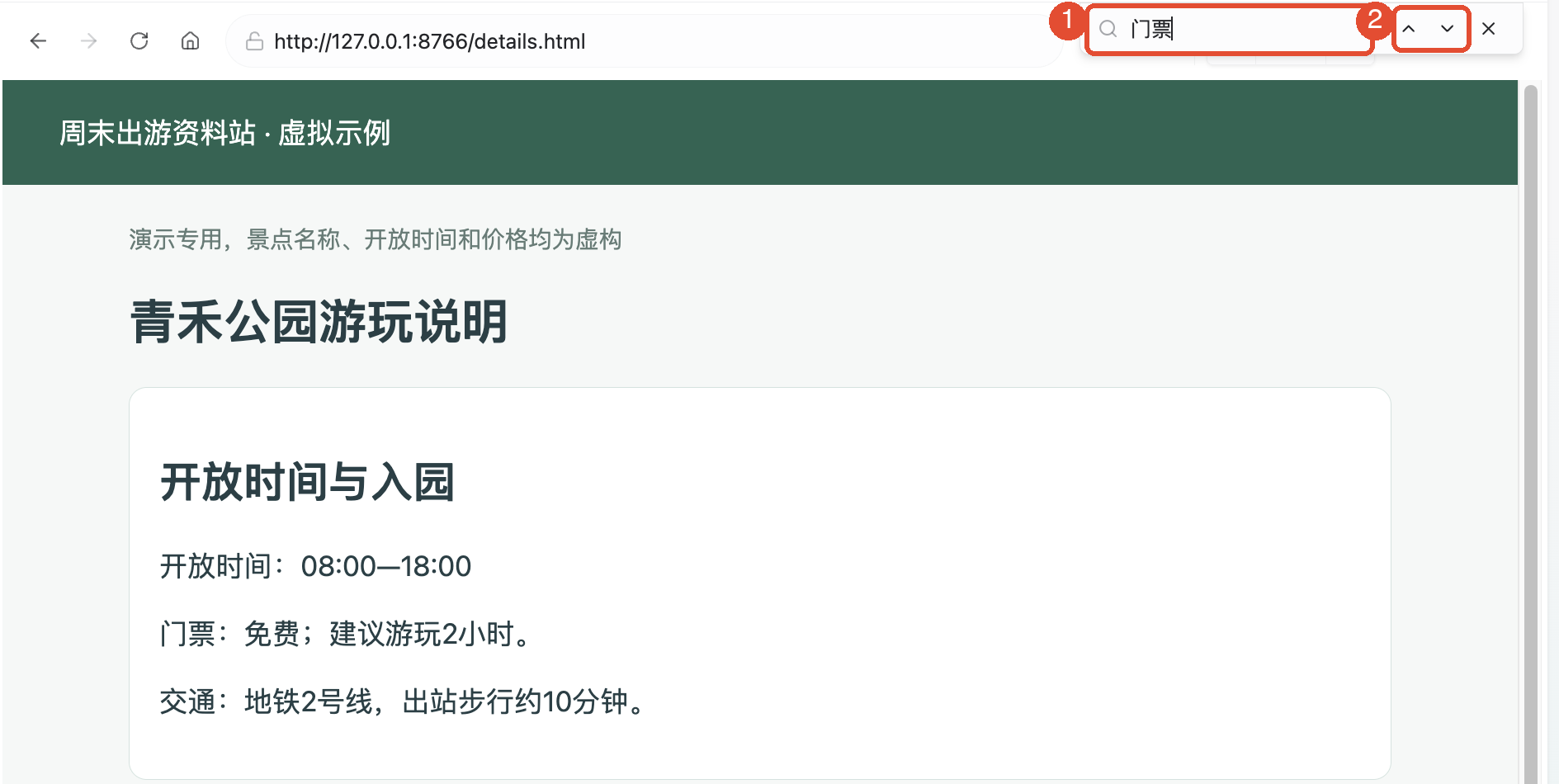
- Press ⌘F (Mac) or Ctrl+F (Windows) and enter a keyword, such as “tickets,” in the find bar at the top right.
- Use the arrows to move between matches; click × on the right of the find bar to close it.
Find on page searches only the current webpage. To search other websites, enter search terms in the address bar. To revisit pages you have seen, use Browsing history.
5. Reference page content for AI to organize
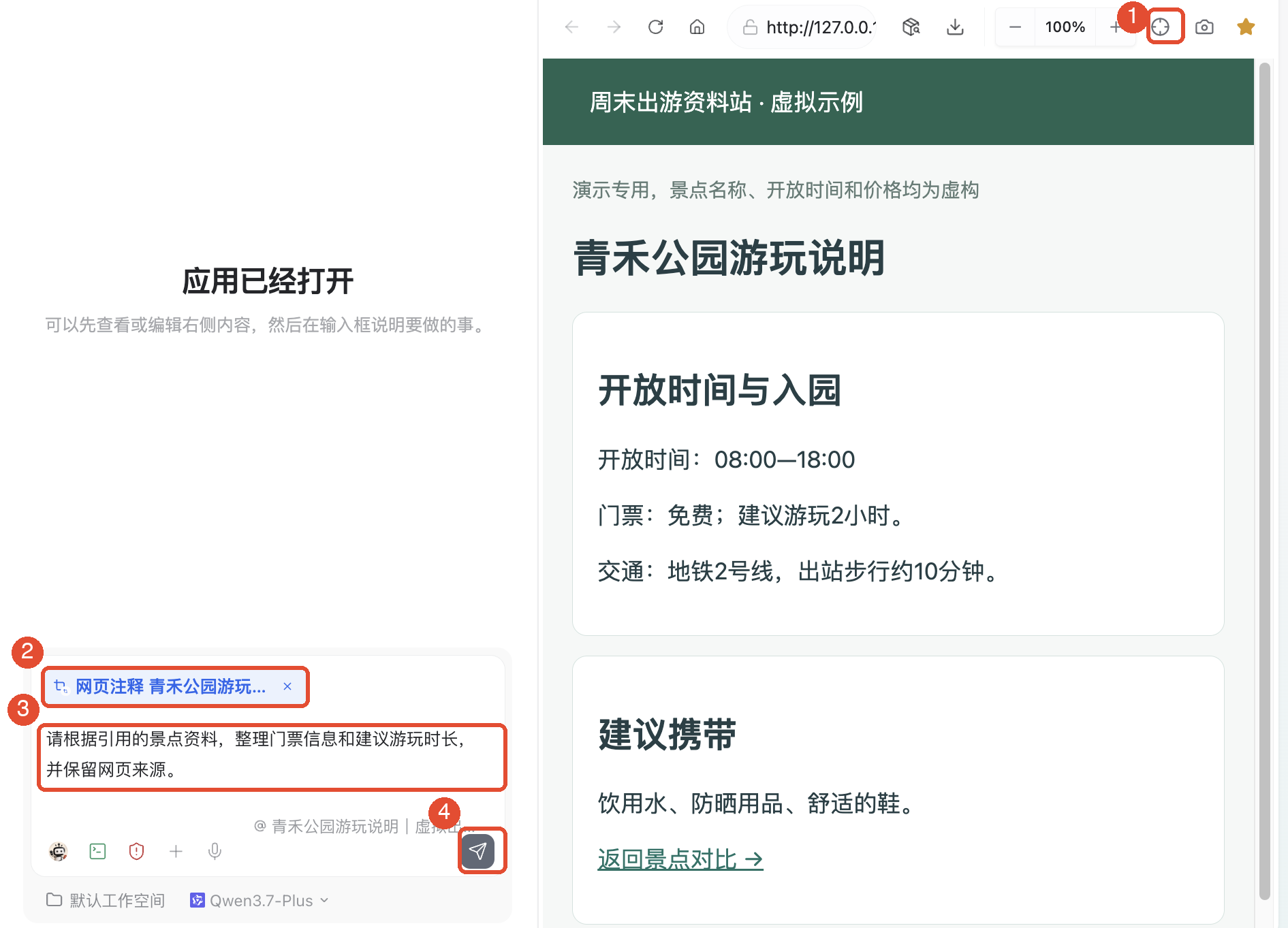
- Open the target page and click the toolbar’s Select page elements to add to conversation button. The interface prompts you to click a page element.
- Click the specific content to reference, such as ticket information. A Web annotation reference appears above the input box. If no input box is available, a new task draft opens with the reference.
- Write a clear request, check the referenced page and scope, and send.
For example: “From the referenced attraction information, summarize ticket details and suggested visit duration, keeping the source URL.” For the full page, explicitly ask it to read the current page. Referencing one heading does not include the whole page automatically.
If the right-hand page is collapsed, click the task’s top-right Split view to see the conversation and page together. Compare AI results with the source, checking prices, times, and omissions.
Other common features
Adjust reading and revisit pages
- Page zoom: Use + and − on the toolbar to resize; click the percentage to reset.
- Browsing history: Open Browsing history from the start page to browse by time or search part of a title or URL.
- Organize bookmarks: Open Bookmarks from the start page. Removing a bookmark deletes only its record, not the website.
- Switch tabs: Click an open webpage tab at the top. Check its title and URL before entering or submitting information.
Use text or screenshots as materials
Besides web annotations, select text and use the webpage context menu to add it to a conversation. To discuss visuals, click the toolbar’s Capture the visible webpage area and add to conversation to attach the current visible area. Content only revealed by scrolling is not automatically included.
View resources and download files
On the webpage toolbar, click Resource center to see images, audio/video, or documents detected on the page. Filter or search, select an item, verify its name, source, and available actions, then use Download.
Click Download manager to check progress and completed or failed status. Finding a resource in a list does not mean it is downloaded. Open completed files to verify their contents. Removing a download record and deleting a local file are different actions; follow the prompts.
Configure the browser and organize materials
The browser start page provides search engine, custom home page, access policy, and Credential and cookie management settings. These affect search entry points, home pages, and website sessions separately. For an ordinary page that will not open, check the URL, network, and execution device first.
When asking AI to export page text, extract lists, or organize media, specify sources, scope, output format, and save location. For example: “Compare opening hours, transport, and tickets from these two pages in a table. Keep the URLs and mark unspecified information as pending confirmation.” Success depends on website access and available tools; check actual files and sources afterward.
Things to keep in mind
- The browser requires an available execution device. If it reports offline, wake the corresponding device or switch to an available workspace, then reopen it.
- Adding a reference only prepares materials. AI starts processing after you write a request and send it.
- Bookmarks and history are mainly stored on this device; do not assume they sync elsewhere. Closing a tab does not sign out of a website account.
- Complete website sign-in, CAPTCHA, or verification prompts as required. Use the real website’s latest information for outing prices and opening hours.
FAQ
What if a URL will not open?
Check that the URL is complete, the execution device is online, and the network works; then refresh or follow the error instructions.
Why is there no reply after I add a reference?
Check whether you only opened a draft. Confirm that the input contains both the reference and a request, then click Send.
Why can I not find a downloaded file for a Resource center item?
Check Download manager to see whether it finished. Discovering, previewing, and downloading are separate steps. If it failed, return to the source page and verify the link.